Hi Rami,
To start, select the Tab widget and drag to the desired panel on the canvas. After the tab widget is on the canvas, you can add additional tabs as needed using the "+ Add Tab" option. One tab is the default. In the example below I have 2 tabs.
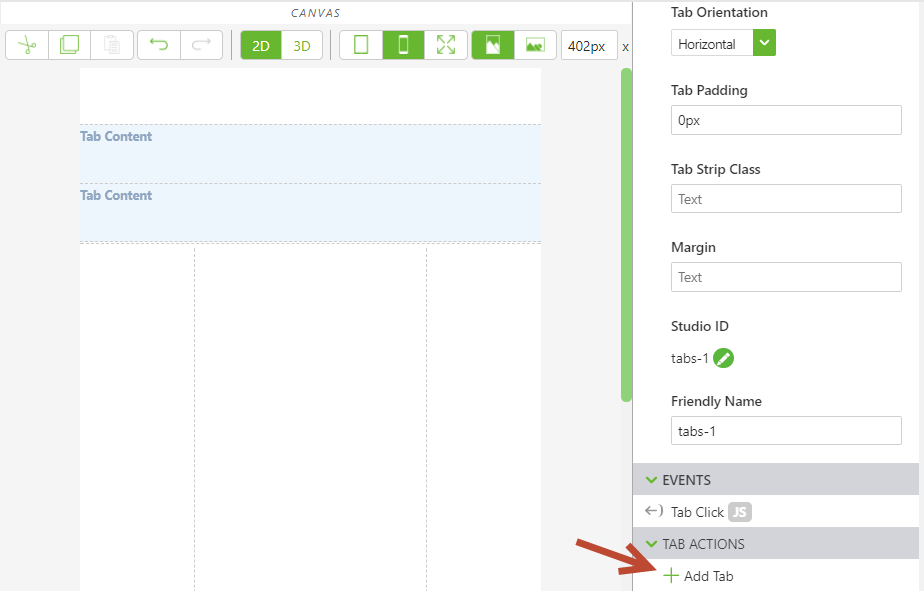
You can see that we now have two sections for "Tab Content". These correspond to the 2 tabs we created. The top one is for Tab 1, second for Tab 2. Each tab's display text can be changed using the "Title" field. For this example I stuck with Tab 1 and Tab 2.
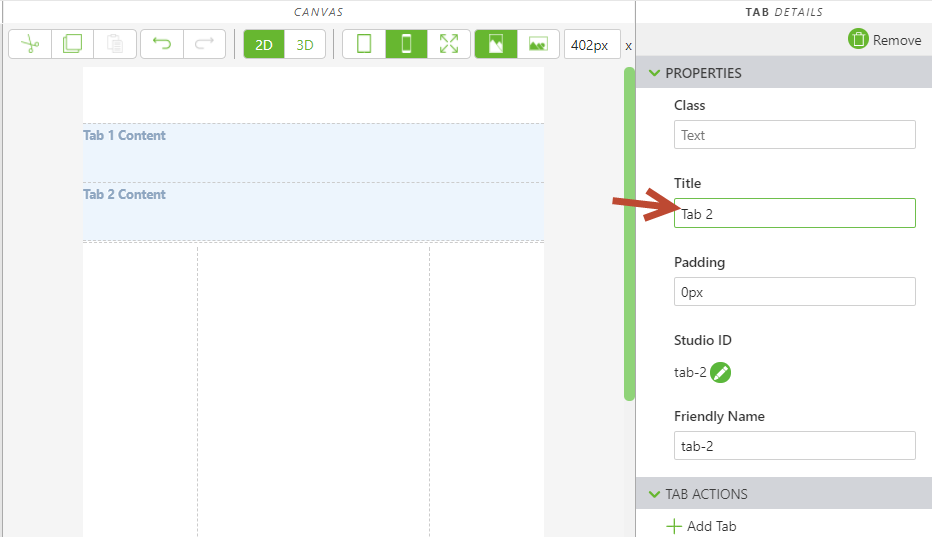
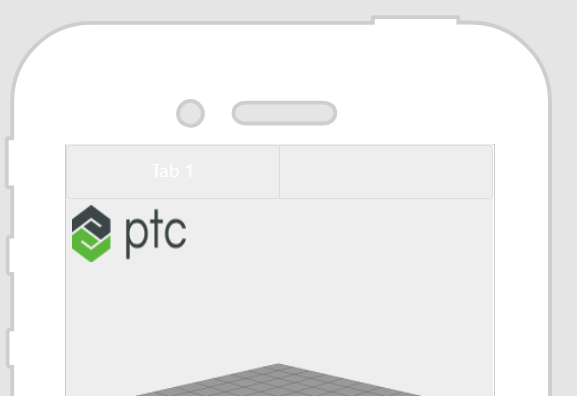
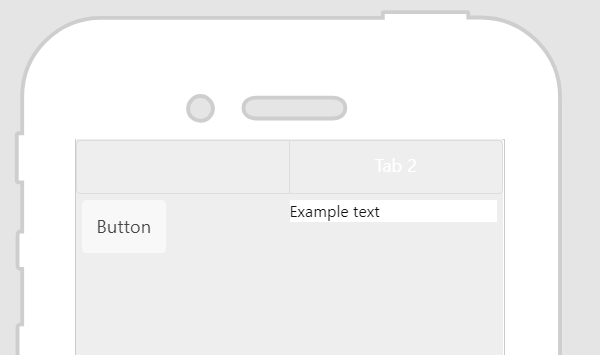
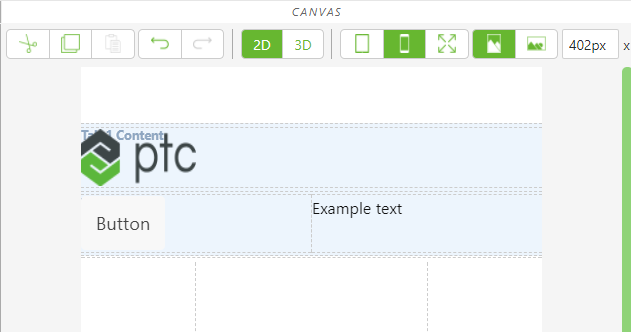
To add content to each tab, drag and drop additional widgets to the desired corresponding Tab Content area. In the example below, I added a grid widget to tab 1 content followed by a resource image widget. I added the PTC logo for my resource image. For Tab 2, I added a grid widget with 2 columns, then a button and text area. Below is what the canvas looks like after adding these items.
When we preview the project, we can see the tabs with their corresponding content.