Hello vivekse,
In order to achieve the overlapping 2D widgets effect shown in the video that you shared, you will first need to add 3 widgets as children of the 2D Overlay:
- a panel with the class and name set to "ControlPanel";
- an image with the class and name set to "CloseImage";
- an image with the class and name set to "OpenImage".
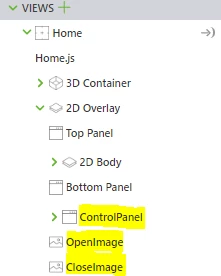
Then, you will need to customize the style of your widgets by adding some css code in the Application file that can be found under the Styles tab. It can be something like this:
.ControlPanel {
	position: fixed;
	right: 0;
	top: 0;
	bottom: 50px;
	width: 300px;
	background: rgba(0, 0, 0, 0.5) !important;
}
.OpenImage {
	position: fixed;
	top: 0;
	right: 0;
}
.CloseImage {
	position: fixed;
	top: 0;
	right: 0;
}
And also, you will need to add some functionalities to the OpenImage and CloseImage widgets (theyvwill act as buttons that open and close the ControlPanel). In order to do that, you can add something similar to this Javascript code in the Home.js file.
$scope.$on("$ionicView.afterEnter", function (event) {

 	document.querySelector('.ControlPanel').style.display = 'inline';
 	$scope.view.wdg['OpenImage']['visible'] = true;
 	$scope.view.wdg['CloseImage']['visible'] = false;

});


$scope.ShowHidePanel = function() {
 if ($scope.view.wdg['CloseImage']['visible'] == false) {
			$scope.view.wdg['CloseImage']['visible'] = true;
			$scope.view.wdg['OpenImage']['visible'] = false;
			document.querySelector('.ControlPanel').style.display = 'none';
 } else {

			$scope.view.wdg['CloseImage']['visible'] = false;
			$scope.view.wdg['OpenImage']['visible'] = true;
 			document.querySelector('.ControlPanel').style.display = 'inline';
 }
};
The last thing you need to do is to add the text ShowHidePanel(); in the Javascript box of the OpenImage and CloseImage.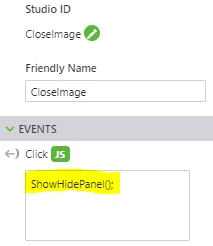
I hope this was useful.
Kind regards,
Lorena


