13-Aquamarine
March 14, 2019
Solved

Selecting a sub-assembly in vuforia-studio using 'model-item' widget

  • March 14, 2019
  • 1 reply
  • 1769 views

I've a top-assembly with five sub-assemblies, which i added into studio as .pvz file. There I want to play with the sub-assemblies individually (example: a button to change the transparency level of one sub-assembly alone), so I dropped the 'model-item' widget on my model. But it picked only one single part. Converting each sub-asembly into individual .pvz will work, but is there any way to pick a sub-assembly after importing the top level as a single model.


Thanks!
Best answer by sdidier

Hello,


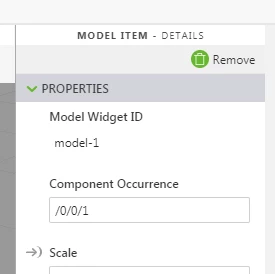
In Vuforia Studio, the Model Item has a field named Component Occurence.

With this field we can control which Component of the Assembly to use.

vuforia_studio_model_item_component_occurence.png


The solution to find quickly, the path of occurrence is to use Creo View and to follow these steps :

  1. In Creo View, open the pvz file
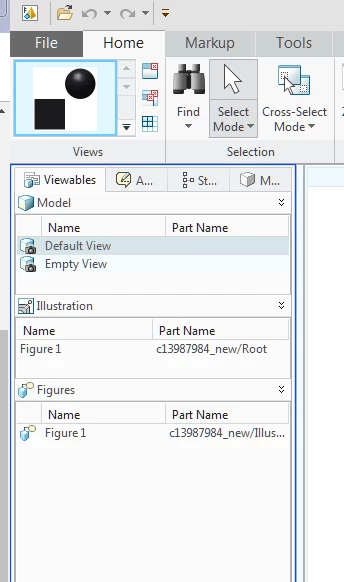
  2. In Viewables tab, in Model list, click the Default View itemCreo_view_viewables.png


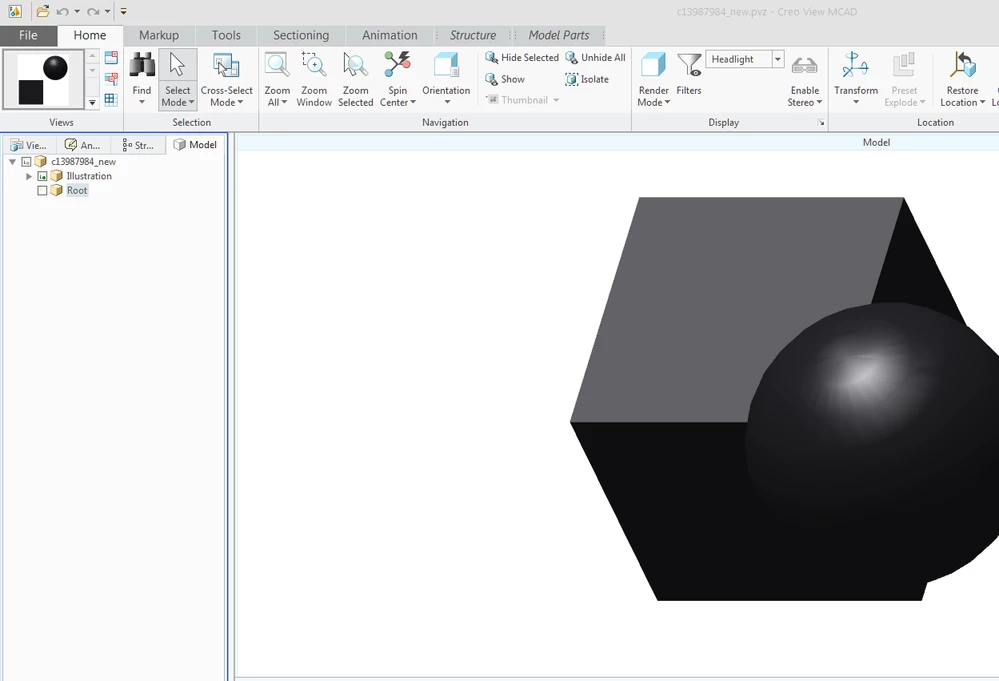
  3. In the Model tab, in the tree, select the sub Assembly, Part or Component wantedcreo_view_model.png


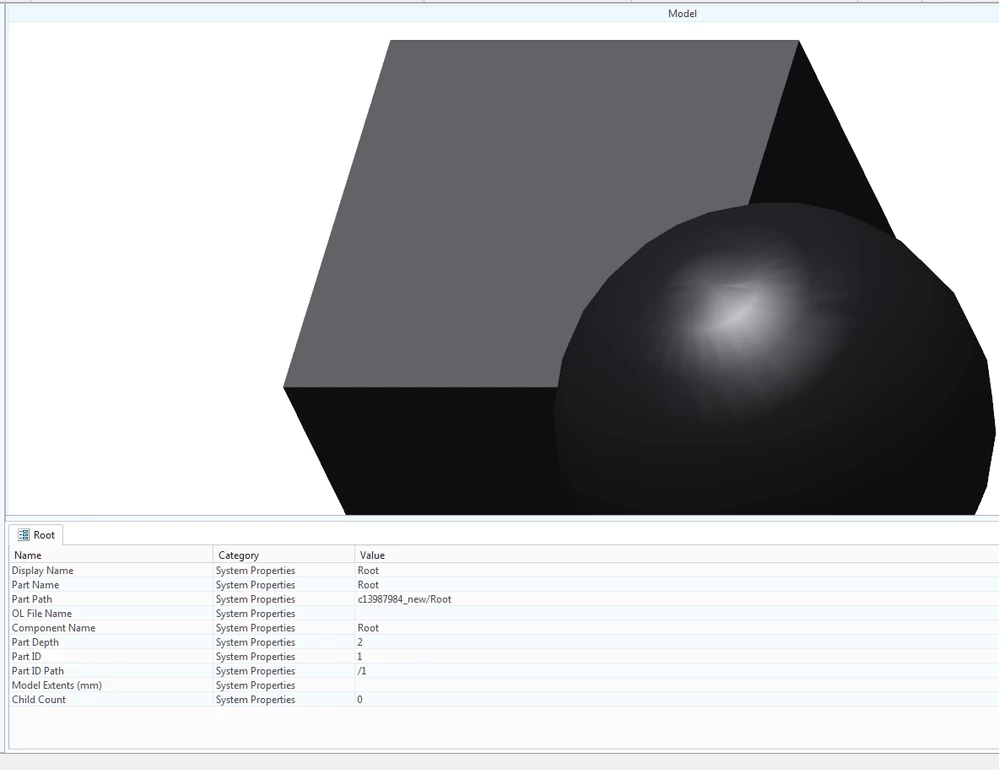
  4. In the Root tab, scroll down until to see the Part ID Path setting. It is the same value to use in Vuforia Studiocreo_view_part_id_path.png


Best regards,

Samuel


1 reply

sdidier17-PeridotAnswer
17-Peridot
March 14, 2019

Hello,


In Vuforia Studio, the Model Item has a field named Component Occurence.

With this field we can control which Component of the Assembly to use.

vuforia_studio_model_item_component_occurence.png


The solution to find quickly, the path of occurrence is to use Creo View and to follow these steps :

  1. In Creo View, open the pvz file
  2. In Viewables tab, in Model list, click the Default View itemCreo_view_viewables.png


  3. In the Model tab, in the tree, select the sub Assembly, Part or Component wantedcreo_view_model.png


  4. In the Root tab, scroll down until to see the Part ID Path setting. It is the same value to use in Vuforia Studiocreo_view_part_id_path.png


Best regards,

Samuel


venkatraj13-AquamarineAuthor
13-Aquamarine
March 14, 2019

Excellent!!! It worked. Thanks.