
1-Visitor
December 29, 2011
Solved

Adding specific tolerance tables

  • December 29, 2011
  • 5 replies
  • 10371 views

Hi!

Let's go for my first post here!

I'm trying to add specific tolerance tables in WF5 (Creo elements/pro).

The aim is to set tolerances of a plastic part to the french standart NF T 58000 (standard for plastic parts, depending on materials) , or of a sheet metal part to the french standard NFE02-352 (standard for sheet metal part, depending on thickness & machining process).

I've tried to edit the default ISO table (with file / setting / tolérances / change / tol table ..), then to modify & save it, but when I try re-load it, I've got an error message: "unable to find file in the current folder".

Then I've tried to copy & rename the "general_def.ttl" file , then to modify it with a wordpad. When I try to load it in ProE, I've got an error message: "an error occurs when reading the file".

I'm feeling that I go to a wrong way ...

Has anybody the right way to do it ?

Thanks in advance for your answers!

Eric.

Nota: Please apologize for english mistakes!


This thread is inactive and closed by the PTC Community Management Team. If you would like to provide a reply and re-open this thread, please notify the moderator and reference the thread. You may also use "Start a topic" button to ask a new question. Please be sure to include what version of the PTC product you are using so another community member knowledgeable about your version may be able to assist.
Best answer by BrianMartin

Hi Eric....

Congratulations on your first post and welcome to the Community.

I can help you with both of your problems. There are a few things to know:

  • The configuration option tolerance_table_dir points to the location on your harddrive, network shared drive, or in Windchill where your company's standard tolerance tables are saved. By default this location is down inside the directory where Creo Elements Pro/WF5 is installed. This is something like C:/<loadpoint>/tol_tables/iso by default.
  • When you're in the tolerance table editor (which is usually an editor called Pro/TABLE - "protab" for short) a temporary version of your table will be placed in your current working directory. This is NOT your workspace, but your "Working Directory". This is usually the directory Pro/E was started in.
    • If you're unsure what your current working directory is, go to the Folder Navigator and select Working Directory or attempt to open any new file and select Working Directory from the left hand list of folder locations in the "File Open" dialog box.
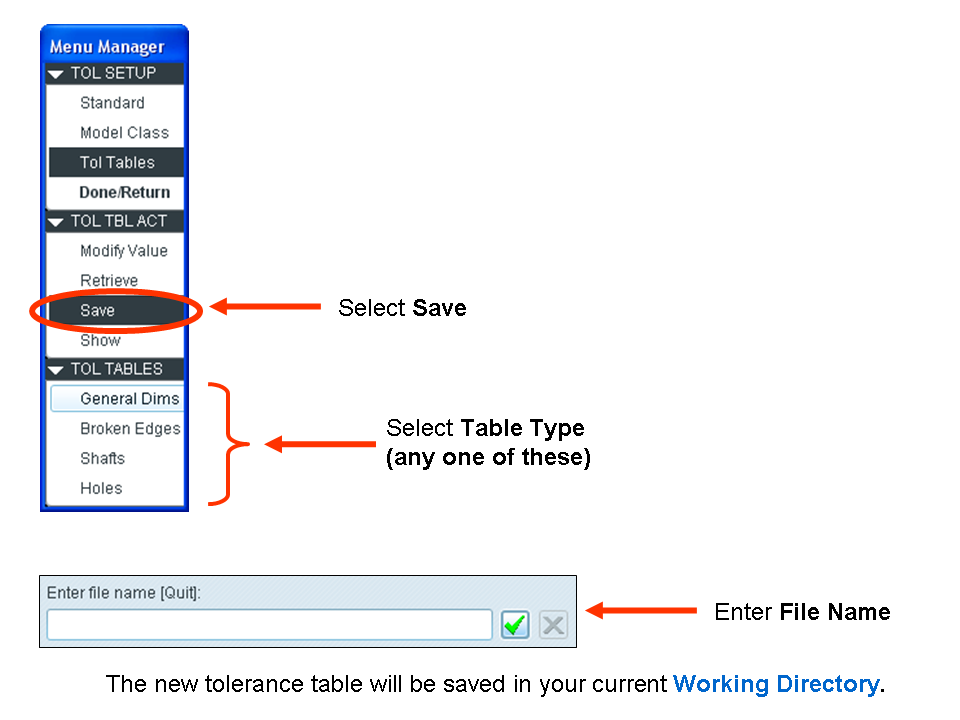
  • Simple using the File>Save or File>Save As functions inside the Pro/TABLE editor is NOT ENOUGH to save your tolerance table so you can use it again later. To save it for later use, select Save from the Tol Tbl Act menu as shown below. Select the table type. Enter a name for your tolerance table. The table will be saved in the current Working Directory. See the image below (click it for a larger view).

tol_table.png

Finally, once you've created your table, you can reuse it (using Retrieve from the same TolTblAct menu above). You can edit the table outside of Pro/E but you don't want to attempt this in a regular text editor. the best way to edit the table is within the Pro/TABLE application.

Each installation of Pro/E or Creo comes with the Pro/TABLE application. It's down inside the load point for Pro/ENGINEER. Its called protab.exe and should be in a directory named something like C:\<loadpoint>\x86e_win64\obj\protab.exe I'm on a 64 bit workstation so your path may vary if you're on a 32bit system. You can always perform a search on protab.exe. If you open your table file with this application, you will be able to make edits.

Good luck and best regards,

-Brian

5 replies

13-Aquamarine
December 29, 2011

Hi Eric....

Congratulations on your first post and welcome to the Community.

I can help you with both of your problems. There are a few things to know:

  • The configuration option tolerance_table_dir points to the location on your harddrive, network shared drive, or in Windchill where your company's standard tolerance tables are saved. By default this location is down inside the directory where Creo Elements Pro/WF5 is installed. This is something like C:/<loadpoint>/tol_tables/iso by default.
  • When you're in the tolerance table editor (which is usually an editor called Pro/TABLE - "protab" for short) a temporary version of your table will be placed in your current working directory. This is NOT your workspace, but your "Working Directory". This is usually the directory Pro/E was started in.
    • If you're unsure what your current working directory is, go to the Folder Navigator and select Working Directory or attempt to open any new file and select Working Directory from the left hand list of folder locations in the "File Open" dialog box.
  • Simple using the File>Save or File>Save As functions inside the Pro/TABLE editor is NOT ENOUGH to save your tolerance table so you can use it again later. To save it for later use, select Save from the Tol Tbl Act menu as shown below. Select the table type. Enter a name for your tolerance table. The table will be saved in the current Working Directory. See the image below (click it for a larger view).

tol_table.png

Finally, once you've created your table, you can reuse it (using Retrieve from the same TolTblAct menu above). You can edit the table outside of Pro/E but you don't want to attempt this in a regular text editor. the best way to edit the table is within the Pro/TABLE application.

Each installation of Pro/E or Creo comes with the Pro/TABLE application. It's down inside the load point for Pro/ENGINEER. Its called protab.exe and should be in a directory named something like C:\<loadpoint>\x86e_win64\obj\protab.exe I'm on a 64 bit workstation so your path may vary if you're on a 32bit system. You can always perform a search on protab.exe. If you open your table file with this application, you will be able to make edits.

Good luck and best regards,

-Brian

EricG.1-VisitorAuthor
1-Visitor
December 30, 2011

Hi Brian,

Thanks for your answer !

I'm on going to test your method ... Seems OK but with some remarks!

I will give a complete feedback begining of next week ! (of next year!)

Best regards !

Eric

13-Aquamarine
January 2, 2012

Thanks Eric...

Let us know how it goes.

Happy New Year BTW!

-Brian