4-Participant
December 13, 2023
Solved

Aerfoil import

  • December 13, 2023
  • 2 replies
  • 2167 views

Hi, I am importing an aerofoil into Creo 8, I am following steps done by You-tube videos, however the aerofoil comes out like below.

I am using the following aerofoil: 

Any tips would be appreciated thanks 
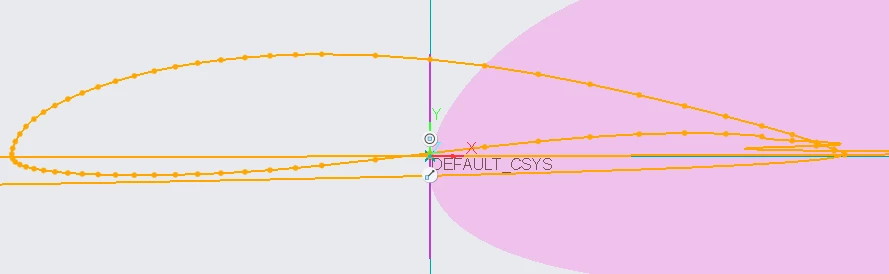
Aerofoil.png


Best answer by kdirth

I was able to get a smooth curve using the xlsx data.  You probably have an issue with how you imported the xlsx data to create the points for the curve.

kdirth_0-1702481036802.png

Here is how I did it:

  • Save xlsx as csv
  • Open csv in Word
  • Replace commas with several spaces
  • In creo, select point by offset coordinate system
  • Select Update Values... (notepad should open)
  • Copy and paste data from Word into notepad window 
  • Close notepad and save.
  • Select OK
  • Create curve

2 replies

tbraxton
22-Sapphire II
December 13, 2023

It looks like the points are not a closed loop. Plot the points in Excel to confirm the start and end point are congruent. If they are not, fix your Excel data.


You should also take a look at the use of .ibl files if you are working with aero surfaces generated from equations that you will import into Creo.

kdirth
kdirth21-Topaz IAnswer
21-Topaz I
December 13, 2023

I was able to get a smooth curve using the xlsx data.  You probably have an issue with how you imported the xlsx data to create the points for the curve.

kdirth_0-1702481036802.png

Here is how I did it:

  • Save xlsx as csv
  • Open csv in Word
  • Replace commas with several spaces
  • In creo, select point by offset coordinate system
  • Select Update Values... (notepad should open)
  • Copy and paste data from Word into notepad window 
  • Close notepad and save.
  • Select OK
  • Create curve
There is always more to learn.