
13-Aquamarine
November 16, 2022
Solved

Appearance shows default instead of part specific

  • November 16, 2022
  • 1 reply
  • 1430 views

Using Creo 7.0.5.0


I have an assembly that mostly consists of steel parts. However, as seen below there are two bronze bushings that I have given the bronze_ptc appearance. Despite that, the cut surfaces show as the "default" appearance when doing a section view (just a straight offset section from the Right plane).
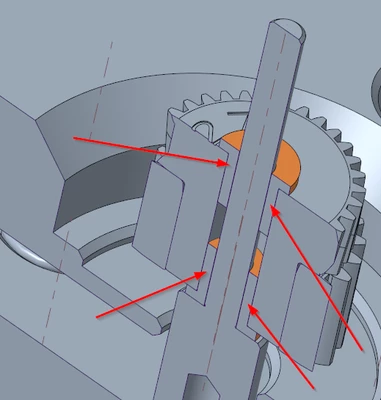
 

EdvinTailwind_0-1668608167977.png


I expect something like this (mockup):
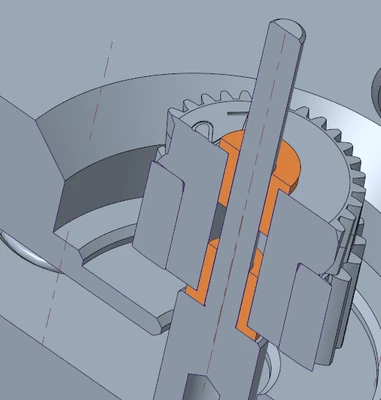
 

EdvinTailwind_2-1668609062509.png


I even changed the part material to BRONZE_CAST, but still the same result.
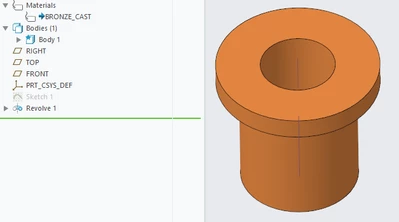
 

EdvinTailwind_1-1668608259066.png

Neither Regenerate or Repaint makes any difference.


Any solution to this or is it a Creo limitation?

Best answer by EdvinTailwind

No, I hadn't tried that. That did sort of work, but only on the instance that was selected, and I would have to edit every single instance of this bushing in the assembly (there are quite a few).


You did give me a clue to the proper solution though:

In the part, use Selection -> Body  and then set the appearance. Now the solid got the same material all the way through.

1 reply

23-Emerald III
November 16, 2022

Did you use the selection drop-down in the lower right and set it to Part when selecting the bushings to change the color?

EdvinTailwind13-AquamarineAuthorAnswer
13-Aquamarine
November 16, 2022

No, I hadn't tried that. That did sort of work, but only on the instance that was selected, and I would have to edit every single instance of this bushing in the assembly (there are quite a few).


You did give me a clue to the proper solution though:

In the part, use Selection -> Body  and then set the appearance. Now the solid got the same material all the way through.

tbraxton
22-Sapphire II
22-Sapphire II
November 16, 2022

Assuming the bushings (parts) have something in common that can be used in the search tool, you can select them all at once in assembly mode.


See the enclosed video for an example of how to select components by name in assembly mode using the search tool.