

1-Visitor
October 17, 2019
Question

Change default position of a Part - Creo Parametric

  • October 17, 2019
  • 2 replies
  • 10666 views

I have a part that when I add it or apply Edit Definition in Default position it is out from where it should be. Then I need to Edit Definition it, move it to where I need and fix it. Someone knows if it is possible to change the Default position?

I have Creo Parametric 
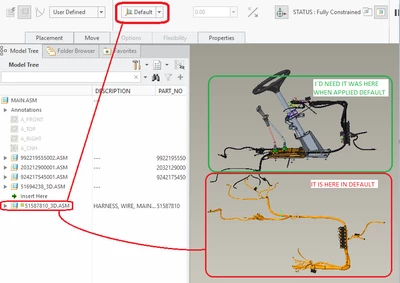
clipboard_image_2.png


Thanks!!

2 replies

23-Emerald III
October 17, 2019

Default is ALWAYS the default coordinate system of the part (component) to the default coordinate system of the assembly.

You can not change that.

You can reposition the geometry of your part so it is in the correct location with respect to its coordinate system so it is in the correct location in the assembly. 

21-Topaz II
October 18, 2019

Using a "global" coordinate system is something I've used in projects that have a large amount of parts and lots of people working on them. I.e. for every aerospace project I've ever worked on, there's an aircraft coordinate system (usually at the nose of the plane or whatever the vehicle is) which defines a particular part's location in space on the thing. It's a bit problematic when the part you're working on is at the aft end of the vehicle and your default coordinate system is very far away, but that's the price we have to pay. Makes assembly of parts trivial, and has the added benefit of being able to pull in other parts of the overall project to make sure your stuff is accessible, is not interfering, or if you want to run a quick flow analysis and such.


kdirth
21-Topaz I
21-Topaz I
October 18, 2019

Creating a "working" coordinate system, offset from the default can work.

  1. Place the part in the correct location.
  2. Transform measure from the assembly default to the part default and save the result in a file.
  3.  In the part, create a "working" coordinate system and place it directly below the default.
  4.  Using Edit References, change all references to the default to the working coordinate system.
    • Planes, axis, points, extrudes, sketches, etc
There is always more to learn.
eschinzel1-VisitorAuthor
1-Visitor
October 18, 2019

Unfortunately I couldn´t do the steps 2, 3 and 4. I would need more details regarding them please (more step by step).


Thanks!

kdirth
21-Topaz I
21-Topaz I
October 21, 2019

Transform Measure: Select last button, Select blue info icon and save the file.

Transform.jpg

Coordinate System: Create new coordinate system from the default and select From File and select file previously created.

coordinate.jpg

Edit References: Select all features that reference the default coordinate system and select the Edit References button from the pop up.  For every instance of Default (CSYS) select the new coordinate system as the replacement.

reference button.jpg    edit ref.jpg   


There is always more to learn.