4-Participant
January 12, 2024
Question

Depicting a rotating assembly in multiple positions with no user input beyond "open assembly"

  • January 12, 2024
  • 2 replies
  • 2633 views

Software:  Creo 9.0


I have an assembly with a rotating component. Other users want to open CAD assemblies with depictions of this component at its limits of travel. There is also a need to calculate the CG of the assembly with the component at its limits of travel.


I am aware of "Explode State", but there are two reasons why it is not a complete solution:


1) the other users have minimal training and are not aware of how to activate or use the Explode State function.
2) the need to calculate CG of the assembly requires that it be actually positioned at the limits of travel, and Explode State is only visual.


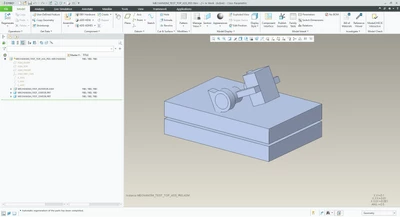
I can use Family Tables with the component positioned using Angle Offset, but I can't figure out how to get Family Table to affect dimensions of lower-level assemblies.  The result is that the bearing housings on the component rotate as well and are not oriented correctly.


How would you suggest I resolve this issue?  The greatly-preferred method would be something involving Family Tables, so that users get a dialog when opening the assembly and do not need to perform secondary activities like setting Combined Views or Explode States.  Duplicating parts and using Simplified Reps to turn "extra" items off is greatly not preferred because it interferes with PDMLink BOM generation.

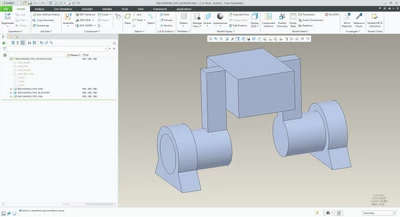
Rotating component with bearing housings:
MP_10062680_0-1705080863633.png


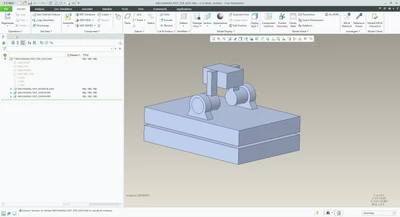
Top assembly with baseplate:

MP_10062680_1-1705080889219.png


What I am able to do with a Family Table and Angle Offset of the rotating component:
MP_10062680_2-1705080965030.png


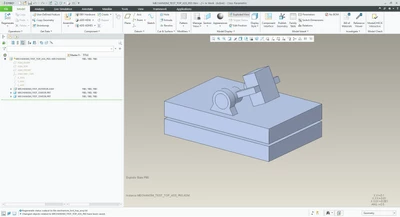
What I would like to see when I open the Family Table "rotated" instance, preferably without needing to also set an Explode State:
MP_10062680_3-1705081035876.png


2 replies

tbraxton
22-Sapphire II
22-Sapphire II
January 12, 2024

Mechanism snapshots will capture the position(s) required and those can be recalled on demand. I would not use family table for this.


About Dragging and Taking Snapshots (ptc.com)

4-Participant
January 12, 2024

Thank you for the reply, but the mechanism snapshot functionality is not easily accessible to the intended user.

tbraxton
22-Sapphire II
22-Sapphire II
January 12, 2024

The intended user is not able to open a Creo assembly model? I am pretty sure that there is no need to enter the mechanism application once the snapshots are defined. If they can open an assembly, they should be able to manipulate the saved snapshots.

Michael
16-Pearl
16-Pearl
January 12, 2024

Using Combine States in Creo can be a very effective solution for your scenario. Combine States allow you to set up and save specific configurations of an assembly, including part positions, display styles, and exploded views. Here’s how you can utilize Combine States for your assembly with a rotating component:


1. Set Up the Rotating Component in Desired Positions: Position the rotating component at its limits of travel. You may need to create two or more different positions representing the range of motion.


2. Create Combine States: For each position of the rotating component, create a new Combine State. In each state, adjust the visibility and orientation of components as needed. This might involve showing or hiding certain parts, or using different display styles for clarity.


3. Configuring Bearing Housings: Since the bearing housings should remain fixed and not rotate with the component, ensure their orientation is correctly set in each Combine State. You can manually adjust their position if necessary.


4. Calculating Center of Gravity (CG): You can perform CG calculations for each Combine State. This would provide the CG data for the assembly with the rotating component at its different positions.


5. Simplified User Interaction: Combine States can be named and saved within the assembly file. When other users open the assembly, they can easily switch between these pre-configured states without having to manipulate the model themselves. This simplifies the process significantly for users with minimal training.


6. Documentation for Users: Provide simple instructions or a quick reference guide for users on how to switch between Combine States. This guide can include information on selecting the correct state for their needs and interpreting the CG data.


By using Combine States, you address both the visual representation of the assembly at different stages of the rotating component’s travel and the need for calculating CG in these positions. This approach is user-friendly and doesn’t require users to have extensive knowledge of manipulating the assembly, making it ideal for your scenario.

~ CreoVerse

Michael Bourque