1-Visitor
February 1, 2011
Solved

Hidden lines display and PDF files : the big mystery ...

  • February 1, 2011
  • 2 replies
  • 38965 views

Hi PTC Community !

This is my first (and long... sorry) post. I write because I have been spending the last two years to solve a problem that is easy do describe :

How do I get a good display of the hidden lines on PDF files with the SaveAs PDF command ???

I still could not get the answer ...

First of all there are two ways to get a PDF file from a detailed drawing :

1) File --> Print. Select "MS Printer Manager", then OK and select your "PDF printer" in the "Name" field. Here is what I obtain with my "Adobe PDF" program :
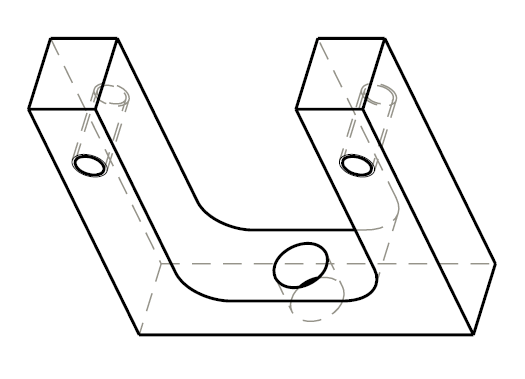
Image1_OK.png

As you can see, the dashed hidden lines are well displayed and are BEHIND the black solid lines that describe the shape of the object.

If you modify the plot_linestyle_scale parameter, the size of the hidden line changes. Here is what happens when I change the value from 3 (previous picture) to 1 (next picture).
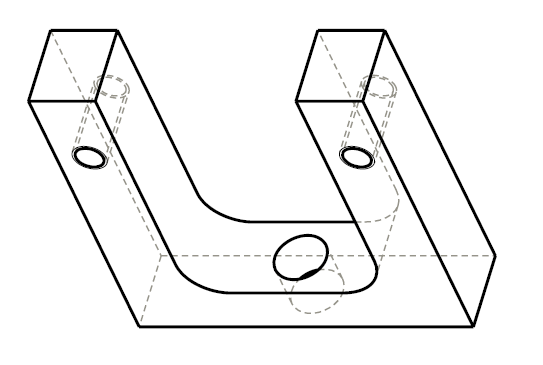
Image2_OK.png

Now the hidden lines appear with smaller elements.

With this method, all is ok .

2) Click on the SaveAs PDF button in the toolbar :

Save.png

Here is what I obtain :

Image3_NoOK.png

As you can see, the dashed hidden lines have very long elements (they seem to be solid) and, if you look carefully, they appear IN FRONT of the black solid lines, in the same way as already described in the thread http://communities.ptc.com/message/158760. The black solid lines are also thinner than with method 1.

If you modify the value of "plot_linestyle_scale", there is NO modification.

In other forums where this problem of hidden lines style is described, people confuse the two ways to get the PDF and say : modify the "plot_linestyle_scale" to get your result...

As I said, my question is : How do I get a good display of the hidden lines on PDF files with the SaveAs PDF command ???

More generally :


How do I modify the appearance of the drawings processed with the "SaveAs PDF" command ?

For technical reasons, I need to use the method number 2. So, please, don't say "Sylvain, use method 1" .

Thread http://communities.ptc.com/message/158760 could not help me, as it uses File --> Print method.

I use ProE WildFire 4.0

Thank you !


This thread is inactive and closed by the PTC Community Management Team. If you would like to provide a reply and re-open this thread, please notify the moderator and reference the thread. You may also use "Start a topic" button to ask a new question. Please be sure to include what version of the PTC product you are using so another community member knowledgeable about your version may be able to assist.
Best answer by James62

hi Sylvain,

This is my new *.pnt file:

! pen 1 for white (visible geometry, curve, quilts)
! pen 2 for yellow (spline surface grid)
! pen 3 for gray (hidden geometry)
! pen 4 for red (dimension lines, leaders, axes and centerlines, balloons, x-hatching)
! pen 5 for green (sheet metal color entities)
! pen 6 for cyan (sketcher section entities)
! pen 7 for dark gray (toggled sections, grayed dimensions and texts, dimmed tangent edges)
! pen 8 for blue (spline surface grid)

pen 1 thickness .05 cm; color 0 0 0
pen 2 thickness .025 cm; color 0 0 0
pen 3 color 0.0 0.0 0.0; pattern .2 .1 cm; thickness 0.025 cm; half_tone_color
pen 4 color 1.0 0.0 0.0; thickness 0.025 cm; letter_color
pen 5 thickness .05 cm; color 0 0 0
pen 6 pattern .2 .2 cm; thickness .025 cm; color 0 0 0
pen 7 thickness .025 cm; color 0 0 0
pen 8 thickness .025 cm; color 0 0 0

Notice that i switched pen 2 and pen 4 notes. This table.pnt does red dimension lines etc.

I've found few options for config.pro related to printing:

use_software_linefonts

- I have this one set to no, couldn't see any difference in the change of this option

use_8_plotter_pens

- didn't quite figure out what does this one do but I have it set to yes to use all 8 pens

plot_linestyle_scale

- this one can be of a value 1 or more for shorter dashes in hidden lines

- if you put pattern command in your *.pnt file then this command has no effect

Well this simply means that you can change the length of the dashes. But about the gray hidden lines always being above black geometry lines I don't really know. Guess the only choice for you is to use black hidden lines as well.

You get a vectorized graphic while exporting to pdf and for some reason the pen 1 is always written first to the pdf before pen 3, Strange is that pen 1 is written after pen 4.

2 replies

1-Visitor
February 1, 2011

I realize this probably won't help you out, but I thought that I would post anyway. I noticed you said you were using WF 4.0. We are on 5.0 here and I tried to print and PDF and do a save as PDF and could not tell a difference between the two files. Again sorry that I don't have the answer, but thought It may be worth noting.

-Greg

Sylvain1-VisitorAuthor
1-Visitor
February 1, 2011

Thank you Greg

I don't think it is a problem of version. I think that your ProE is correctly configured. It seems strange to believe that this fundamental functionality (to show hidden lines on a PDF file) was not included in the previous versions of ProE.

There should be the magical option hidden somewhere that enables to get the same result for both methods of PDF creation...

If not, I do not see the purpose of the SaveAs PDF command ...

Sylvain

1-Visitor
February 1, 2011

Do you have the following option set? sounds like it could be the culprit if you are using the default value in your config.pro options....

Config Option:

pdf_use_pentable

Data Exchange No - PDF export does not use any

defined pentable changes as would be

applied to plotting the drawing.

Acceptable Values:

yes, no

Default Value:

no

Hope this helps,

-Greg

12-Amethyst
May 7, 2014

Has anyone figured out a solution to this problem, RE: I want to utilze the SAVE AS>PDF without the hidden lines obscuring visible solid lines and particularly call-outs or annotations (and avoid the printing with a PDF printer method)?

I am having the same issue the OP mentions however have not found a work around. Please see the image below. The call out arrow as well as the visidble geometry are clearly behind the hidden lines whereas they should be in front. Using a PDF printer resolves the issue however this method is cumbersome and time consuming. I have configured my pen table correctly and I don't believe that is an issue.

Untitled.jpg

Thanks in advance for any help!!

1-Visitor
May 7, 2014

If you used black for the hidden lines the error would go unnoticed.

This is most likely the 'fix' seen in the sequence above.

Probably it is due to PTC performing the HLR based on a front-to-back evaluation for hidden lines, so there is no fix on the user side.

PTC would have to gather all the hidden lines and plot them first or evaluate from back-to-front.

12-Amethyst
May 8, 2014

Thanks for the reply however internal drafting standards dictate that all hidden lines must be gray for reading clarification so this is not a viable option for me.