1-Visitor
February 9, 2014
Solved

How can I split the surface of a finished model (Creo Parametric 2.0)

  • February 9, 2014
  • 4 replies
  • 25296 views

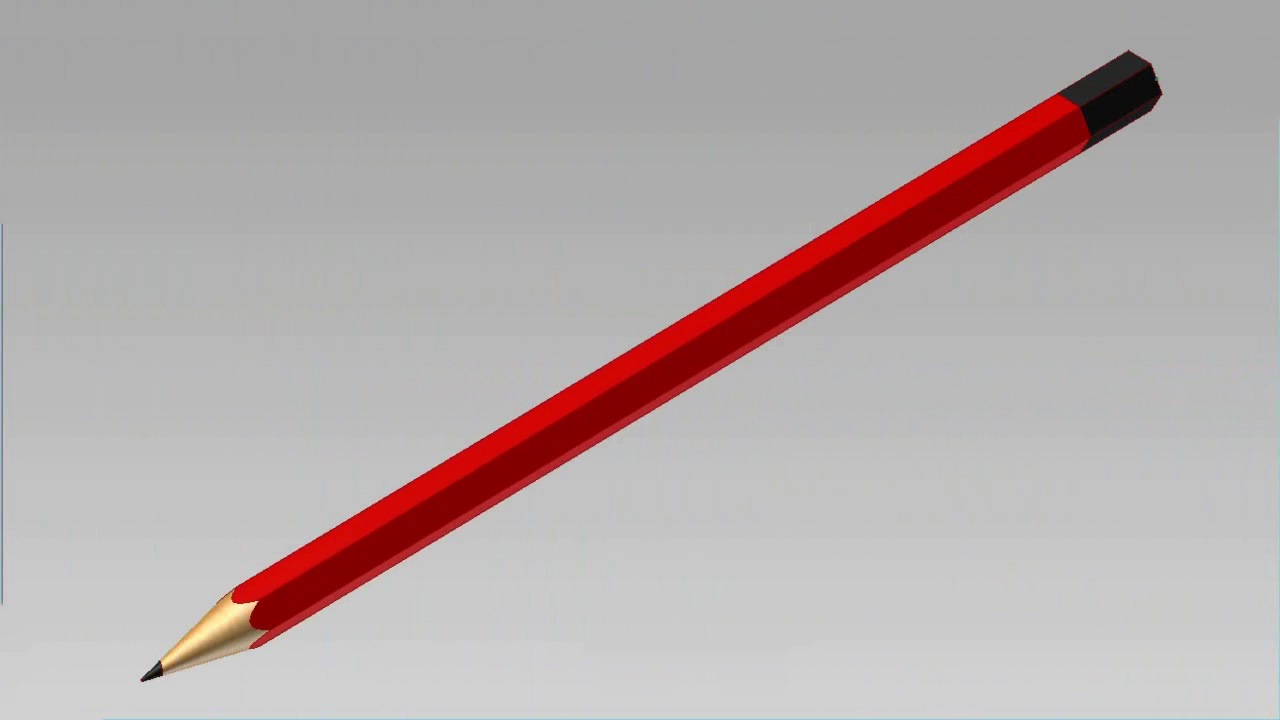
I have created a pencile using the Creo 2.0. Now I want to give it the colour according to following image. Pencil.jpg

Is there any way to spit the surface of the part so that I can give it the unique colour I want.

Best answer by TomD.inPDX

Basic Creo doesn't really give you that option if they are a contiguous surface. However, small offset will allow it.

Since this is a fairly simple model, I might suggest a decal to do what you want.

Otherwise, you just might have to make an assembly of it.

Now I know I say you "can't" but this is not always true. I have been able to split the color of a ball bearing somehow. I had to fool the system to do it.

Is is a solid model or a surface model? You can split surfaces at curves and keep both sides. But most of us don't work with surface quilts as final solid features for next level assemblies. Many implications as to why.

Welcome to the forum Nisheeth.

4 replies

17-Peridot
February 9, 2014

Basic Creo doesn't really give you that option if they are a contiguous surface. However, small offset will allow it.

Since this is a fairly simple model, I might suggest a decal to do what you want.

Otherwise, you just might have to make an assembly of it.

Now I know I say you "can't" but this is not always true. I have been able to split the color of a ball bearing somehow. I had to fool the system to do it.

Is is a solid model or a surface model? You can split surfaces at curves and keep both sides. But most of us don't work with surface quilts as final solid features for next level assemblies. Many implications as to why.

Welcome to the forum Nisheeth.

17-Peridot
February 9, 2014
12-Amethyst
March 31, 2014

I don´t do rendering, but when I need to do something like this, I have a small trick:

1 - Copy the sufaces

2 - Trim the desired area

3 - Apply a Warp feature to the quilt doing nothing (this is the trick)

4 - Apply Solidify

It works for me, try to see if it helps you.

Video Link : 4855

Jose

1-Visitor
April 1, 2014

The first action you did copy command that I am unable to do. When I select the top face of the part and choose select solid surface from the context menu nothing happen. Are doing this on solid body or on surface. Nisheeth.

12-Amethyst
April 2, 2014

Hi,

You don´t have to do exactly as I did.

This is done in solid geometry.


Press Alt+LMB on a surface to select it, then use use the "copy" command (Ctrl+C)+Paste (Ctrl+V). Before closing the "paste" dialog box hold down Control Key to select more surfaces.

As alternative you can use "Solid Surfaces" with the RMB, but this will select all surfaces that belong to the solid and you may not desire this.

Jose

1-Visitor
June 18, 2015

In the past I could not follow the process that you described....but yesterday I was sitting and reading your answer and at that time I understood what you wanted to describe. Thanks a lot for the answer with your help I could do what I wanted.......

..Pencil-2.jpg

1-Visitor
September 13, 2017

If this is a continous/single sketch then extrude cut using surface can help you out. Check this video.

https://youtu.be/dH616NMrZNM