
1-Visitor
July 2, 2014
Solved

how do I leave skeletons out of my drawing

  • July 2, 2014
  • 1 reply
  • 2048 views

When I create drawings from parts that make use of a large skeleton (dimension-wise), there is a boundary around the part with the size of the skeleton.

This is very irritating when trying to create projections because the large frames overlap (so trying to select the right object becomes impossible).

Right now I solve this by creating a spline boundary (drawing view -> visible area -> partial view) all around the part to get a smaller boundary. This works but is a lot of work. Isn't there a setting to have the boundary only around solid parts or a setting to disregard skeletons or the possibility to resize the boundary with the mouse in the corner of the boundary?
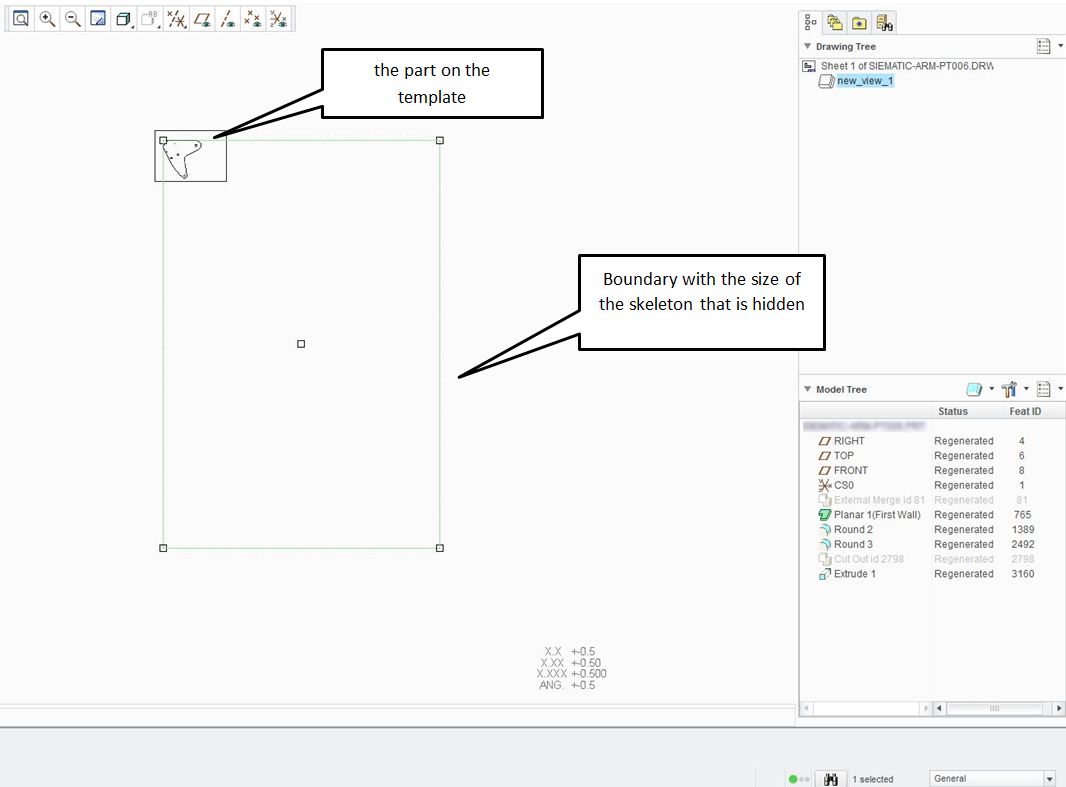
Clipboard04.jpg


This thread is inactive and closed by the PTC Community Management Team. If you would like to provide a reply and re-open this thread, please notify the moderator and reference the thread. You may also use "Start a topic" button to ask a new question. Please be sure to include what version of the PTC product you are using so another community member knowledgeable about your version may be able to assist.
Best answer by TomD.inPDX

Simplified reps seems to be the easiest way.

Highlight the skeleton in the model tree and RMB>Exclude

Open the View Manager (graphics toolbar) and the Master Rep will have a plus ( + ) by it.

Select Save and it will save it to a new simplified rep.

In the drawing, you can change the View State (view properties) to the new Simplified Rep.

This will change the bonding box of the default view size.

1 reply

17-Peridot
July 2, 2014

You might have to manually create these borders.

If this is a persistent issue, you might consider view states or family tables in the model to exclude the skeleton from drawing model.

17-Peridot
July 2, 2014

Simplified reps seems to be the easiest way.

Highlight the skeleton in the model tree and RMB>Exclude

Open the View Manager (graphics toolbar) and the Master Rep will have a plus ( + ) by it.

Select Save and it will save it to a new simplified rep.

In the drawing, you can change the View State (view properties) to the new Simplified Rep.

This will change the bonding box of the default view size.

bp_011-VisitorAuthor
1-Visitor
July 3, 2014

Thanks Antonius,

Works like a charm