3-Newcomer
June 20, 2025
Solved

How to change outlines settings in creo drawing?

  • June 20, 2025
  • 2 replies
  • 530 views

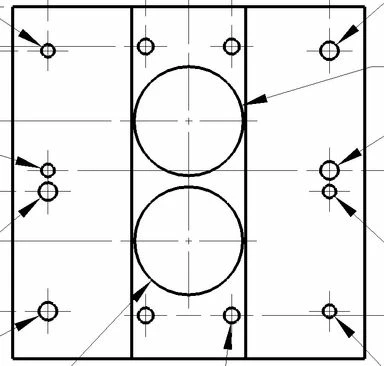
I am having an issue with printing Creo drawings. Every time I print a drawing, the print comes out with a very thick outline. I am attaching pictures to better explain my issue. The left picture shows a drawing view, and the right picture shows the print view. I recently switched from SolidWorks to Creo and never had this issue with SolidWorks, so I don't know how to fix these outlines. Any help would be greatly appreciated.
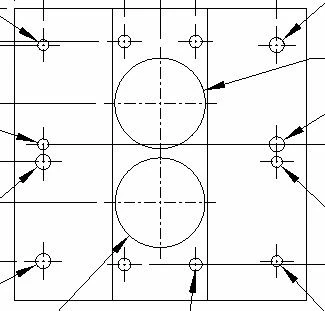
drawing viewdrawing viewprint viewprint view


Best answer by aputman

You need to specify a pen_table_file path in your options.  This is what I use for the table itself (filename table.pnt):

pen 1 thickness .003 in
pen 2 thickness .003 in
pen 3 thickness .003 in
pen 4 thickness .003 in
pen 5 thickness .003 in
pen 6 thickness .003 in
pen 7 thickness .003 in
pen 8 thickness .003 in


2 replies

aputman13-AquamarineAnswer
13-Aquamarine
June 20, 2025

You need to specify a pen_table_file path in your options.  This is what I use for the table itself (filename table.pnt):

pen 1 thickness .003 in
pen 2 thickness .003 in
pen 3 thickness .003 in
pen 4 thickness .003 in
pen 5 thickness .003 in
pen 6 thickness .003 in
pen 7 thickness .003 in
pen 8 thickness .003 in


12-Amethyst
June 20, 2025

I think that is a side effect of the pdf. If you hit "Ctrl+5", it will look normal. It should print correctly when actually printed on paper.