15-Moonstone
November 22, 2021
Solved

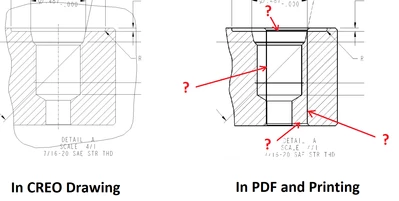
How to get rid of ghost lines in final printing out?
  • November 22, 2021
  • 1 reply
  • 6017 views


JS_9824412_1-1637590231700.png

Good morning,

Refer to the above screenshots, where is the switch in CREO to turn off the ghost lines so that I can print and issue the drawing to production?

Thanks.

Best.

JS

Best answer by JS_9824412

While waiting for CREO self-corrects itself, I used a quick fix to produce the drawing. Here is the procedure: 1)zoom in and snapshot the left half of drawing, 2)zoom in and snapshot the right half of drawing, 3)put the two snapshots together in Paint (or Photoshop), 4)erase the ghost lines, 5)adjust the printer setup and print the drawing.


It works as a quick fix.


Thanks.

1 reply

23-Emerald III
November 22, 2021

I don't think I have seen lines just appear like that. Is there geometry behind the port that would look like that?

Sometimes surface quilts show thru or cosmetic threads but you usually see them on the creo drawing and not just on the PDF.

You may try to turn you background to black using File - Options - system colors and there is a drop down box for "white on black" just to verify that its not somehow white lines on the white background.

15-Moonstone
November 22, 2021

Hi Stephen,


See below, the ghost lines belong to a thru hole on the other side, however, there show up in the detailed view not in CREO drawing mode (note: I did check both "white on black" and "black on white". In fact, I worked whole day on last Friday with "white on black" setting), but in PDF print out.

JS_9824412_0-1637591676651.png

Thanks for replying. (This is CREO 6).


23-Emerald III
November 22, 2021

I can't recreate the problem. I tried fully aligned and full unfold x-sections. I got nothing similar except one of the thread lines missing in the the un-fold x-sections.

Its some kind of glitch based on the section but not sure how to fix it.


StephenWilliams_1-1637598488800.png