1-Visitor
July 3, 2014
Solved

How to set up line thickness for drawings?

  • July 3, 2014
  • 7 replies
  • 52023 views

Hi, when i used Inventor for modelling and drawings, the line thickness was set up for every kind of lines. Like outline was thicker than hidden lines or center lines. When i opened those exported dwg files in AutoCAD i could click on "show/hide line thickness" and outlines "poped up" from the drawing. Now - when i export drawings in Creo, all lines are same - hidden, outllines, center....How to set it up for all drawings? I mean - it should know what is model outline and what is just hidden line, right?


I hope you understood everything (my english is not so good as i want)
Best answer by cgorni

To close this community thread on How to set up line thickness for drawings to export to dwg file format


Summary of the exchanges and proposed solutions:


Line Thickness and DWG/DXF export:

  • Creo Parametric does not assign line width in drawing, specially for models displayed in views.
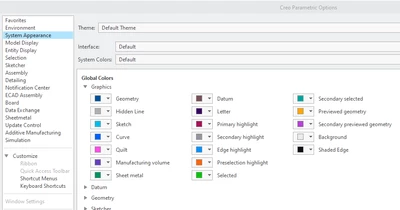
  • Those lines are only assigned different system colors depending their types (Geometry, Hidden Lines, Quilts, etc). They can be changed in the System Appearance section of the Options menu.

cgorni_0-1635340854969.png


  • Therefore the thickness is not transferred when exporting to DWG / DXF file formats, unless explicitly setting a style and width on each item.
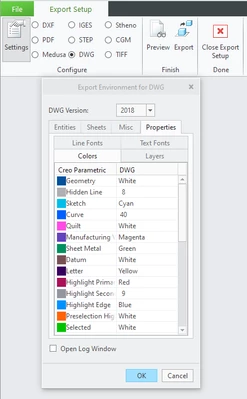
  • However other information can be mapped during the export, like Colors, Layers or Fonts in the Export Setup > Settings > Properties dialog for latest Creo releases.

cgorni_1-1635340854972.png


  • The default values can be specified in a dxf_export.pro file, the sample being available under <Creo Installation>\Common Files\text\intf_configs folder
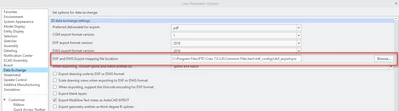
  • The file location can be defined in the Data Exchange section of the Options menu and / or through the config.pro option intf2d_out_dxf_mapping_file

cgorni_2-1635340854975.png


  • Then, even if not allowing to directly show the thickness in the Graphic Area of the application itself, when the file is opened in Autocad the colors may be used to print with the proper lineweight through Plot Style Tables:
  • In Creo Parametric, as indicated above, an alternative could be:
    • Use the Layout > Line Style command and assign a line font and width to each drawing entities, and ensure the config.pro option intf2d_out_line_width is set to yes, as explained in article CS53985
    • Or convert the drawing view to draft entities to enable selection by rules to edit multiple items at once, as suggested in article CS160947

PDF export and line thickness:

  • When exporting to PDF, like when plotting, it is possible to use a Pen Table and control the thickness for each system color assigned to a pen.
  • See the article CS25880 for more details

7 replies

1-Visitor
July 3, 2014

Short answer - search for help on Pen Table and Drawing Line Weights

Longer answer - PTC hasn't been very good about line thickness for drawings. It is primitive, but adequate. Not as good as any other software I've used.

The main control is by line color mapping to pen number using a pen table. Each pen number can have a width associated with it. Geometry lines are assigned a color and hidden lines get a color; there are others. Part outline isn't an option. You can manually set line widths, but then you can't use a pen table, which would over-ride the widths you set.

24-Ruby III
July 4, 2014

David,

I think (I am not sure) that an export to DXF/DWG is driven by dxf_export.pro file, only. This file is located in CR2_loadpoint\Creo 2.0\Common Files\M070\text\intf_configs directory. Also config.pro option INTF2D_IN_DXF_MAPPING_FILE can be used to specify a path to custom export file.

Martin Hanak

17-Peridot
July 4, 2014

Thanks for pointing that out. We are not certain which export we are talking about. Below it appears we are talking printing to PDF, but DXF is a different matter.

17-Peridot
July 4, 2014

Creo 2.0 does have 3 basic line weights set up by default.

Maybe someone has changed your config.pro to use the same pens for all line types.

1-Visitor
July 4, 2014

I added my config.pro and pen_table_pdf.

It is set from my university, so i thought i would work. Can you find, where the problem is? Why are the lines all the same in dwg export?

Thank you

http://ulozto.cz/xERDw6u2/config-pro

http://ulozto.cz/xTLGvqrC/pen-table-pdf-pnt

24-Ruby III
July 8, 2014

Vit,

this is because dwg export is not driven by pentable. If you want to get some advice, please create an example (eq. a cube with cylindrical hole and its drawing) and upload Creo part, Creo drawing and manually modified Autocad DWG.

Martin Hanak

17-Peridot
July 8, 2014

What seems to be the method of working is that if the feature has thickness assined, it can be exported. However, without this assignement, they have all have the same thickness.

You can change almost any line style to a thickness, but not dimension and note leaders and witness lines.

I wonder if text thinkness is also exported to DXF/DWG.

1-Visitor
July 4, 2014

I did post reply yesterday with my config, but moderators doesnt want to accept it...so wait for it

1-Visitor
July 4, 2014

Moderation is usually because of including a hyperlink to a site that is not in communities.ptc.com; I am not certain if attachments are moderated.

1-Visitor
July 4, 2014

You are right...i did post it as a hyperlink. Here it is as attachement

1-Visitor
January 25, 2017

Dear All,

I would like to raise the question again. It has been two years since the discussion was started. Prehaps, something has changed.

The case in point is the same. When exporting to the *.pdf format (I use CREO 3.0 M080), the drawing looks great (as it supposed to be). However, when it is exported to the *.dxf, thickness of the lines are all the same - thin. You will find the pdf and dxf files in the attachment. Any suggestions?

1-Visitor
January 25, 2017

If you have maintenance perhaps this will help: Document - CS160947

1-Visitor
January 26, 2017

Thank you very much for your help. Unfortunately, I do not have an active maintenance.

Still cannot solve the problem.

1-Visitor
April 24, 2019

@ptc-5874108 wrote:

Hi, when i used Inventor for modelling and drawings, the line thickness was set up for every kind of lines. Like outline was thicker than hidden lines or center lines. When i opened those exported dwg files in AutoCAD i could click on "show/hide line thickness" and outlines "poped up" from the drawing. Now - when i export drawings in Creo, all lines are same - hidden, outllines, center....How to set it up for all drawings? I mean - it should know what is model outline and what is just hidden line, right?


I hope you understood everything (my english is not so good as i want)


cgorni16-PearlAnswer
16-Pearl
October 27, 2021

To close this community thread on How to set up line thickness for drawings to export to dwg file format


Summary of the exchanges and proposed solutions:


Line Thickness and DWG/DXF export:

  • Creo Parametric does not assign line width in drawing, specially for models displayed in views.
  • Those lines are only assigned different system colors depending their types (Geometry, Hidden Lines, Quilts, etc). They can be changed in the System Appearance section of the Options menu.

cgorni_0-1635340854969.png


  • Therefore the thickness is not transferred when exporting to DWG / DXF file formats, unless explicitly setting a style and width on each item.
  • However other information can be mapped during the export, like Colors, Layers or Fonts in the Export Setup > Settings > Properties dialog for latest Creo releases.

cgorni_1-1635340854972.png


  • The default values can be specified in a dxf_export.pro file, the sample being available under <Creo Installation>\Common Files\text\intf_configs folder
  • The file location can be defined in the Data Exchange section of the Options menu and / or through the config.pro option intf2d_out_dxf_mapping_file

cgorni_2-1635340854975.png


  • Then, even if not allowing to directly show the thickness in the Graphic Area of the application itself, when the file is opened in Autocad the colors may be used to print with the proper lineweight through Plot Style Tables:
  • In Creo Parametric, as indicated above, an alternative could be:
    • Use the Layout > Line Style command and assign a line font and width to each drawing entities, and ensure the config.pro option intf2d_out_line_width is set to yes, as explained in article CS53985
    • Or convert the drawing view to draft entities to enable selection by rules to edit multiple items at once, as suggested in article CS160947

PDF export and line thickness:

  • When exporting to PDF, like when plotting, it is possible to use a Pen Table and control the thickness for each system color assigned to a pen.
  • See the article CS25880 for more details