1-Visitor
January 31, 2021
Solved

How to stop a chamfer from applying to the entire edge

  • January 31, 2021
  • 2 replies
  • 3817 views

Hi Guys, 

I would like to apply a chamfer to the highlighted edge. 
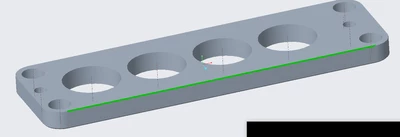
NM_8739243_0-1612135366862.png

But every time I apply the chamfer it runs along the entire circumference. 
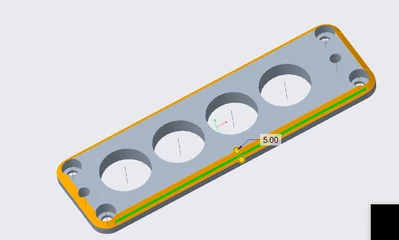
NM_8739243_1-1612135462344.png

How do I apply it only to one edge. 

Best answer by tbraxton

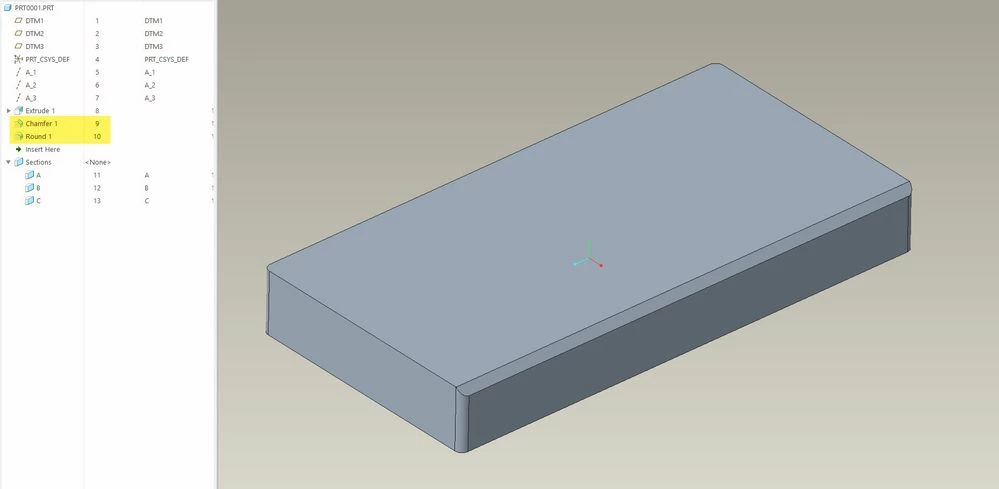
The easy way is to create the chamfer on the edge before the corners of the extrude are rounded. Picture and model tree for clarification.Create chamfer prior to rounding the vertical corners of the solidCreate chamfer prior to rounding the vertical corners of the solid

2 replies

tbraxton
22-Sapphire II
tbraxton22-Sapphire IIAnswer
22-Sapphire II
February 1, 2021

The easy way is to create the chamfer on the edge before the corners of the extrude are rounded. Picture and model tree for clarification.Create chamfer prior to rounding the vertical corners of the solidCreate chamfer prior to rounding the vertical corners of the solid

1-Visitor
February 1, 2021

Thank you, it worked

tbraxton
22-Sapphire II
22-Sapphire II
February 1, 2021

NP


Would you mark the response as an accepted solution so it will indicate in the search results that this thread has a solution?

kdirth
21-Topaz I
21-Topaz I
February 1, 2021

Another option is to use the chain option:

Select the edge, then holding shift select the edge again.

Additional adjacent edges can also be added while holding shift.

kdirth_0-1612185515063.png


There is always more to learn.
12-Amethyst
April 24, 2025

kdirth - man this helped out a ton. BUT WHY OH WHY isn't this easier in CREO????? I mean it should be an option available in the process tree. I had to click some obscure button to bring up the selection dialog - and then just select edge. CREO is frustrating to no end. I gave you kudos.

tbraxton
22-Sapphire II
22-Sapphire II
April 24, 2025

If you will be using Creo then I would suggest embracing the UI and customize it to fit your workflows. Check out page 13 of the quick reference card (enclosed below) for advanced selection guidance. Learning these selection techniques will yield big productivity improvements.