1-Visitor
November 13, 2021
Solved

Line thickness of detailed view when printing/making pdf

  • November 13, 2021
  • 2 replies
  • 4446 views

I want to change the thickness of the detail view line. @MartinHanak 
Capture.JPG

.

Capture2.JPG

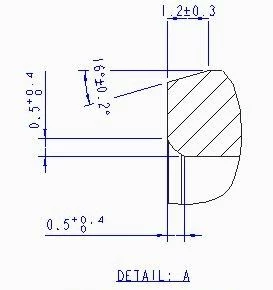
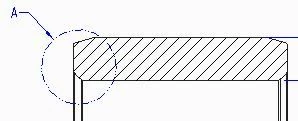
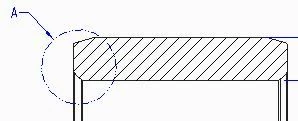
this the detailed view

.

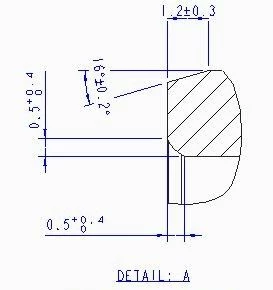
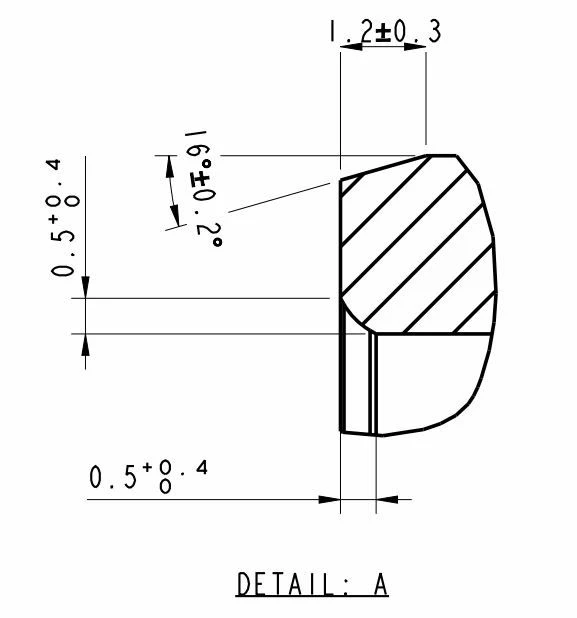
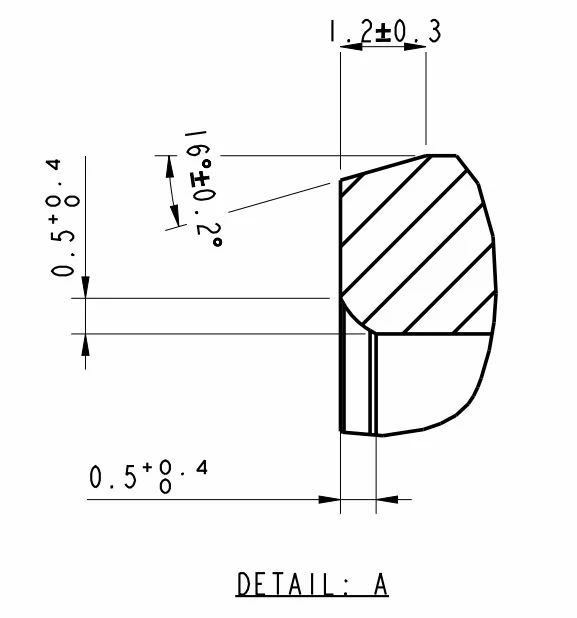
and this is how it look in the pdf.
Capture3.JPG

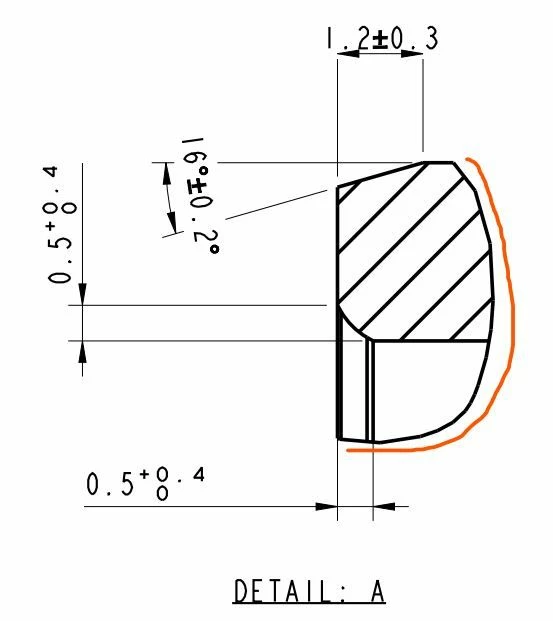
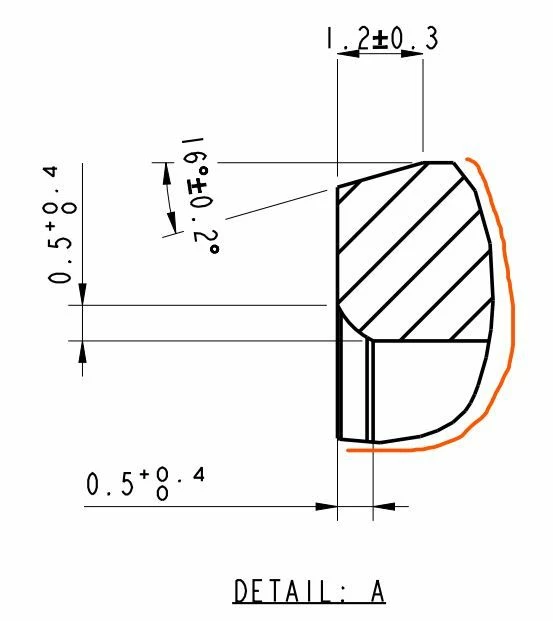
and I want to make the marked curve thinner than the drawing
Capture4.JPG

Best answer by MartinHanak

@SP_10114936 wrote:

I want to change the thickness of the detail view line. @MartinHanak 

Capture.JPG

.

Capture2.JPG

this the detailed view

.

and this is how it look in the pdf.

Capture3.JPG

and I want to make the marked curve thinner than the drawing

Capture4.JPG


Hi,

in Partial view you cannot set color of view lines.


If detail option line_style_standard std_ansi is set then outline is assigned Geometry color and pen 1 is used to draw outline by default.


If detail option line_style_standard std_din is set then outline is assigned Letter color and pen 2 is used to draw outline by default.


You can hide view outline and sketch spline that replace it. The spline can be assigned any color.


See outline.mp4 video.

2 replies

24-Ruby III
November 15, 2021

@SP_10114936 wrote:

I want to change the thickness of the detail view line. @MartinHanak 

Capture.JPG

.

Capture2.JPG

this the detailed view

.

and this is how it look in the pdf.

Capture3.JPG

and I want to make the marked curve thinner than the drawing

Capture4.JPG


Hi,

in Partial view you cannot set color of view lines.


If detail option line_style_standard std_ansi is set then outline is assigned Geometry color and pen 1 is used to draw outline by default.


If detail option line_style_standard std_din is set then outline is assigned Letter color and pen 2 is used to draw outline by default.


You can hide view outline and sketch spline that replace it. The spline can be assigned any color.


See outline.mp4 video.

tbraxton
22-Sapphire II
November 15, 2021

In Acrobat open your pdf version of the drawing and then use ctrl+5 keys to alter the line weight display. This will make the visible lines thinner and should display correctly. This may resolve the issue you are having.

24-Ruby III
November 15, 2021

@tbraxton wrote:

In Acrobat open your pdf version of the drawing and then use ctrl+5 keys to alter the line weight display. This will make the visible lines thinner and should display correctly. This may resolve the issue you are having.


Hi,

what Acrobat version is able to alter the line weight ? Full version ? Acrobat Reader ?

tbraxton
22-Sapphire II
November 15, 2021

All versions of Acrobat and Acrobat reader I have ever used support this. I am using Acrobat Reader XI currently and this works. It is quite useful for clarity when visible lines are overlapping in a view.


Creo PDF from dwg as seen in reader:

tbraxton_0-1636996512789.png


Same file after using ctrl+F5

tbraxton_1-1636996551710.png