
1-Visitor
May 1, 2014
Solved

linestyles in drawing views

  • May 1, 2014
  • 3 replies
  • 1418 views

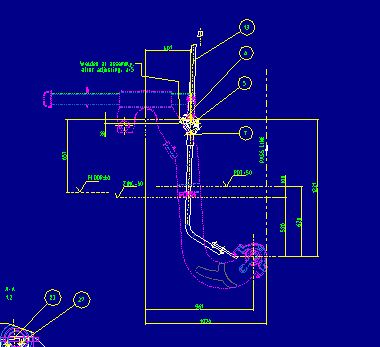
How do you change the linestyles of certain views within a drawing in Creo 2.0? As you can see in the image, one piece of the equipment is shown in a phantom linestyle and another piece attached is shown as normally viewed. See below.
linestyle_issue.JPG


This thread is inactive and closed by the PTC Community Management Team. If you would like to provide a reply and re-open this thread, please notify the moderator and reference the thread. You may also use "Start a topic" button to ask a new question. Please be sure to include what version of the PTC product you are using so another community member knowledgeable about your version may be able to assist.
Best answer by neomechanikos

You can change the linestyle of certain components within a view, multiple view, or all views.

  1. In the layout tab of a drawing, select "Component Display".
  2. In the menu select "Style" and what views you want (current view, etc.).
  3. Select the components you want to change.
  4. Hit OK or MMB.
  5. Select the linestyle you want.
  6. Hit Done.

3 replies

1-Visitor
May 1, 2014

You can change the linestyle of certain components within a view, multiple view, or all views.

  1. In the layout tab of a drawing, select "Component Display".
  2. In the menu select "Style" and what views you want (current view, etc.).
  3. Select the components you want to change.
  4. Hit OK or MMB.
  5. Select the linestyle you want.
  6. Hit Done.
1-Visitor
May 1, 2014

Thanks Eric for the response. I went through your procedure and that worked. Thanks again!

1-Visitor
May 1, 2014

You're welcome!