15-Moonstone
July 29, 2022
Solved

Problem with texture

  • July 29, 2022
  • 2 replies
  • 2568 views

Hi,
I have some problems with the textures and I ask you for help.
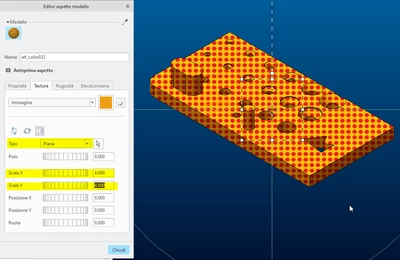
I would like to get a color that loads me a certain texture with "Flat" mapping and XY scale with a value of 4, but the program only saves the assignment to the texture file in the color but not the mapping or the scale values ​​...
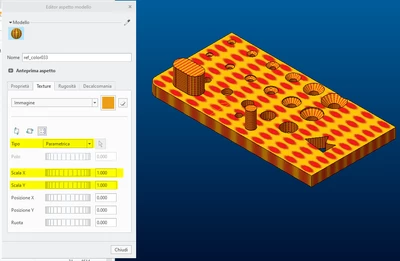
This is the result that the program offers me by recalling the color I created:

bmancini_0-1659082935331.png

I would like to obtain this result by pressing the color I created:

bmancini_1-1659082998698.png

I made a few attempts:
1 - I tried to create a macro that sets the color and then changes its appearance, but in trying to change the appearance the program prompts me to reselect the model and that's something I would like to avoid ....

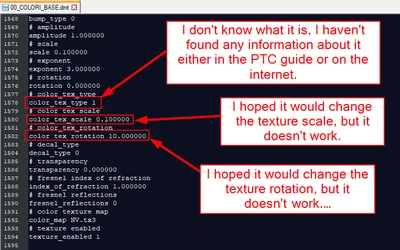
2- I tried to study the lines contained in the .dmt file. I found some interesting parameters but they don't work ....

bmancini_2-1659083520281.png

Can anyone help me? Thank you.


P.S. Use creo 9.0.0.0

Best answer by MartinHanak

Hi,

unfortunately you cannot reselecting the model when you modify texture mapping.

If I were you I would use 2 mapkeys.

Step 1 ... select model node at the top of the model tree

Step 2 ... run x1 mapkey (name of my color is mh01, change it according your needs)

mapkey x1 ~ Select `main_dlg_cur` `View:ProCmdViewGallery`;\
mapkey(continued) ~ Select `main_dlg_cur` \
mapkey(continued) `ProCmdViewGallery_layoutph.palette_holder.myAppPalette.NamesList` 1 `mh01`;\
mapkey(continued) ~ Timer `UI Desktop` `UI Desktop` `Gallery_UI_Timer`;\
mapkey(continued) ~ Close `main_dlg_cur` `View:ProCmdViewGallery`;\
mapkey(continued) ~ Select `main_dlg_cur` `View:ProCmdViewGallery`;\
mapkey(continued) ~ RButtonArm `main_dlg_cur` \
mapkey(continued) `ProCmdViewGallery_layoutph.palette_holder.modelPalette.NamesList` `mh01`;\
mapkey(continued) ~ PopupOver `main_dlg_cur` \
mapkey(continued) `PM_ProCmdViewGallery_layoutph.palette_holder.modelPalette.NamesList` 1 \
mapkey(continued) `ProCmdViewGallery_layoutph.palette_holder.modelPalette.NamesList`;\
mapkey(continued) ~ Open `main_dlg_cur` \
mapkey(continued) `PM_ProCmdViewGallery_layoutph.palette_holder.modelPalette.NamesList`;\
mapkey(continued) ~ Close `main_dlg_cur` \
mapkey(continued) `PM_ProCmdViewGallery_layoutph.palette_holder.modelPalette.NamesList`;\
mapkey(continued) ~ Activate `main_dlg_cur` `ModelAppearanceEdit`;\
mapkey(continued) ~ Close `main_dlg_cur` `View:ProCmdViewGallery`;\
mapkey(continued) ~ Activate `pgl_appearance_manager` `model_palette_holder.btnSelectTool`;

Step 3 ... select model surface in graphic windows

Step 4 ... run x2 mapkey (change X, Y, rotate values according your needs)

mapkey x2 ~ Select `pgl_appearance_manager` `PropertiesDetailTab` 1 \
mapkey(continued) `TextureProperties`;\
mapkey(continued) ~ Open `pgl_appearance_manager` `TexturePlacement.ProjectionType`;\
mapkey(continued) ~ Close `pgl_appearance_manager` `TexturePlacement.ProjectionType`;\
mapkey(continued) ~ Select `pgl_appearance_manager` `TexturePlacement.ProjectionType` 1 \
mapkey(continued) `Planar`;~ Update `pgl_appearance_manager` `TexturePlacement.IWidth` `4`;\
mapkey(continued) ~ Activate `pgl_appearance_manager` `TexturePlacement.IWidth`;\
mapkey(continued) ~ FocusOut `pgl_appearance_manager` `TexturePlacement.IWidth`;\
mapkey(continued) ~ Update `pgl_appearance_manager` `TexturePlacement.IHeight` `4`;\
mapkey(continued) ~ Activate `pgl_appearance_manager` `TexturePlacement.IHeight`;\
mapkey(continued) ~ FocusOut `pgl_appearance_manager` `TexturePlacement.IHeight`;\
mapkey(continued) ~ Update `pgl_appearance_manager` `TexturePlacement.IRotate` `10`;\
mapkey(continued) ~ FocusOut `pgl_appearance_manager` `TexturePlacement.IRotate`;

 

2 replies

21-Topaz I
July 29, 2022

You have defined some texture and you need to have it available for other uses. when searching the Help Center i have found this page: https://support.ptc.com/help/creo/creo_pma/r9.0/usascii/#page/fundamentals/fundamentals/To_Save_Textures.html that tells that the texture can be saved in the model thanks to an option.


To save it separately, basically you need to preview your texture and then RMB the preview itself, it will fire the Image Editor:

remy_0-1659086029546.png

Where you can File > Save.


Also i don't recommend to leverage the dmt file rather use the UI.


bmancini15-MoonstoneAuthor
15-Moonstone
July 29, 2022

Thanks for your answer,
what do you mean "i don't recommend to leverage the dmt file rather use the UI"?
How do you use the UI file to save colors?

24-Ruby III
July 31, 2022

Hi,

unfortunately you cannot reselecting the model when you modify texture mapping.

If I were you I would use 2 mapkeys.

Step 1 ... select model node at the top of the model tree

Step 2 ... run x1 mapkey (name of my color is mh01, change it according your needs)

mapkey x1 ~ Select `main_dlg_cur` `View:ProCmdViewGallery`;\
mapkey(continued) ~ Select `main_dlg_cur` \
mapkey(continued) `ProCmdViewGallery_layoutph.palette_holder.myAppPalette.NamesList` 1 `mh01`;\
mapkey(continued) ~ Timer `UI Desktop` `UI Desktop` `Gallery_UI_Timer`;\
mapkey(continued) ~ Close `main_dlg_cur` `View:ProCmdViewGallery`;\
mapkey(continued) ~ Select `main_dlg_cur` `View:ProCmdViewGallery`;\
mapkey(continued) ~ RButtonArm `main_dlg_cur` \
mapkey(continued) `ProCmdViewGallery_layoutph.palette_holder.modelPalette.NamesList` `mh01`;\
mapkey(continued) ~ PopupOver `main_dlg_cur` \
mapkey(continued) `PM_ProCmdViewGallery_layoutph.palette_holder.modelPalette.NamesList` 1 \
mapkey(continued) `ProCmdViewGallery_layoutph.palette_holder.modelPalette.NamesList`;\
mapkey(continued) ~ Open `main_dlg_cur` \
mapkey(continued) `PM_ProCmdViewGallery_layoutph.palette_holder.modelPalette.NamesList`;\
mapkey(continued) ~ Close `main_dlg_cur` \
mapkey(continued) `PM_ProCmdViewGallery_layoutph.palette_holder.modelPalette.NamesList`;\
mapkey(continued) ~ Activate `main_dlg_cur` `ModelAppearanceEdit`;\
mapkey(continued) ~ Close `main_dlg_cur` `View:ProCmdViewGallery`;\
mapkey(continued) ~ Activate `pgl_appearance_manager` `model_palette_holder.btnSelectTool`;

Step 3 ... select model surface in graphic windows

Step 4 ... run x2 mapkey (change X, Y, rotate values according your needs)

mapkey x2 ~ Select `pgl_appearance_manager` `PropertiesDetailTab` 1 \
mapkey(continued) `TextureProperties`;\
mapkey(continued) ~ Open `pgl_appearance_manager` `TexturePlacement.ProjectionType`;\
mapkey(continued) ~ Close `pgl_appearance_manager` `TexturePlacement.ProjectionType`;\
mapkey(continued) ~ Select `pgl_appearance_manager` `TexturePlacement.ProjectionType` 1 \
mapkey(continued) `Planar`;~ Update `pgl_appearance_manager` `TexturePlacement.IWidth` `4`;\
mapkey(continued) ~ Activate `pgl_appearance_manager` `TexturePlacement.IWidth`;\
mapkey(continued) ~ FocusOut `pgl_appearance_manager` `TexturePlacement.IWidth`;\
mapkey(continued) ~ Update `pgl_appearance_manager` `TexturePlacement.IHeight` `4`;\
mapkey(continued) ~ Activate `pgl_appearance_manager` `TexturePlacement.IHeight`;\
mapkey(continued) ~ FocusOut `pgl_appearance_manager` `TexturePlacement.IHeight`;\
mapkey(continued) ~ Update `pgl_appearance_manager` `TexturePlacement.IRotate` `10`;\
mapkey(continued) ~ FocusOut `pgl_appearance_manager` `TexturePlacement.IRotate`;
 

bmancini15-MoonstoneAuthor
15-Moonstone
August 1, 2022

Thanks Martin for the answer but I wouldn't want to use two macros, thanks anyway.

24-Ruby III
August 1, 2022

@bmancini wrote:

Thanks Martin for the answer but I wouldn't want to use two macros, thanks anyway.


Hi,

I believe that "Step 3 ... select model surface in graphic windows" can be replaced by calling AutoIT script. Such script is able to place mouse cursor at specified location (eg. the middle of the Creo window) and click left mouse button. If this script is available then user is able to create single Creo mapkey with requested functionality.