1-Visitor
October 8, 2013
Solved

Style state in a drawing

  • October 8, 2013
  • 2 replies
  • 14540 views

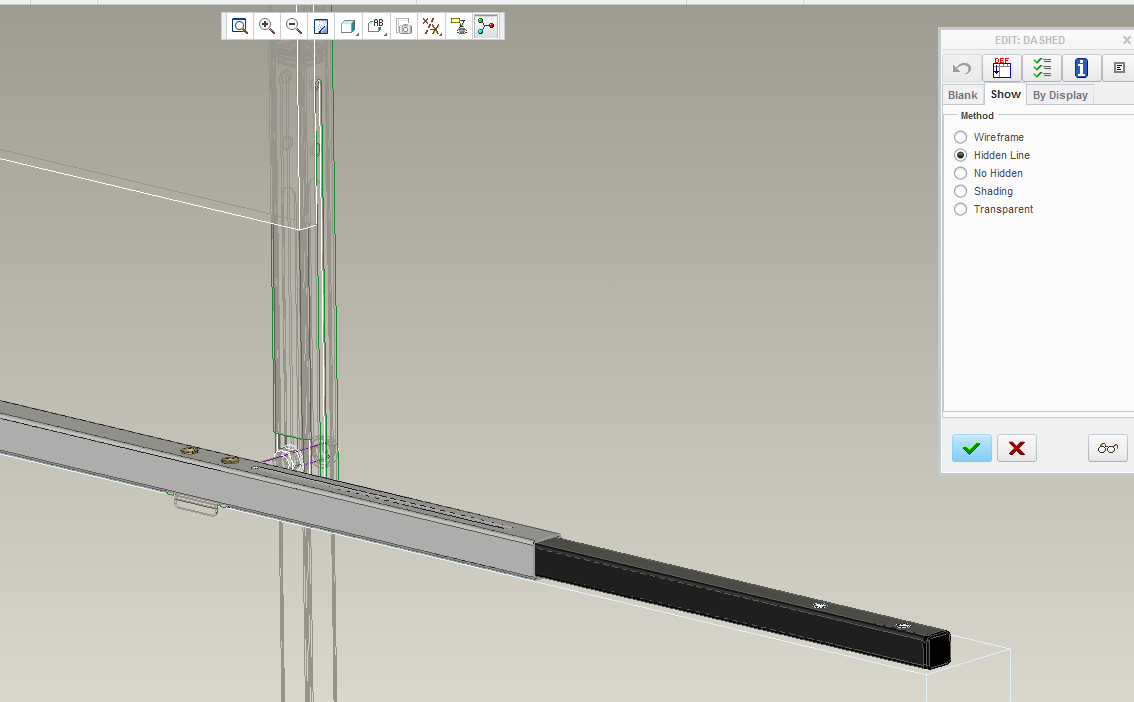
In my assembly a have assigned some parts whit a hidden line. These parts are only used as a reference. I want to show the assembly in a drawing. The hidden lines (style) are not showed.

How can I display the style in a drawing?

Knipsel.PNG

Best answer by dgschaefer

I don't think you can access the 'styles' you create in assy mode for drawing views, unfortunately.

What you can do is set a component to be phantom.

  1. On the layout tab, select 'Component Display from the 'Edit' section.
  2. Look, the Menu Manager! Select 'Style' in the top section and at the bottom whatever best reflects where you want it shown as phantom - Picked View, This Sheet or All Sheets.
  3. Select the item(s) you want as phantom
  4. Middle mouse for done when you've picked all the components you want and a new section of the menu manager will appear.
  5. There you can select whether you want it standard, phantom opaque, phantom transparent or a user color.

You can also repeat those steps but select HLR display to control the display of hidden lines per component or individually blank or unblank components. The HLR display doesn't change the entire component to hidden, only allows you to control hidden line removal on a per component basis.


2 replies

17-Peridot
October 8, 2013

This looks like a screenshot from Creo Elements Direct. Or is this Creo Parametric?

sloman1-VisitorAuthor
1-Visitor
October 8, 2013

It is Creo Parametric 2.0

17-Peridot
October 8, 2013

Okay, I didn't recognize the menu on the right.

I haven't tried this too much but I have done overlayed views although in your case, that may not work as the lines will always be on top of the shaded images.

Have you tried specifying view states and seeing if you can pull those states into the drawing?

21-Topaz II
October 8, 2013

I don't think you can access the 'styles' you create in assy mode for drawing views, unfortunately.

What you can do is set a component to be phantom.

  1. On the layout tab, select 'Component Display from the 'Edit' section.
  2. Look, the Menu Manager! Select 'Style' in the top section and at the bottom whatever best reflects where you want it shown as phantom - Picked View, This Sheet or All Sheets.
  3. Select the item(s) you want as phantom
  4. Middle mouse for done when you've picked all the components you want and a new section of the menu manager will appear.
  5. There you can select whether you want it standard, phantom opaque, phantom transparent or a user color.

You can also repeat those steps but select HLR display to control the display of hidden lines per component or individually blank or unblank components. The HLR display doesn't change the entire component to hidden, only allows you to control hidden line removal on a per component basis.

sloman1-VisitorAuthor
1-Visitor
October 8, 2013

Hallelujah!!!!

This is it! So simple when you know it......

Thank you Doug,

Stefan

21-Topaz II
October 8, 2013

You're welcome. Hopefully PTC will get around to updating that dialog some time. I'm not holding my breath, though.