1-Visitor
December 19, 2017
Solved

Surface -> project to plane is that possible in Creo?

  • December 19, 2017
  • 1 reply
  • 6213 views

Hi Again,


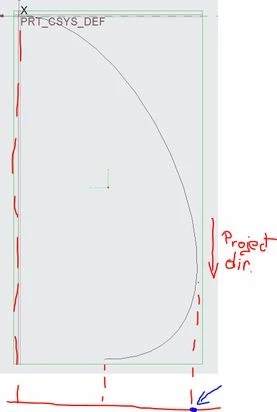
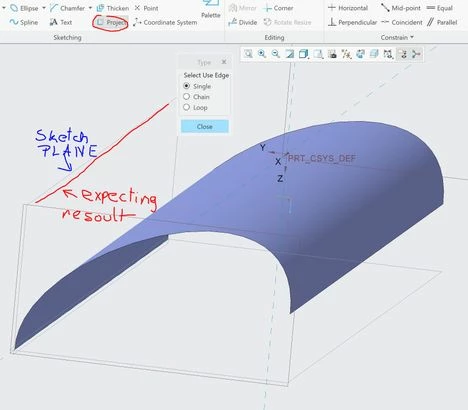
I have simple surface as shown below and trying to do simple operation to project to plane.

Any idea how to do that ?(i'm solidworks user and trying to switch to creo 🙂 )


surface.JPGSurface 2.JPG


I already tryed link below but i'm not able to select abow surface:


http://support.ptc.com/help/creo/creo_dma/usascii/index.html#page/dma%2Fdirect_modeling%2Fexample_silhouette_edges_of_faces.html%23&_ga=2.232889497.689925523.1513677806-1685930551.1513468304

Best answer by dgschaefer

@efiks wrote:

Thank you,


It is working on that simple example but finally i want to use project - surface operation on "swept blend" feature and it is not working ?! strange cos that is preaty basic cad operation 😞


Regards

Damian


A limitation of the project function is that it does not work on silhouette edges that are splines.


You can create a sihouette trim, however, to produse a surface edge that you can then project.


  1. Make a copy of the swept blend surface that you want to project. (select the surface, ctrl-C to copy, ctrl-V to paste)
  2. Select the copied surface feature and select trim from the Editing section of the Model tab.
  3. Pic the plane that you want to sketch on as your trim plane.  It does not need to intersect the surface.
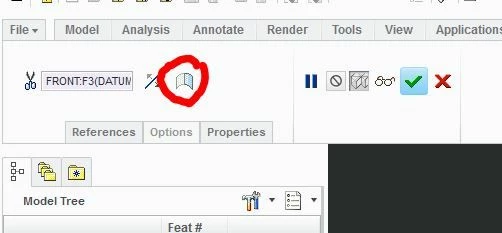
  4. Select the "silhouette" button on the trim dashboard.Capture.JPG


  5. This will trim the surface at the silhouette edge (you can choose to keep either or bnoth sides of the quilt) and provide you with an edge that you can project into your sketch.


1 reply

21-Topaz II
December 19, 2017

@efiks wrote:

Hi Again,


I have simple surface as shown below and trying to do simple operation to project to plane.

Any idea how to do that ?(i'm solidworks user and trying to switch to creo 🙂 )


surface.JPGSurface 2.JPG


I already tryed link below but i'm not able to select abow surface:


http://support.ptc.com/help/creo/creo_dma/usascii/index.html#page/dma%2Fdirect_modeling%2Fexample_silhouette_edges_of_faces.html%23&_ga=2.232889497.689925523.1513677806-1685930551.1513468304


First, you tagged this as Parametric but the help link is for Creo Direct.  Here's the link to the project command in Creo Parametric:


http://support.ptc.com/help/creo/creo_pma/usascii/#page/part_modeling%2Fsketcher%2FAbout_the_Project_Command.html%23


That said, in order to project a silhouette edge you need to be in sketch orientation or Creo can't "see" the silhouette edge.  Creo cannot project a sihouette edge from a lofted surface that would end up being a pline, but in your image, it looks like you dealing with an extruded surface so it should work.  Put the model in sketch view orientation first and try again.

efiks1-VisitorAuthor
1-Visitor
December 19, 2017

Thank you,


It is working on that simple example but finally i want to use project - surface operation on "swept blend" feature and it is not working ?! strange cos that is preaty basic cad operation 😞


Regards

Damian

21-Topaz II
December 19, 2017

@efiks wrote:

Thank you,


It is working on that simple example but finally i want to use project - surface operation on "swept blend" feature and it is not working ?! strange cos that is preaty basic cad operation 😞


Regards

Damian


A limitation of the project function is that it does not work on silhouette edges that are splines.


You can create a sihouette trim, however, to produse a surface edge that you can then project.


  1. Make a copy of the swept blend surface that you want to project. (select the surface, ctrl-C to copy, ctrl-V to paste)
  2. Select the copied surface feature and select trim from the Editing section of the Model tab.
  3. Pic the plane that you want to sketch on as your trim plane.  It does not need to intersect the surface.
  4. Select the "silhouette" button on the trim dashboard.Capture.JPG


  5. This will trim the surface at the silhouette edge (you can choose to keep either or bnoth sides of the quilt) and provide you with an edge that you can project into your sketch.