13-Aquamarine
February 14, 2019
Solved

Texture of skin for a CREO part

  • February 14, 2019
  • 1 reply
  • 3531 views

Is there a way to create a certain texture for the exterior of CREO part, so that it looks more alive, spatial and more 3D, and not flat and bland, like a bunch of black lines on a white paper. Something that can be picked from the RENDER menu, under APPEARANCE GALLERY, the same way one can change a color... 
To be more exact, can a part made to look like wood, like metal, like stone, etc. etc. even if not very artistically and not aesthetically pleasing to the eye. Technically correct should suffice...

And something that would appear nice in a "NO HIDDEN" view or even in a "SHADING WITH EDGES" view/print-out...

Thank you,

Colin.

P.S. Won't let me post without a label, hope I got them right, not trying to get people pissed off here...
Best answer by MartinHanak

Hi,

see following pictures showing Creo 3.0 window.

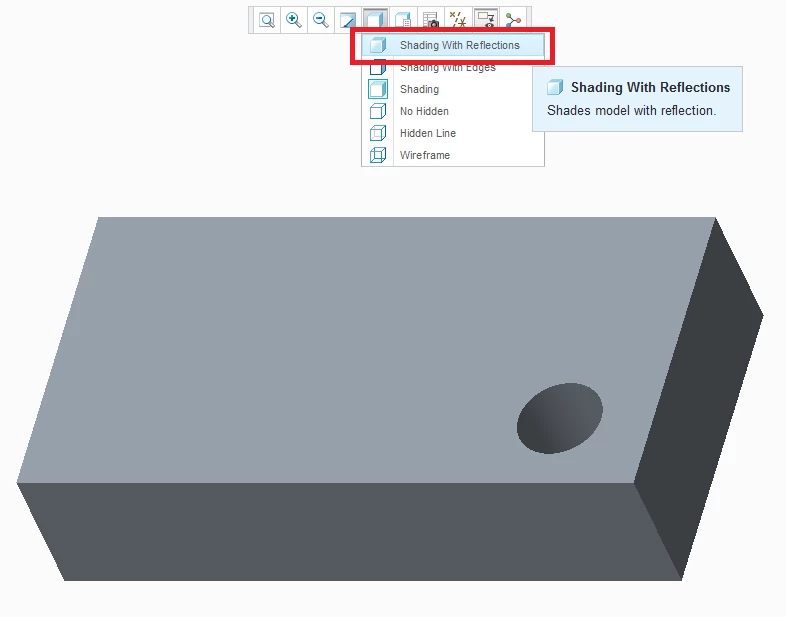
01_shading_with_reflections.png

set Shading with reflections mode (you can see texture also in Shading mode)

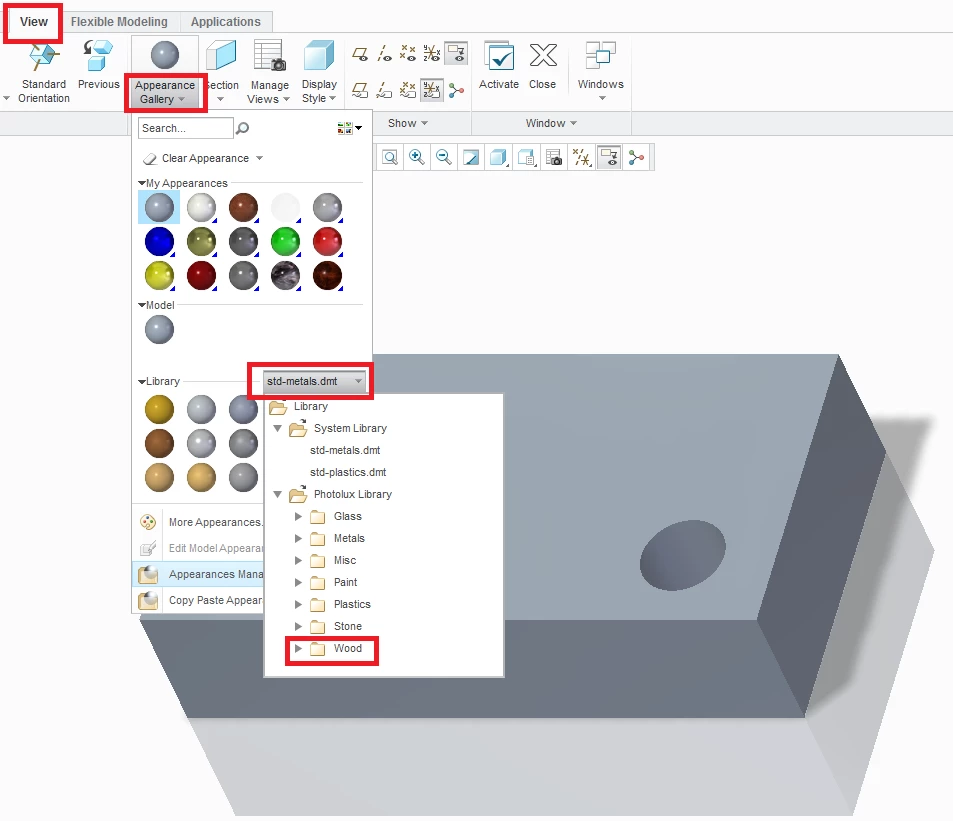
02_library.png

select appropriate dmt-file from texture library

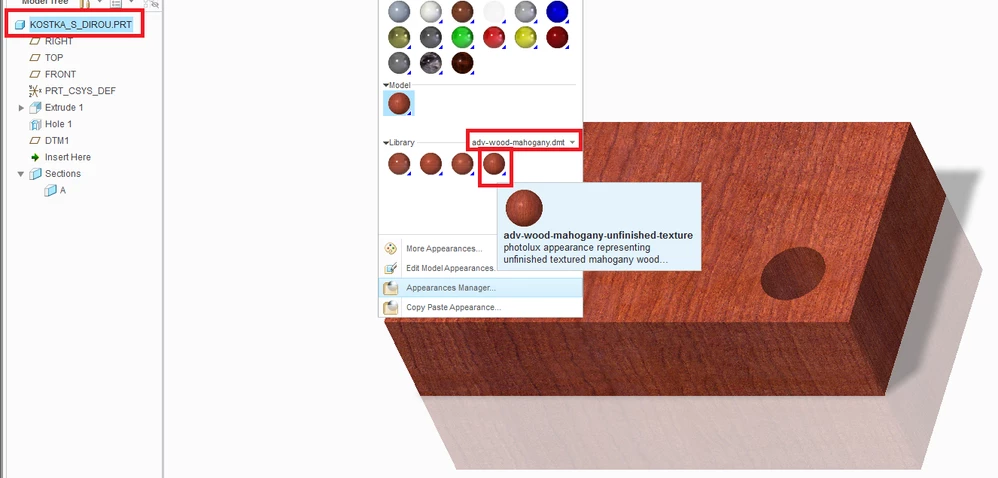
03_set_texture.png

assign appropriate texture to your model


1 reply

24-Ruby III
February 14, 2019

Hi,

see following pictures showing Creo 3.0 window.

01_shading_with_reflections.png

set Shading with reflections mode (you can see texture also in Shading mode)

02_library.png

select appropriate dmt-file from texture library

03_set_texture.png

assign appropriate texture to your model


13-Aquamarine
February 16, 2019

Martin, my bad, found the Photolux Library, and it is really awesome!

But I still have a huge problem -- your birch wood looks so nice and luminous, mine looks so dark and terribly bad (as in fake)...

Is there any way to control the lightness of the skin? For me, all the wood grains come on so dark, there is no way one can distinguish the details of different skins, therefore they all look the same....


Many thanks for your prompt answer, 

Colin.