7-Bedrock
August 6, 2026
Solved

Unable to remove the sketch in the ISO view

  • August 6, 2026
  • 2 replies
  • 65 views

I tried doing the suggestions in this topic: Hide sketches from drawings | Community

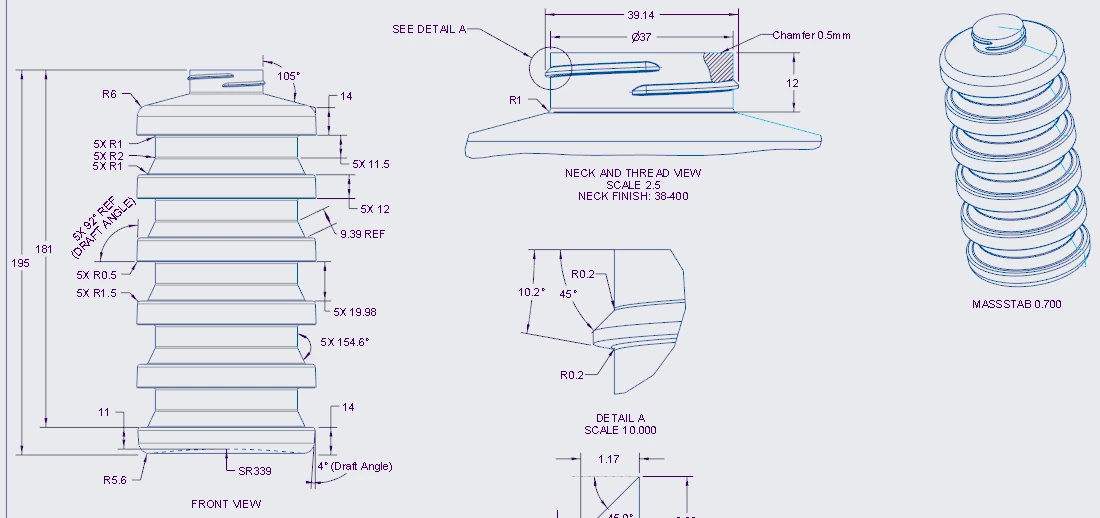
but in my drawing, Still I’m still not able to remove the sketch in this ISO view.

I did hide all the sketch layers and the sketch and saved the status.

I’m using creo 11.0.1
 

Please let me know if I missed any steps

    Best answer by kdirth

    It is difficult to diagnose without the model to interrogate since there are many options to look at.  It appears the sketch is in all of your views (Blue lines).  Here are a few things to look at.

    • In the model:
      • Is the sketch (and any copies) on a layer?
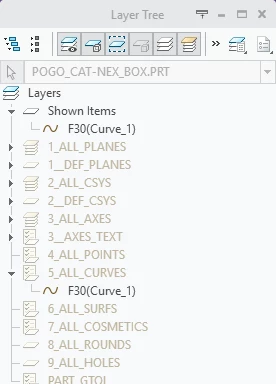
        • Open the layer tree
        • Expand the layer it should be on.
          • Is it there?
          • If not, edit properties of layer and select the sketch to add it.
        • Expand the Shown Items layer (if there)
          • Is it there?
          • If it is, RMB and select Remove Item.
    • In the drawing:
      • Is the layer hidden?
      • Are the view layers Drawing Dependent?
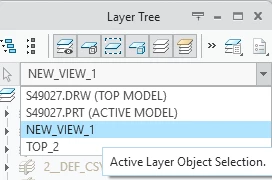
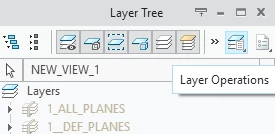
        • In layer tree activate the view, select Layer Operations, select Drawing Dependent


    2 replies

    kdirth
    kdirth21-Topaz IAnswer
    21-Topaz I
    August 6, 2026

    It is difficult to diagnose without the model to interrogate since there are many options to look at.  It appears the sketch is in all of your views (Blue lines).  Here are a few things to look at.

    • In the model:
      • Is the sketch (and any copies) on a layer?
        • Open the layer tree
        • Expand the layer it should be on.
          • Is it there?
          • If not, edit properties of layer and select the sketch to add it.
        • Expand the Shown Items layer (if there)
          • Is it there?
          • If it is, RMB and select Remove Item.
    • In the drawing:
      • Is the layer hidden?
      • Are the view layers Drawing Dependent?
        • In layer tree activate the view, select Layer Operations, select Drawing Dependent


    There is always more to learn.
    7-Bedrock
    August 6, 2026

    Thanks, it worked.