15-Moonstone
September 15, 2014
Question

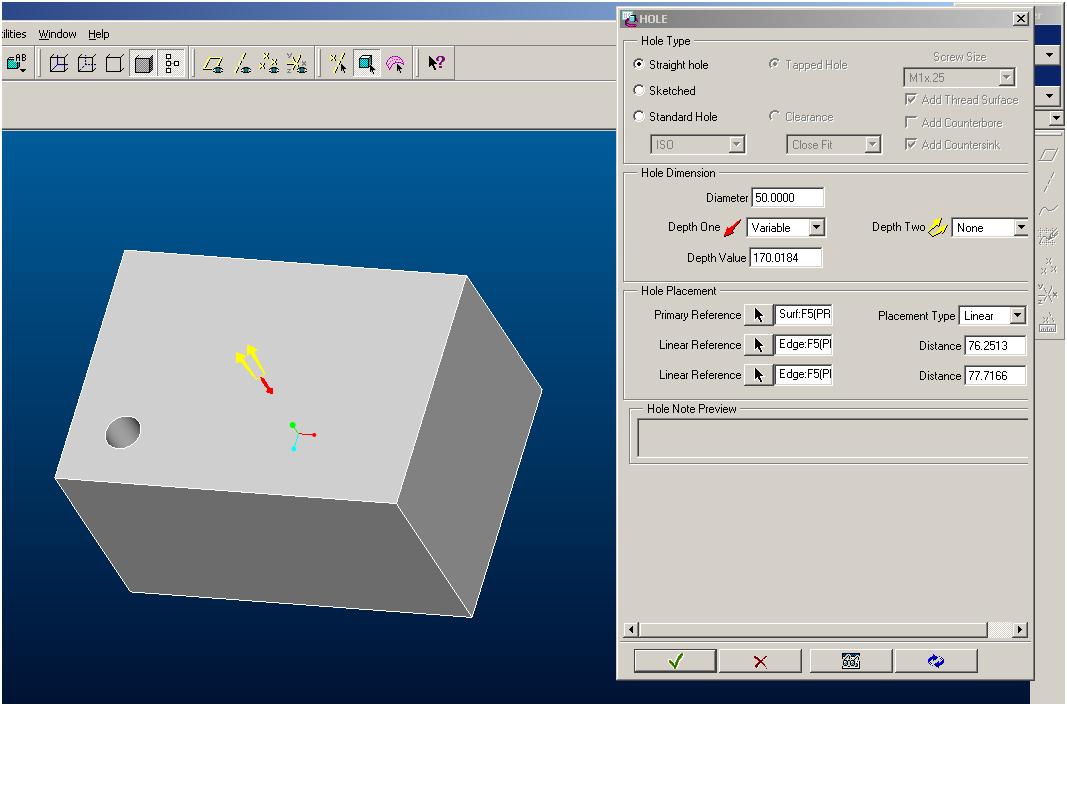
we could create multiple holes in one hole command previously...why was it removed?
  • September 15, 2014
  • 9 replies
  • 15196 views

we could create multiple holes in one hole command previously...why was it removed?

repeat_hole.JPG

    9 replies

    17-Peridot
    September 15, 2014

    You mean it wasn't just my imagination? I know its been a while since I used 2000i.

    15-Moonstone
    September 15, 2014

    ha ha ..no it wasn't your imagination...it was there....

    they should keep the old functionality...but they remove..the old when when adding some new ones..

    5-Regular Member
    September 16, 2014

    Rohit, that workflow did indeed disappear when the hole capabilties got their make over a number of releases ago. However there is a new workflow in Creo Parametric that allows a user to create a large number of similar holes in a hurry.

    1. Create a sketch on the surface where the holes will exist and use the Datum Point command (in the Sketch menu) to place the points at the location for your holes.

    9-16-2014+5-44-05+PM.png

    2. Select one of the datum points and place your hole using it as a reference.

    3. Select the hole and pick the Pattern command. Set it for Point pattern, sketch type and pick your sktech or the datum points. Hit the green check.

    9-16-2014+5-52-16+PM.png

    4. that's it.

    It's not the old interface, but once you get the hang of it you can make a large number of holes very quickly.

    15-Moonstone
    September 17, 2014

    thanks for your reply....

    actually i was talking about the inconvenience if i have to make holes of different diameters.

    everytime i have to select the hole command again and again.

    i know there is a point pattern, then there is copy paste.

    1-Visitor
    September 26, 2014

    There's another approach to this situation which is to use the Copy / Paste method on the Model menu tab.

    Highlight the Hole you want to repeatedly recreate and choose "Copy" or use Control-C.

    Use the left mouse button to end any kind of activity.

    This will "gray out" the Copy selection and "open up" the "Paste" selection.

    Choose "Paste" or use Control-V.

    The Hole tool opens up with the same criteria as what you "copied".

    Pick the placement surface, adjust the secondary constraints.

    I assume that you actually want to vary the diameter and depth on these subsequent features, but this will save a little mouse work getting into the Hole tool. It's also helpful if you're modifying a part that you have not worked with in a while, or a part that someone else initially modeled.

    You should also experiment with the "Paste Special" option if you choose the "Paste" command on the menu.

    This provides you with options controlling the dependency of the copied Hole to the original hole. Using Control-V just throws you into the tool looking for the placement & constraint mouse picks.

    Also you'll see that this functionallity works with most features so it can really save time on some of the more time consuming menu selection routines that PTC has buried down a couple levels.

    Hope this helps.