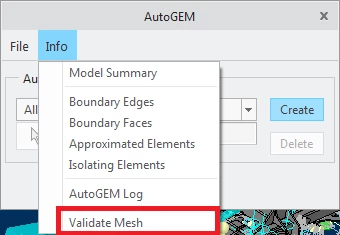
I finally found the solution for how to display only bad elements in AutoGEM!
Since PTC Creo doesn’t provide an option to show only the bad elements — instead, it always shows a mix of both good and bad elements, making it a complete mess — I decided to go through every available button, even the ones that didn’t seem to make much sense at first.
So, here’s how you can finally see only the bad elements in the mesh.
Let’s assume there are some bad elements in this mesh — here’s what to do:
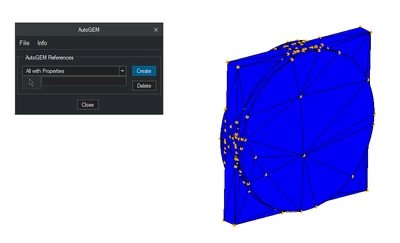
…and we want to see only the bad elements.
But first, let’s take a look at how it normally appears when using the Validate Mesh tool — without any workarounds.
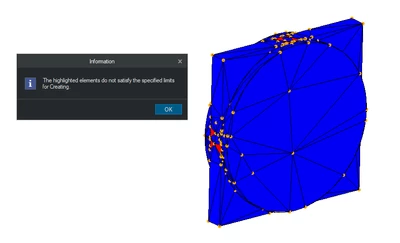
In this case, the bad elements are relatively large, but even so, not all of them are clearly visible.
So, let’s adjust the visibility settings to make sure all bad elements are easy to spot.

Turn off all mesh entities.
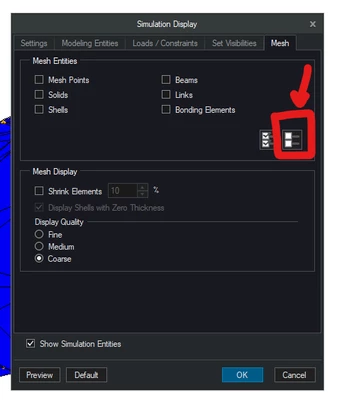
Hide all idealizations and connections
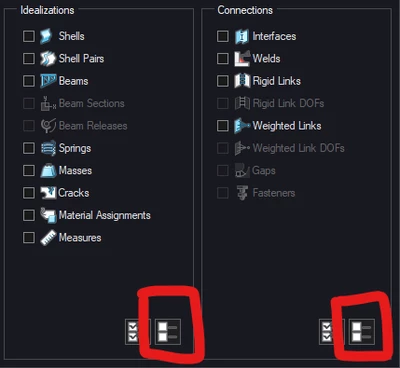
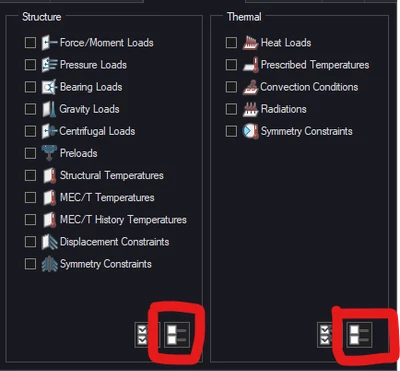
Turn off all structural and thermal loads.
Now you should see something like this.
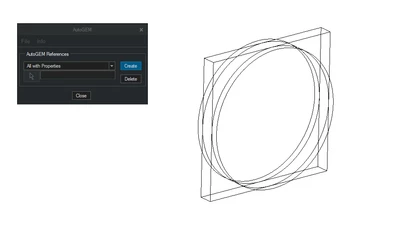
In the case of a large assembly, I recommend hiding entire parts and assemblies directly from the model tree to make things clearer.
Now, let’s run the Validate Mesh tool again.
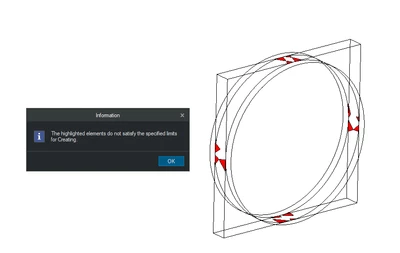
Ta-da! 🎉