
12-Amethyst
December 11, 2023
Solved

Display an image at the bottom of a page

  • December 11, 2023
  • 2 replies
  • 1602 views

Hello,


I am trying to display an image at the bottom of a specific page. Initially, I was trying to accomplish this using a page region, but cannot seem to do so without entering an absolute path (c:\Users\<username>\OneDrive...):
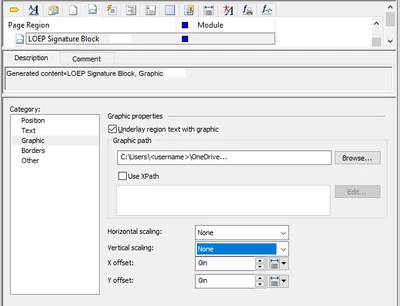
 

JSkog_0-1702313084403.png

or within the custom/graphics folder referenced as the pathname attribute of the _gentextgraphic element.


The graphics folder I want to use is located at the root level relative to where my topics and maps reside (as referenced directly from topics as "href=images/graphic.png")


This graphic only needs to display in the LOEP topic. When I add the image element into the LOEP topic, it's understandably at the break near the top of the page, which is why I assumed it needed to be in a page region defined at the bottom.


Please let me know if I need to clarify with additional details. Thanks for any help,


Jeff

Best answer by JSkog

This matter was resolved by copying some existing methods (where the image on the Cover topic was being referenced to the LOEP topic) and modifying as summarized below:

  • creating a new outputclass (LOEPSignature) in the image element and setting Hidden to "yes" in the Text category,
  • copying the SignatureBlock _ufe and naming it "LOEPSignatureBlock" using the new image outputclass (LOEPSignature), and 
  • adding the image to the Cover topic.

This was accomplished through the intervention of a consultant. Thanks.

2 replies

24-Ruby III
December 12, 2023

Please specify which software version you are using.

JSkog12-AmethystAuthor
12-Amethyst
December 12, 2023

Hi Vladimir,


I'm currently on Arbortext w/ Styler Release 8.1.1.0. I am scheduled for an update today to 8.1.3.1.


Regards,

Jeff

JSkog12-AmethystAuthorAnswer
12-Amethyst
December 19, 2023

This matter was resolved by copying some existing methods (where the image on the Cover topic was being referenced to the LOEP topic) and modifying as summarized below:

  • creating a new outputclass (LOEPSignature) in the image element and setting Hidden to "yes" in the Text category,
  • copying the SignatureBlock _ufe and naming it "LOEPSignatureBlock" using the new image outputclass (LOEPSignature), and 
  • adding the image to the Cover topic.

This was accomplished through the intervention of a consultant. Thanks.