1-Visitor
February 19, 2014
Solved

Transparent View

  • February 19, 2014
  • 1 reply
  • 6779 views

Can anyone tell me if Transparent View is available in CREO 2.0 Parametrics? When I expand Display Style I do not see Transparent as an option.

    Best answer by neomechanikos

    Oh, you must be in a part. If that's the case then you need to do #3 above which is fine if it's a part. Not so much if it's an assembly.

    For uploading an image, If you are on windows 7 you can use the Snipping Tool and save the file where you can upload it. If you use alt+printscreen then paste it into paint and save the file for upload later.

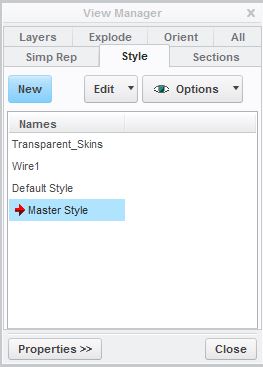
    For #1 (and assemblies) use the Style tab in the view manager. Click on style tab, then new, then component display style select the transparent button.
    transparent1.jpg

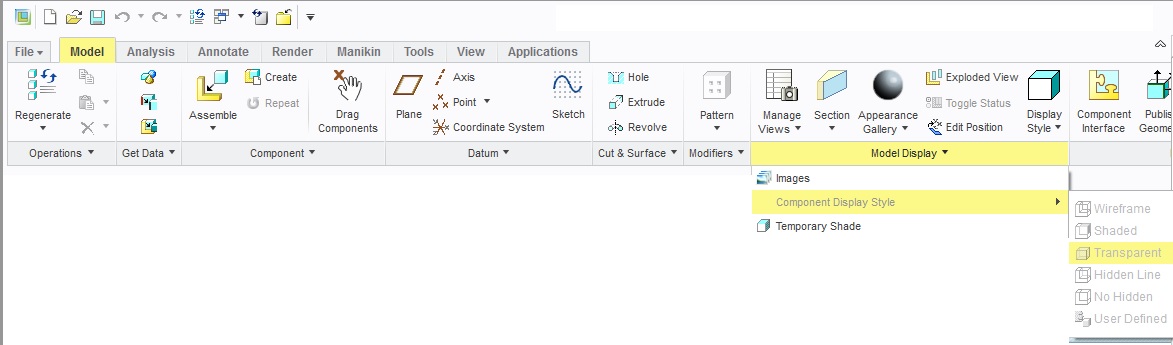
    As for #2 (and assemblies) it's located in the image below. Make sure you select a part first before you follow the links otherwise it will be greyed out as in the image below:

    transparent2.jpg

    1 reply

    1-Visitor
    February 19, 2014

    There are three ways to do this:

    1. Model Tab --> Manage Views --> Style --> New --> Show --> Transparent. Select the components you want to turn transparent and then save the style.
    2. Display it temporarily via selecting the components you want to be transparent and then: Model Tab --> Model Display [pulldown] --> Component Display Style --> transparent.
    3. Color everything a transparent color. Recommend the above two methods.
    dwright-21-VisitorAuthor
    1-Visitor
    February 19, 2014

    Thank you for the reply. For whatever reason none of option 1 or 2 are in my model tab? Do these options have to turned on somewhere? I tried to include a screen shot of my CREO screen, but obviously I don't know how to do that. I tried Alt- Print Screen, but I could not paste it here for some reason. The only place I could find a View Manager was in the View Tab, but I did not see anything like what you have described. I am confused.

    1-Visitor
    February 19, 2014

    Oh, you must be in a part. If that's the case then you need to do #3 above which is fine if it's a part. Not so much if it's an assembly.

    For uploading an image, If you are on windows 7 you can use the Snipping Tool and save the file where you can upload it. If you use alt+printscreen then paste it into paint and save the file for upload later.

    For #1 (and assemblies) use the Style tab in the view manager. Click on style tab, then new, then component display style select the transparent button.

    transparent1.jpg

    As for #2 (and assemblies) it's located in the image below. Make sure you select a part first before you follow the links otherwise it will be greyed out as in the image below:

    transparent2.jpg
