

Get Started with ThingWorx for IoT Guide Part 3
- Get Started with ThingWorx for IoT Guide Part 3
- Step 7: Create Alerts and Subscriptions
- Step 8: Create Application UI
- Step 9: Add Widgets
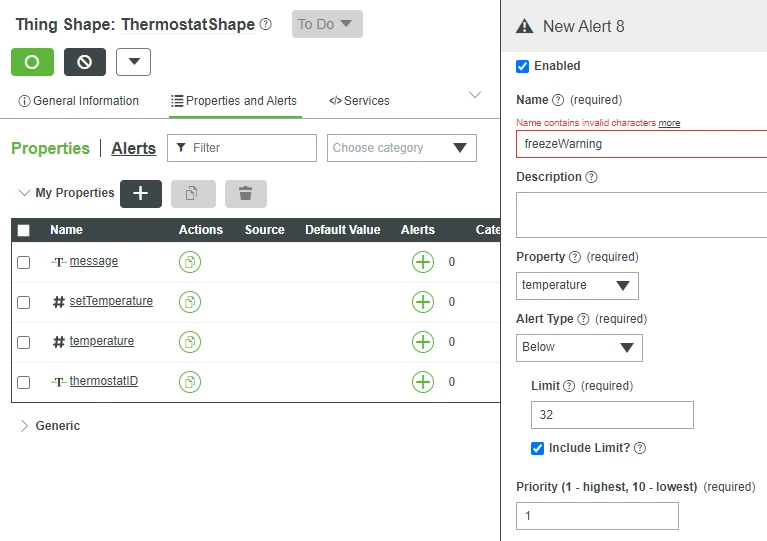
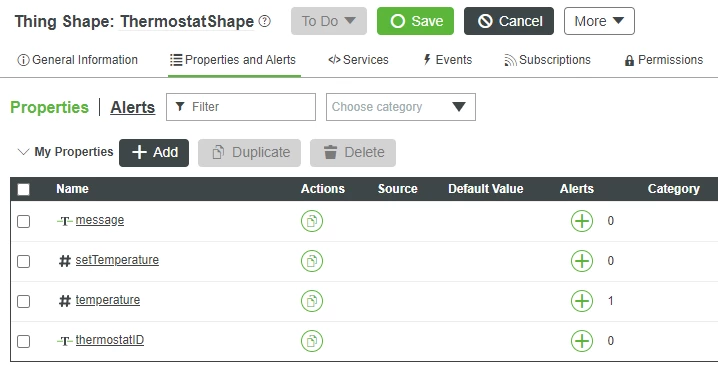
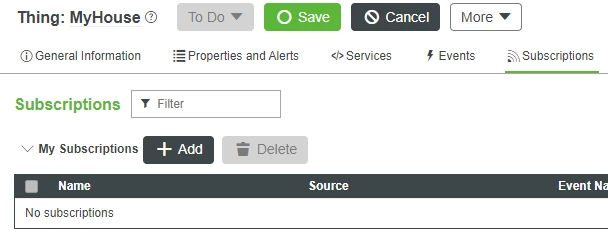
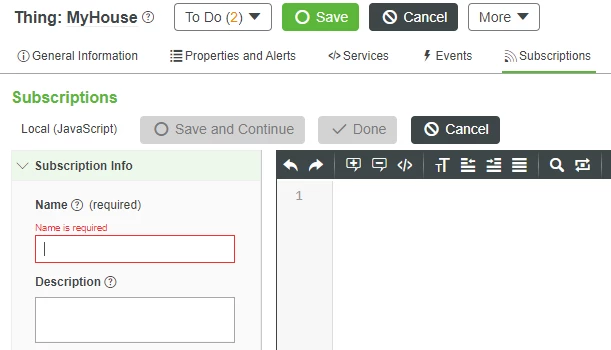
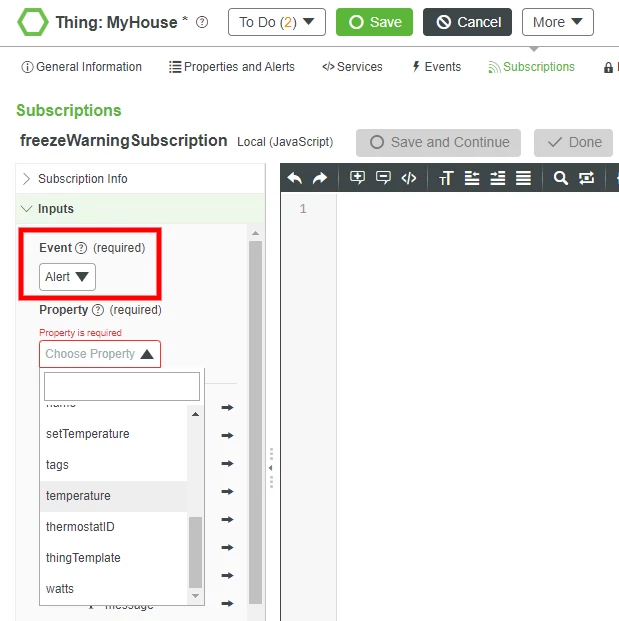
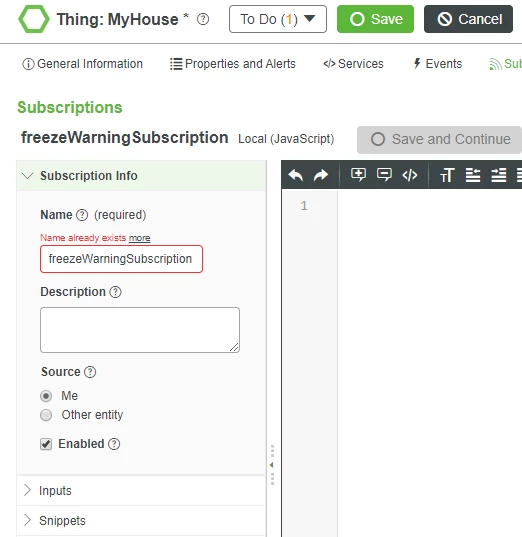
me.message = "Warning: Below Freezing";
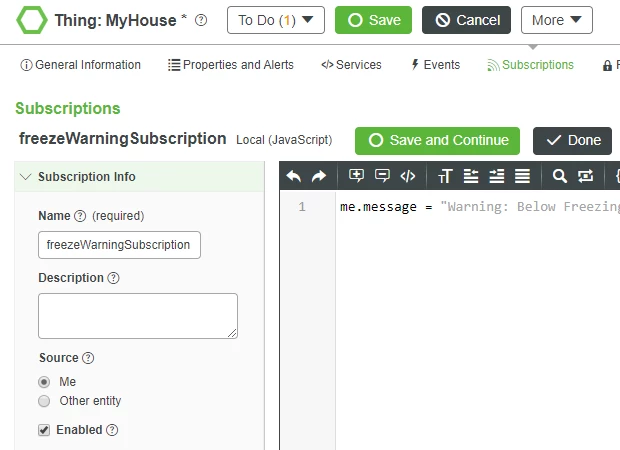
2. Click the Snippets tab.
NOTE: Snippets provide many built-in code samples and functions you can use.
3. Click inside the Script text box and hit the Enter key to place the cursor on a new line.
4. Type warn into the snippets filter text box or scroll down to locate the warn Snippet.
5. Click All, then click the arrow next to warn, and Javascript code will be added to the script window.
6. Add an error message in between the quotation marks.
logger.warn("The freezeWarning subscription was triggered");
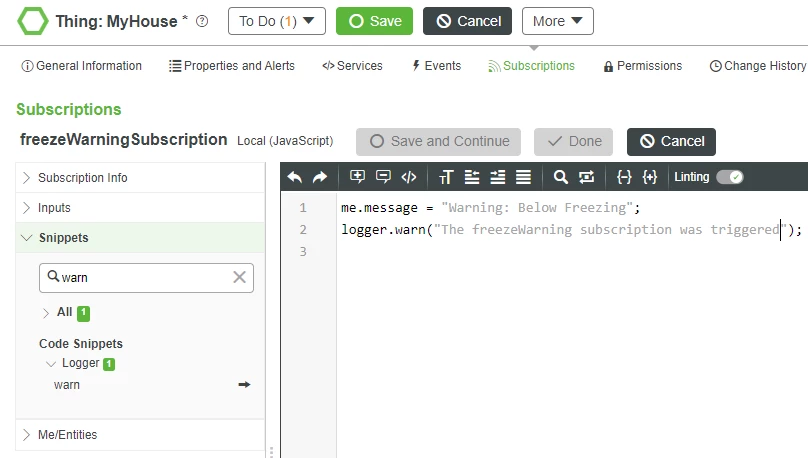
7. Click Done.
8. Click Save.
Step 8: Create Application UI
ThingWorx you can create customized web applications that display and interact with data from multiple sources. These web applications are called Mashups and are created using the Mashup Builder. The Mashup Builder is where you create your web application by dragging and dropping Widgets such as grids, charts, maps, buttons onto a canvas. All of the user interface elements in your application are Widgets. We will build a web application with three Widgets: a map showing your house's location on an interactive map, a gauge displaying the current value of the watts property, and a graph showing the temperature property value trend over time.
Build Mashup
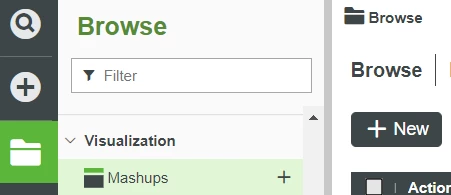
- Start on the Browse, folder icon tab of ThingWorx Composer.
- Select Mashups in the left-hand navigation, then click + New to create a new Mashup.
- For Mashup Type select Responsive.
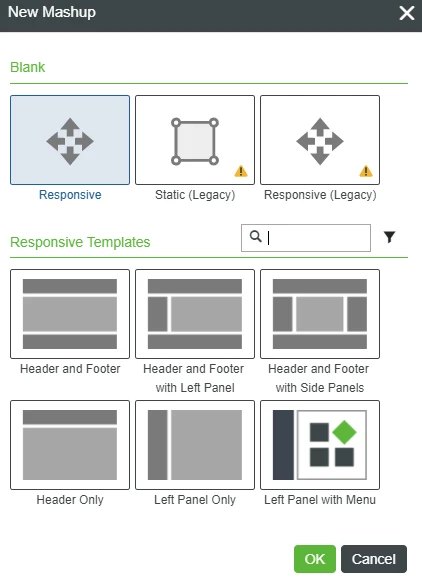
- Click OK.
- Enter widgetMashup in the Name text field,
- If Project is not already set, click the + in the Project text box and select the PTCDefaultProject,
- Click Save.
- Select the Design tab to display Mashup Builder.
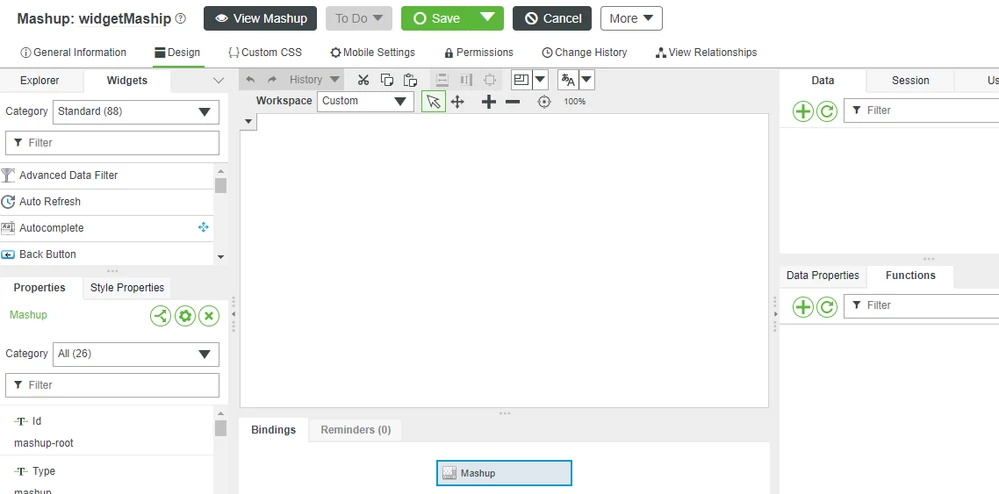
Organize UI
- On the upper left side of the design workspace, in the Widget panel, be sure the Layout tab is selected, then click Add Bottom to split your UI into two halves.
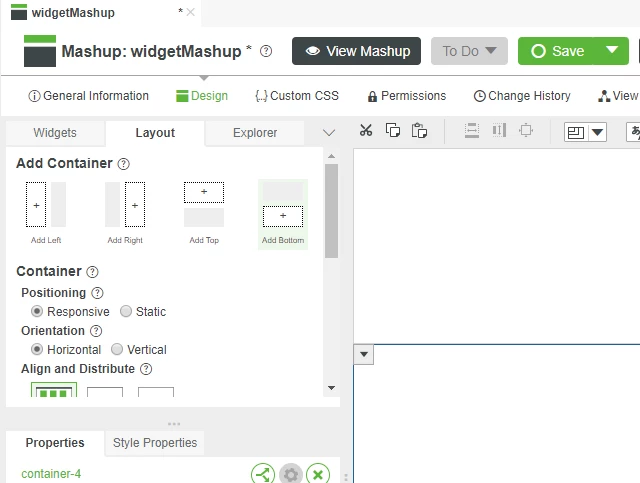
- Click in the bottom half to be sure it is selected before clicking Add Left
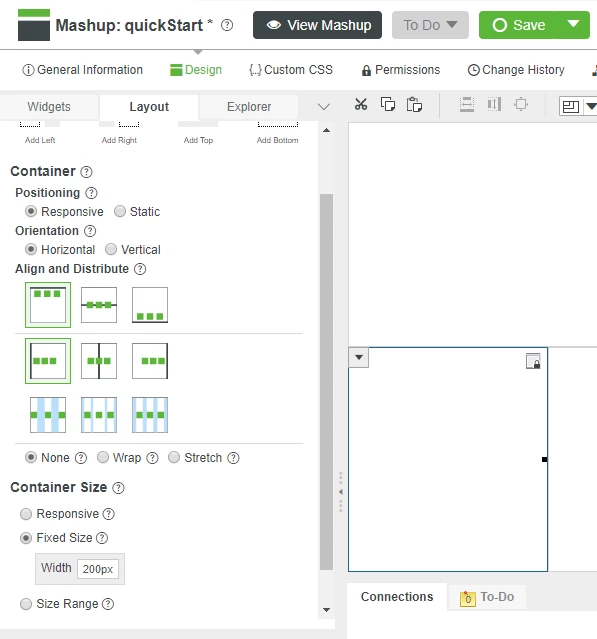
- Click anywhere inside the lower left container, then scroll down in the Layout panel to select Fixed Size
- Enter 200 in the Width text box that appears, then press Tab key of your computer to record your entry.
- Click Save
Step 9: Add Widgets
- Click the Widgets tab on the top left of the Widget panel, then scroll down until you see the Gauge Widget
- Drag the Gauge widget onto the lower left area of the canvas on the right. This Widget will show the simulated watts in use.
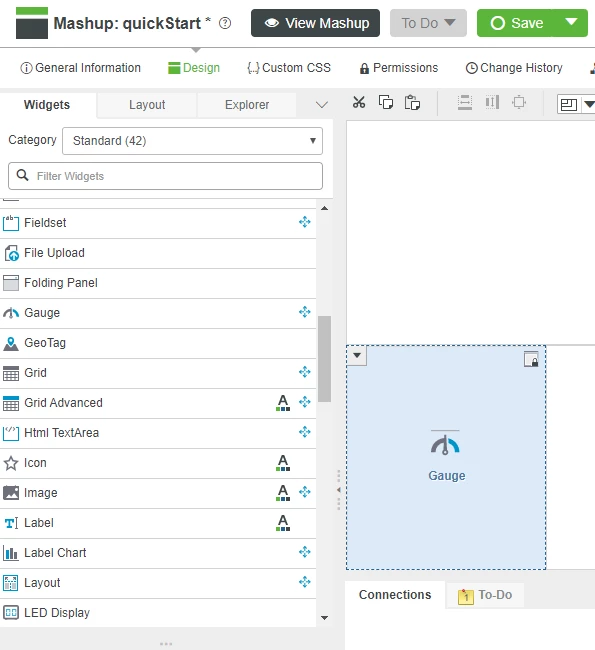
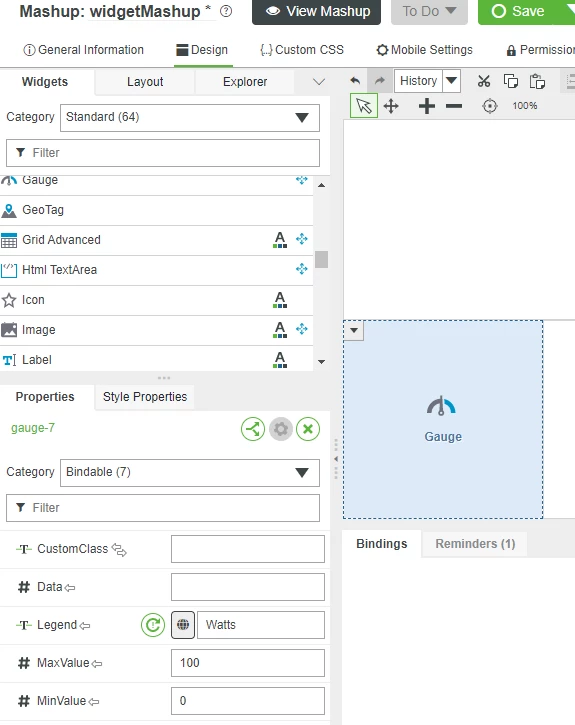
- Select the Gauge object on the canvas, and the bottom left side of the screen will show the Widget properties.
- Select Bindable from the Catagory dropdown and enter Watts for the Legend property value, and then press tab..
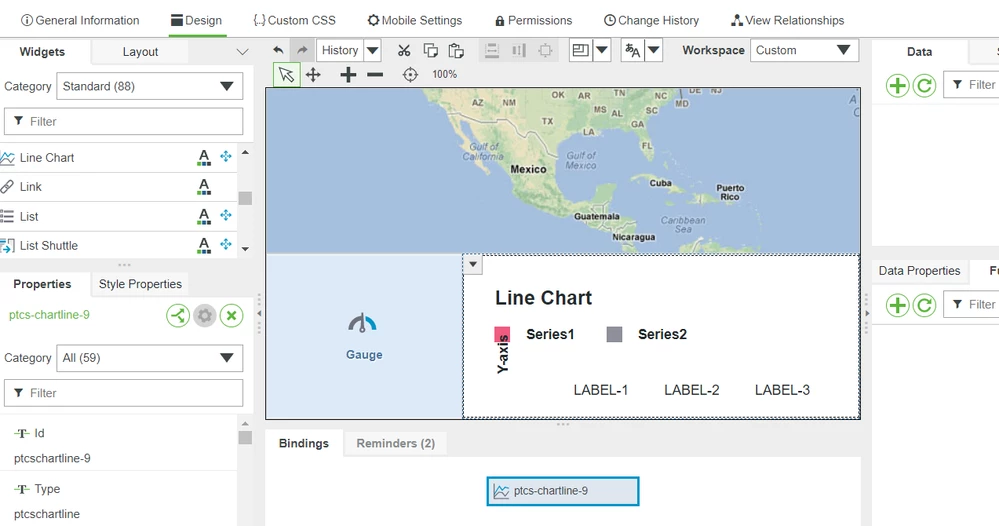
- Click and drag the Google Map Widget onto the top area of the canvas.
NOTE: The Google Map Widget has been provisioned on PTC CLoud hosted trial servers. If it is not available, download and install the Google Map Extension using the step-by-step guide for using Google Maps with ThingWorx .
6. Click and drag the Line Chart Widget onto the lower right area of the canvas.
7. Click Save
Click here to view Part 4 of this guide.