

Installing & Connecting C SDK to Federated ThingWorx with VNC Tunneling to the Edge device
Content
- Configuring ThingWorx C SDK
- Configuring C SDK client example for
- Tunneling
- Accepting Self Signed certificate
- Configuring C SDK client example for
- Installing and configuring VNC Extension on ThingWorx Platform
- Configuring Tunnel Subsystem
- Configuring Remote Access & WebSocket tunnel widgets in a Mashup
- Setting up Federated ThingWorx
NOTE : For sake of brevity I'll divide this blog in sub blogs and will link them where ever needed.
Configuring ThingWorx C SDK
Pre-requisite
- Ensure that following two utilities are installed
- Cmake
- Make
- For linux platform both will likely be pre-installed
- Have ThingWorx configured with self-signed certificate (optional), refer to this article ThingWorx setup SSL / HTTPS on Tomcat with Self-Signed Certificate
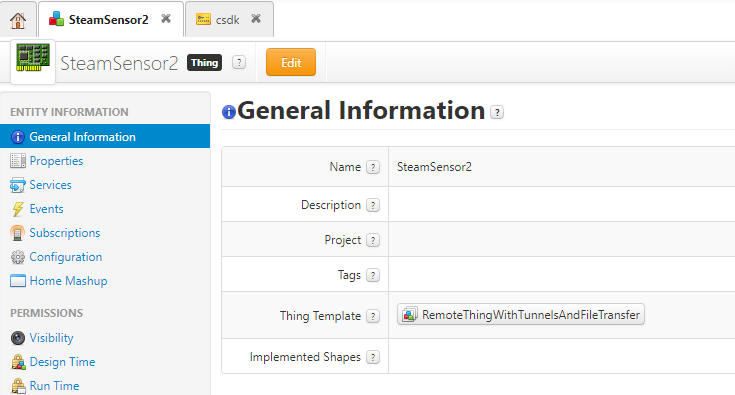
- Create a Thing to which you want to bind to from the csdk example, e.g. create SteamSensor2 with ThingTemplate RemoteThingWithTunnels (below screenshot shows ThingTemplate RemoteThingWithTunnelsAndFileTransfer - this is not must for this blog we just need RemoteThingWithTunnels as we want to have our thing connected to receive property updates and also do tunneling)
- Create an Application key with user that has sufficient access rights to work with remote entities
- Install and configure VNC server for tunneling using this blog Tunneling with ThingWorx and an Edge Device
Note : Above mentioned blog is done using ThingWorx Edge Microserver, however we are only interested in installation and configuration related to the VNC server. You don't need to configure the edge device for tunneling from the above mentioned blog as we will do this later in this blog for C SDK.
Installing, configuring and launching the C SDK based client on Linux platform
To begin with ensure that you have downloaded the ThingWorx C SDK from PTC Marketplace or PTC Software Download page. Let's configure the CSDK
1. Navigate to the C SDK root directory and create a directory e.g. /csdk/cmake
2. Change directory into cmake/
3. Check for the available compilers on the platform, with command cmake -G list
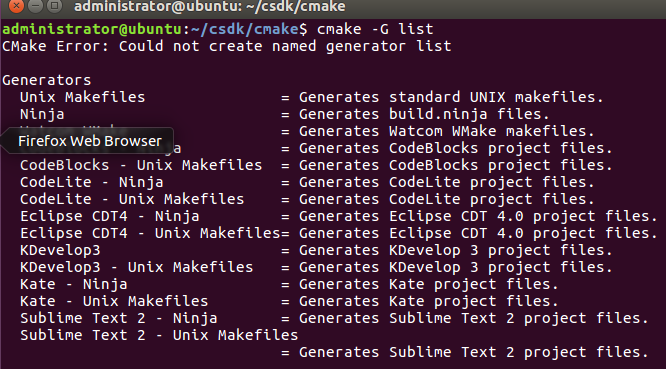
4. Choose as per your requirement, for our example here 'll pick "Unix Makefiles"
Note : I'm compiling on Ubuntu 16 OS
5. Execute following command from csdk/cmake/ , eg.
cmake -G "Unix Makefiles" ..
This will result in following compilation details :
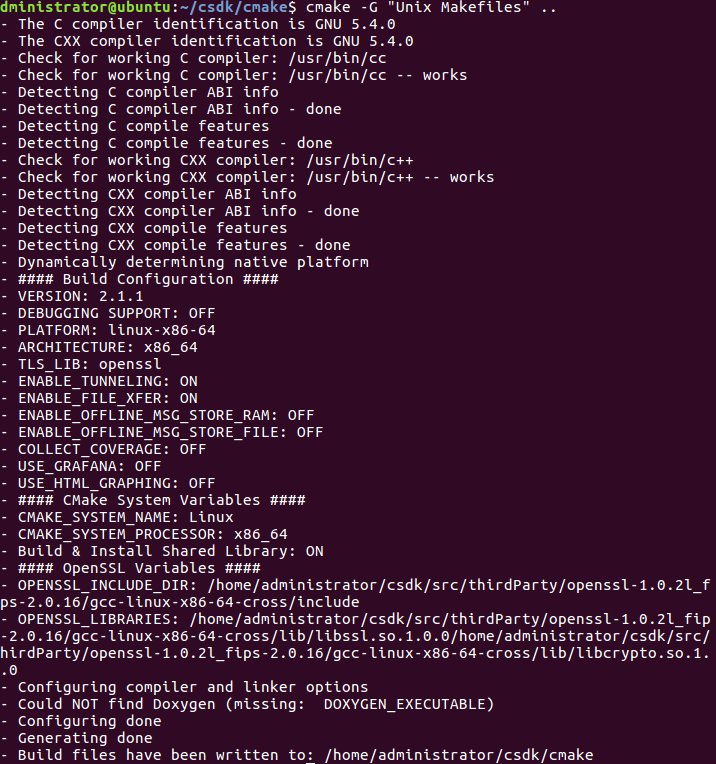
6. Cmake folder now have some build files created

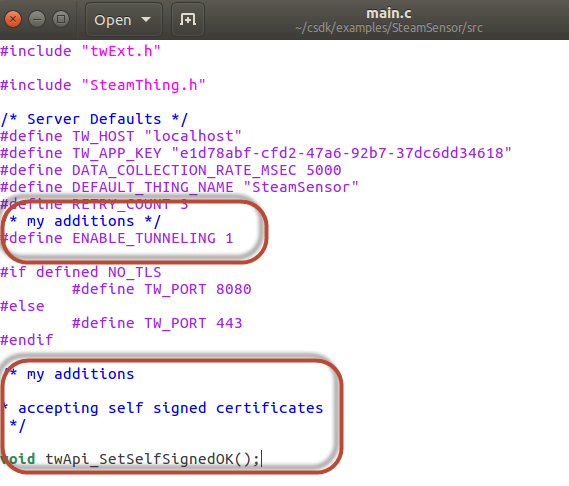
7. Configure the example SteamSensor for tunneling and for accepting self-signed certificate, as my ThingWorx is currently configured with HTTPS
8. Navigate to root directory and edit the main.c for SteamSensor, e.g.
sudo gedit main.c
Note: Feel free to use any editor of your choice, I'm using gedit
Add following to enable tunneling and accepting self-signed certificates
#define ENABLE_TUNNELING 1

void twApi_SetSelfSignedOK();
9. Save the file and close
10. Make the solution to create executable out of the example SteamSensor we edited
11. Navigate to the SteamSensor example under the cmake e.g.

12. Key in command make and press enter, e.g.
~/csdk/cmake/examples/SteamSensor$ make
This will build the solution and once finished it will put some new files and an executable file in the /csdk/cmake/examples/SteamSensor
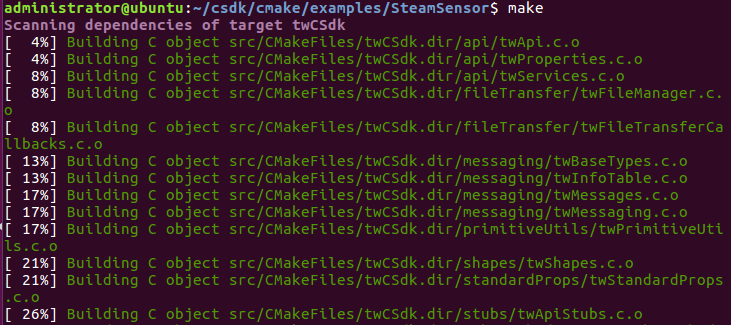
Once the build is finished,

Great! now then, let's crack on with the SteamSensor executable.
13. To launch the executable it requires following syntax
./SteamSensor <hostname> <port> <appKey> <thingname> , e.g.
./SteamSensor tw802neo 443 11c784ab-dde7-400f-b244-fd7c4b217869 SteamSensor2
14. Once launched & if its successfully connected you can check the remote entity created in ThingWorx Composer, as we can see below entity as connected.
Notice that in below screenshot there are some sample properties that are being pushed from the C SDK based client. You may not have them at first
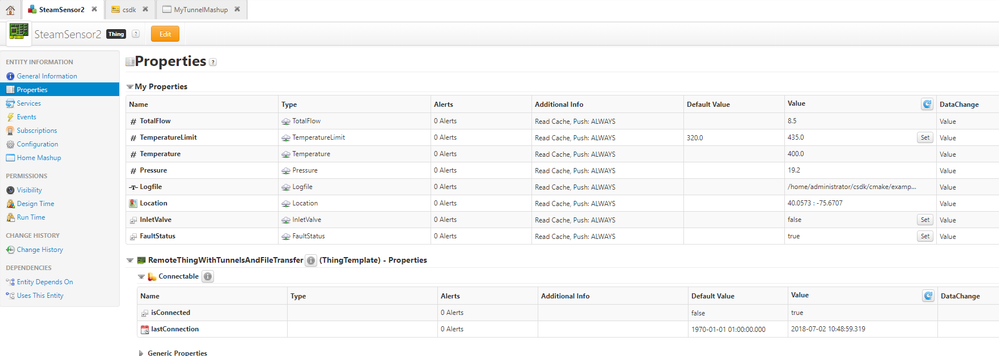
15. In case you see isConnected as true but no property listed for your Thing, edit the Thing and click on Manage Bindings

Click on Remote tab to see which properties are pushed, then you have the option to either click on Add All Above Properties on the right side, which will automatically create properties under the Thing, or you can drag and drop properties on the right to bind with if you are using properties with different name. Ensure that the data type matches with the remote properties.
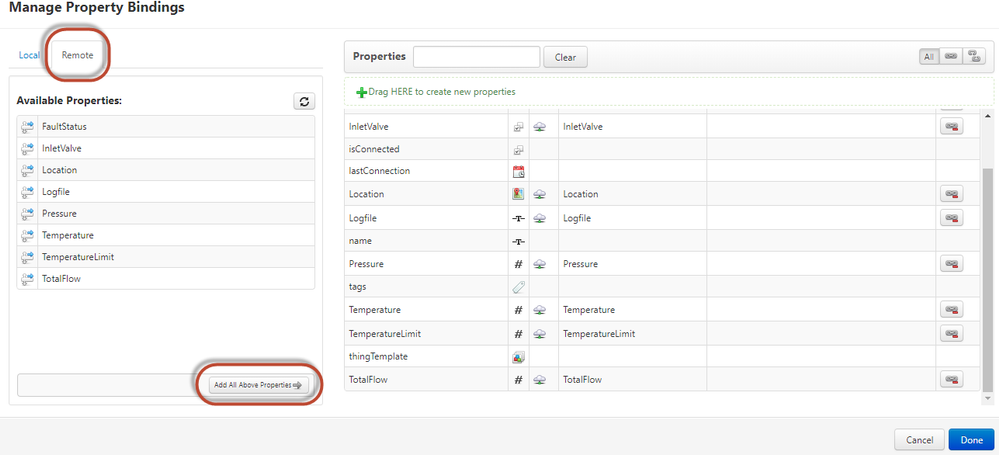
Done and Save.
So far
- C SDK installed and configured
- VNC server installed
- A Thing created with RemoteThingWithTunnel ThingTemplate
- An Application key to connect C SDK based client to RemoteThing in ThingWorx
- Bound remote properties from the C SDK client built above to the Remote Thing on ThingWorx
Up Next