

ThingWorx Performance Monitoring with Grafana
 ThingWorx Performance Monitoring with Grafana
authored by EDC team member Desheng Xu (
Monitoring ThingWorx performance is crucially important, both during the load testing of a newly completed application, and after the deployment of new code in an existing application. Monitoring performance ensures that everything works as expected at the Enterprise level. This tutorial steps you through configuring and installing a tool which runs on the same network as the ThingWorx instance. This tool collects data from the Platform and translates it into something visual and easy to understand via Grafana.
tsample is small and customizable, and it plays a similar role to telegraf. Its focus is on gathering ThingWorx performance metrics. Historically, this tool also supported collecting OS level performance metrics, but this is no longer supported. It is highly recommended to collect OS level performance metrics by using telegraf, a tool designed specifically for that purpose (and not discussed here). This is not the only way to go about monitoring ThingWorx performance, but this tool uses a very good approach that has been proven effective both at customer sites and internally by PTC to monitor scale tests. Find the most recent release here.
Recommended Deployment Architecture
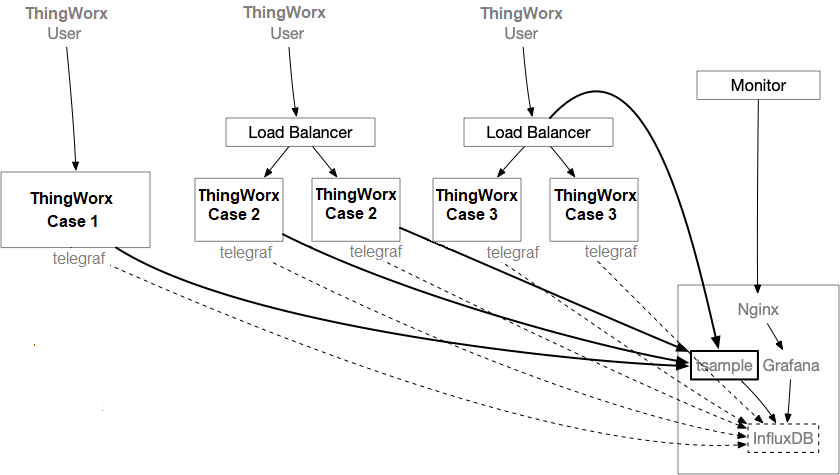
tsample can be deployed in the same box where ThingWorx Tomcat is running, but it's recommended to deploy it on a separated box to minimize any performance impact caused by the collector. tsample supports export to InfluxDB and/or local file. In this document, it is assumed that InfluxDB will be used for monitoring purpose. Please note that this is not the same instance of InfluxDB being used by ThingWorx (if configured). This article will not cover setting up InfluxDB or NGINX (if necessary), so please configure these before beginning this tutorial.
Supported Platform
tsample has been tested on Windows 2016, MacOS 10.15, Ubuntu 16.04, and Redhat 7.x. It's anticipated to work on a more general Ubuntu/Redhat/Mac/Windows release as well. Please leave a comment or contact the author,
Configuration File
Where to Store the Configuration File
tsample will pick up the configuration file in the following sequence:
- from the command line...
./tsample -c <path to configuration file>
- from the environment...
- Linux:
export TSAMPLE_CONFIG=<path to configuration file>
./tsample
- Windows:
set TSAMPLE_CONFIG=<path to configuration file>
tsample.exe
- from a default location...
tsample will try to find a file with the name "config.toml " from the same folder in which it starts.
How to Craft a Configuration File
You can use following command to generate a sample file:
./tsample -c config.toml -e
or:
./tsample -c config.toml --export
A file with the name "config.toml " will be generated with a sample configuration. You can then adjust its content in accordance with the following.
Configuration File Content
Format
Configuration file must be in toml format.
title and owner sections
Both sections are optional. The intention of these two sections is to support doc tool in future.
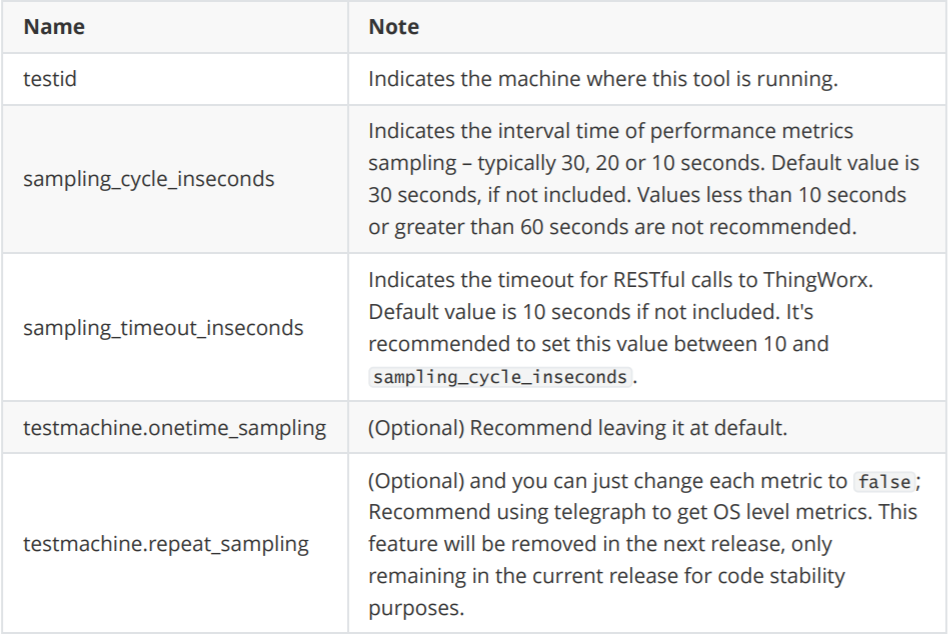
TestMachine section
This is section is required, and it defines where this tool will run.
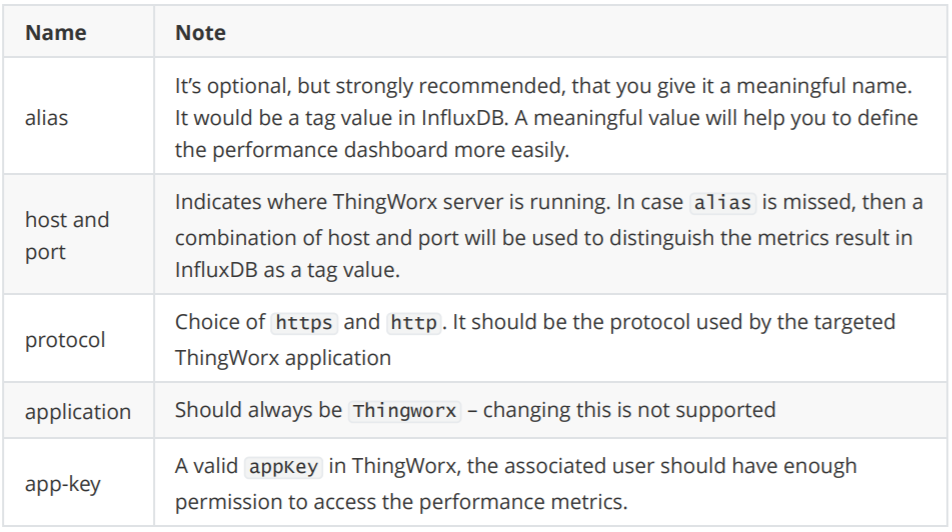
thingworx_servers section
This section is where you define targeted ThingWorx applications. Multiple ThingWorx servers can be defined with the same or different metrics to be collected.
thingworx_servers.metrics sections
Underneath each thingworx_servers section, there are several metrics. In default example,
following metrics have been included:
- ValueStreamProcessingSubsystem
- DataTableProcessingSubsystem
- EventProcessingSubsystem
- PlatformSubsystem
- StreamProcessingSubsystem
- WSCommunicationsSubsystem
- WSExecutionProcessingSubsystem
- TunnelSubsystem
- AlertProcessingSubsystem
- FederationSubsystem
You can add your own customized metrics, as long as the result follows the same Data Shape. The default Data Shape has 3 columns:
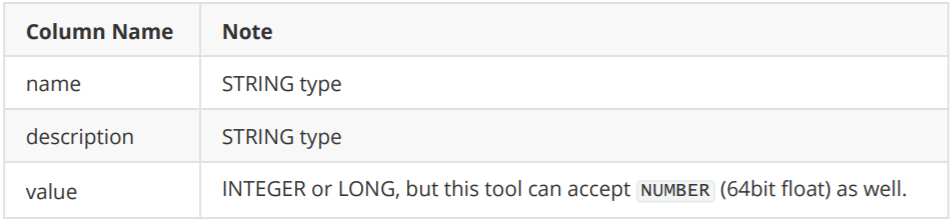
If the output Data Shape exceeds this limit, the tool will likely not work properly.
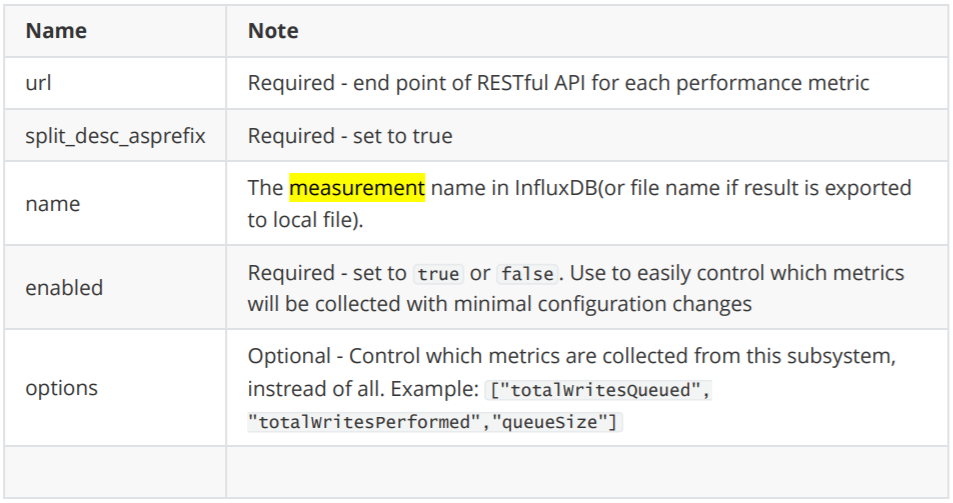
result_export_to_db section
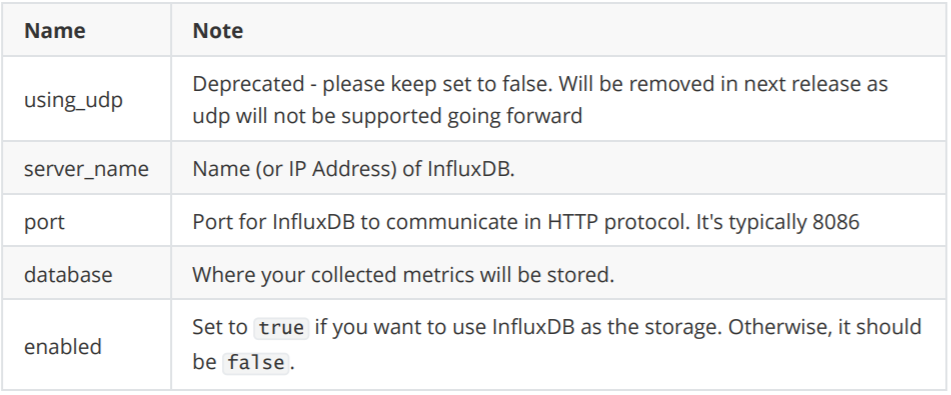
This section defines the target InfluxDB as a sink of collected performance metrics.
result_export_to_file section
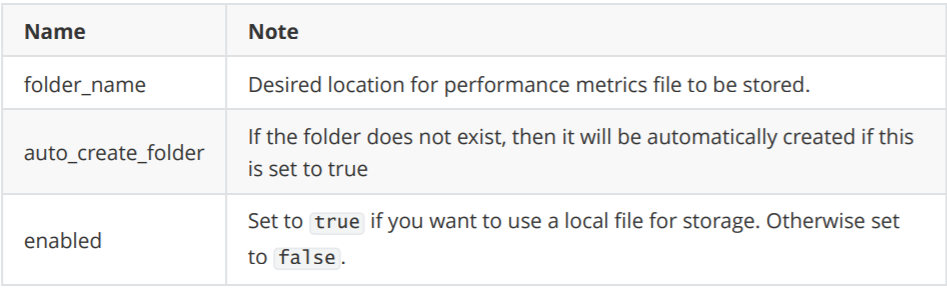
This section defines the target file storage for collected performance metrics.
Grafana Configuration Example
Monitor Value Stream
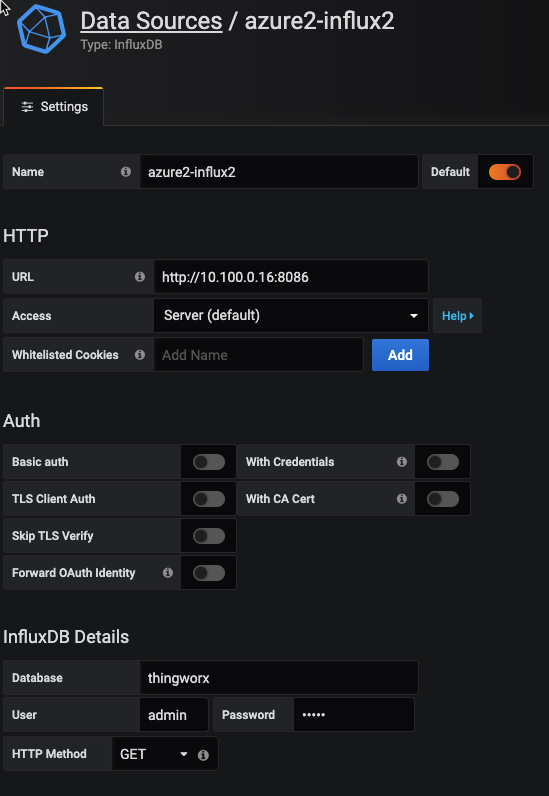
Step 1. Connect Grafana to InfluxDB
Step 2: Create a New Dashboard
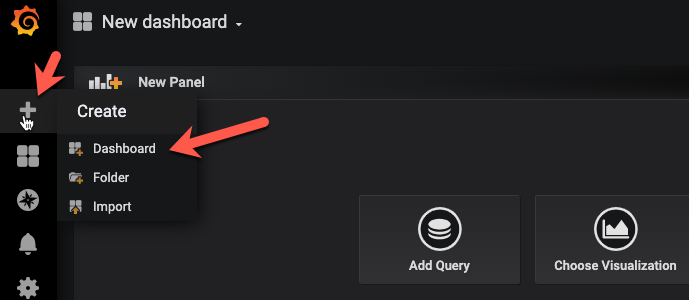
Step 3. Create a New Query
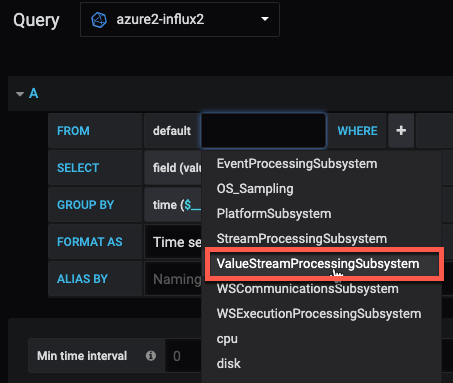
Depending on which metrics you defined to collect in the tsample configuration file, you will see a different choice of measurement in Grafana. Here, we will use ValueStreamProcessingSubsystem as an example.
Step 4. Choose the Right Platform and Storage Provider

Some metrics depend on the database storage provider, like Value Stream and Stream.
Step 5. Choose the Metrics Figures
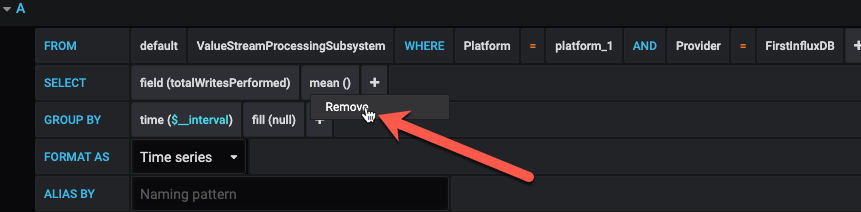
Select "remove" to get rid of the default 'mean' calculation.
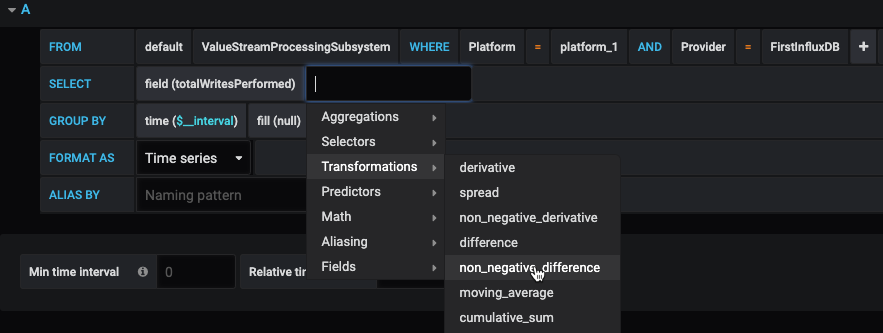
Select "non_negative_difference" from Transformations. Using this transformation, Grafana can show us the speed of writes.
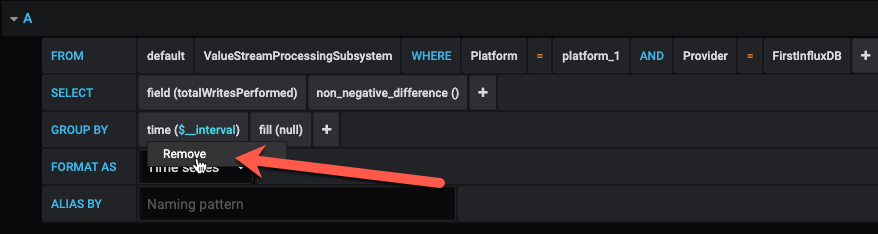
Then, remove the default GROUP BY "time" clause.
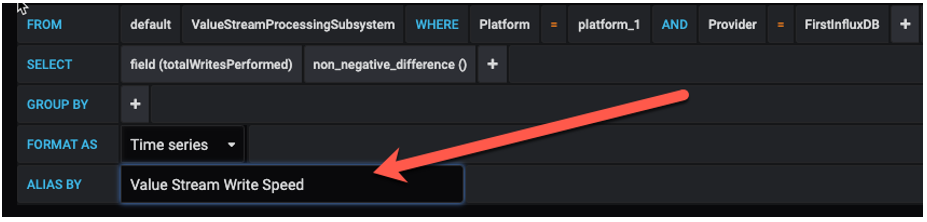
Assign a meaningful alias of this query.
Step 6. Add Another Query
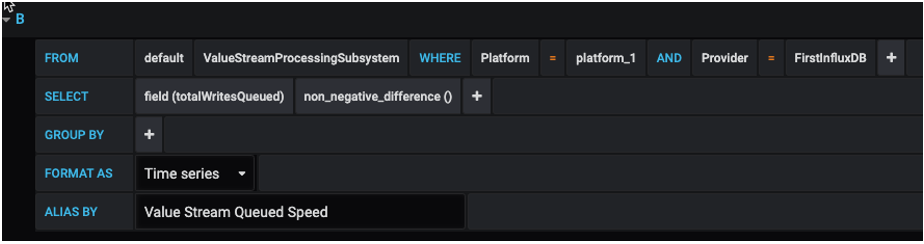
You can add another query as 'Value Stream Queued Speed' by following the same steps.
Step 7. Assign a Panel Title
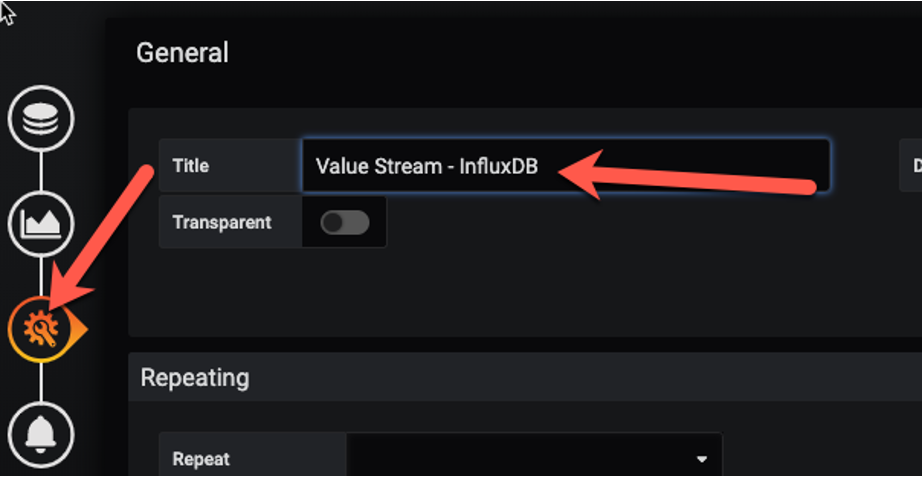
Step 8. Review the Result

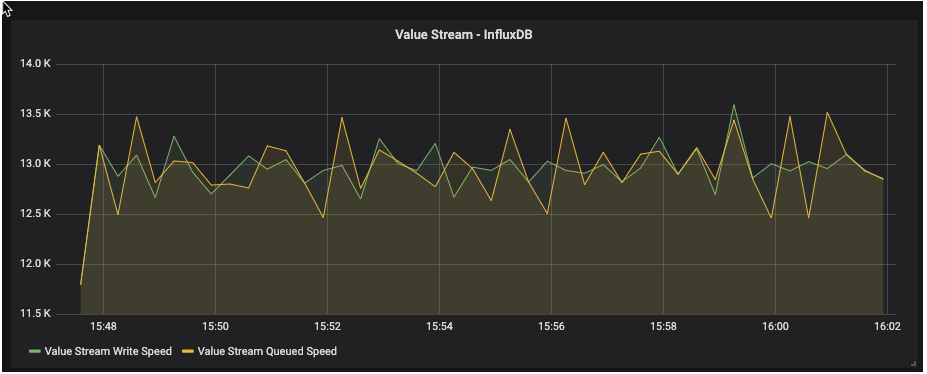
Let's go back to the dashboard page and select "last 15 minutes" or "last 5 minutes" from the top right corner. It should show a result similar to the chart below.
Step 9. Save the Dashboard
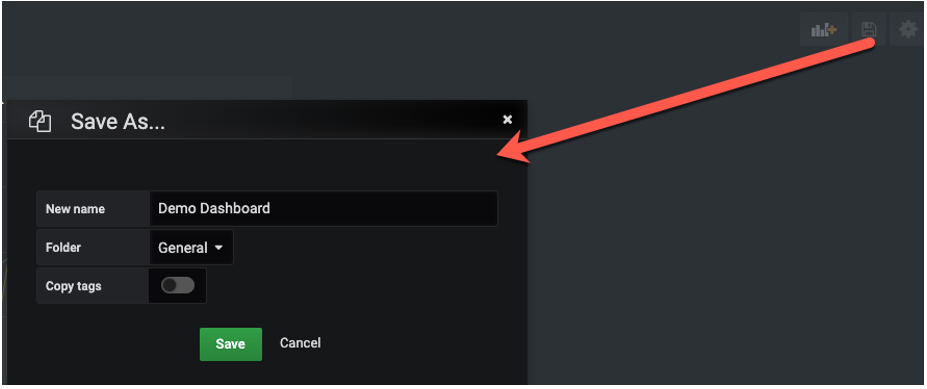
Don't forget to save your dashboard before we add more panels.
Step 10. Refine the Panel
It's difficult to figure out the high-level write speed from the above panel, so let's enhance it.
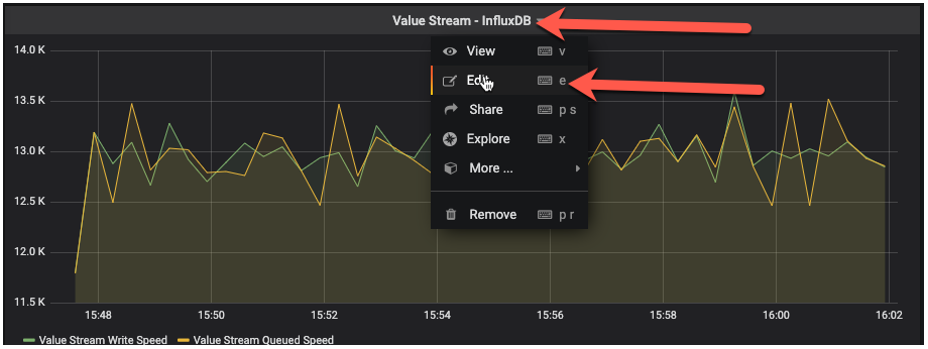
Add a new query with the following configuration:
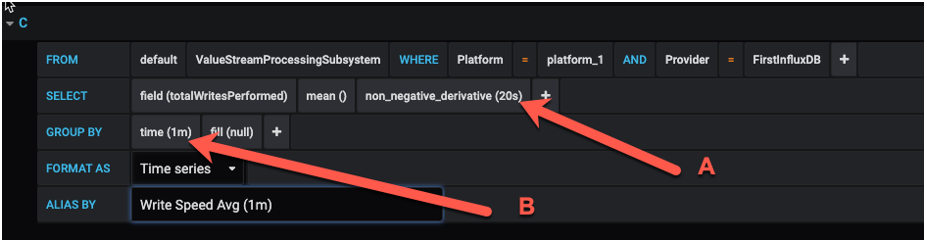
In the above query, there are two additional figures: 20s and 1m... How do you choose? 20s should be the same as sampling_cycle_inseconds in your tsample configuration file. If you choose a different value, then you could end up with misleading results.

Larger values such as "1m" may give you a smoother result, but they could also hide system instability. Going larger than 1m is not recommended in most cases.
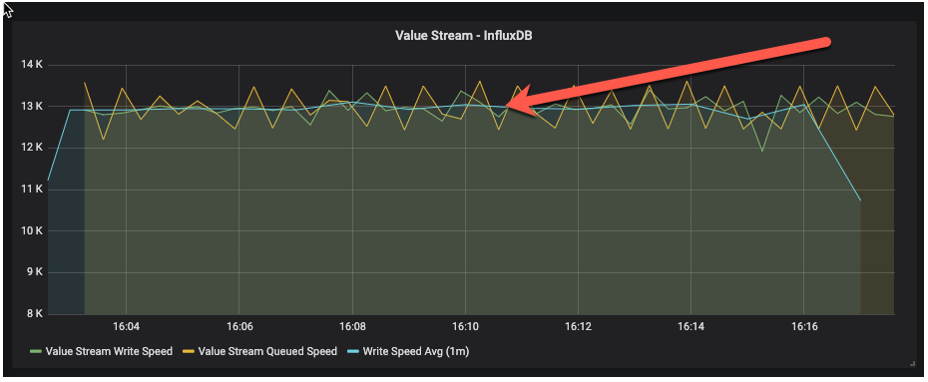
With this new query, it's much easier to figure out what the average write speed in current testing is.
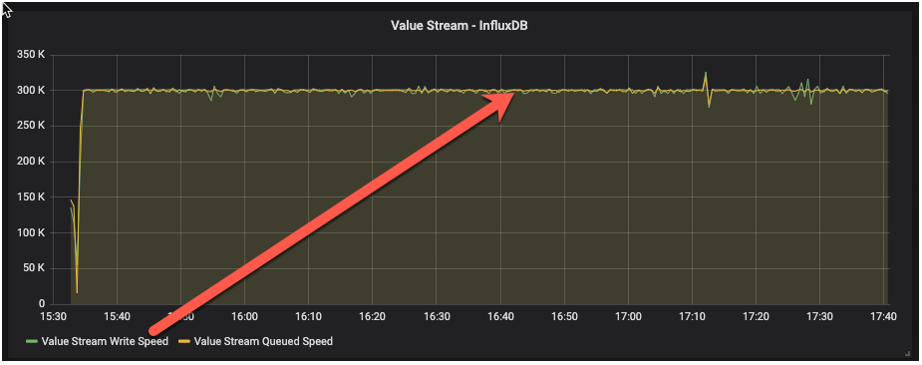
Tips: if your sampling_Cycle_inseconds is 30s, then you may not need this additional query. The following image is a sample at the 30s interval time. You would not need an additional average query to get a smooth write speed.
The next example is a sample at the 10s interval time. Without additional queries, you may not be able to get a meaningful understanding of the write speed.
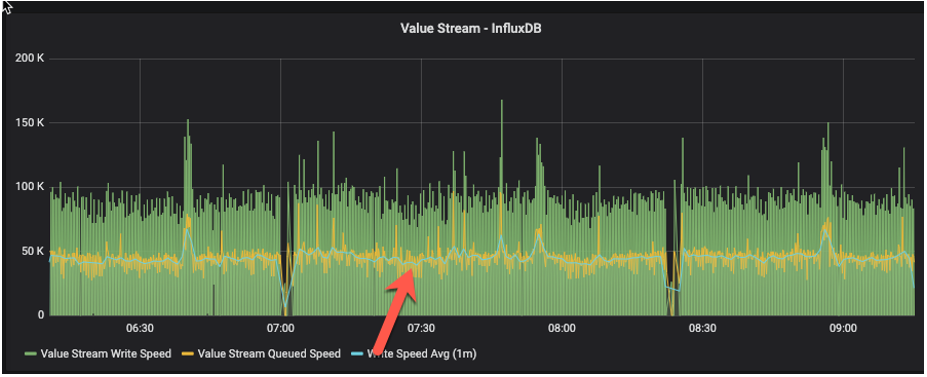
From the above three examples, it's recommended to configure the sampling interval time at 30s, or anything larger than 20s. You can then choose whether you need additional queries based on the visualization result.
Step 11. Further Refinement
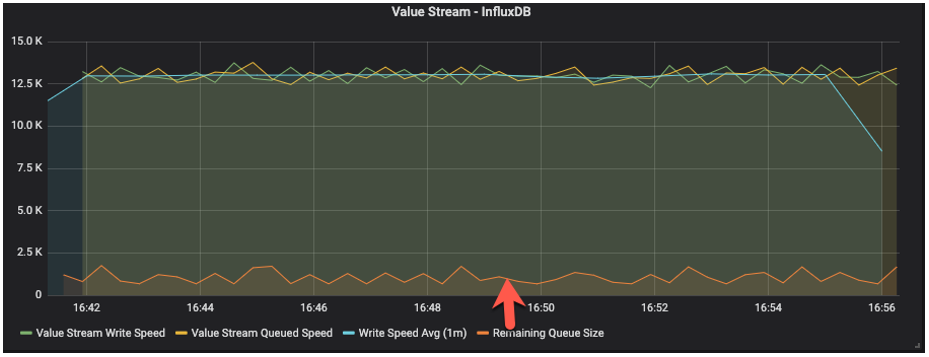
The above charts illustrate the queuing and writing speed. However, it is possible that the Value Stream may perform at a reasonable speed, but the Value Stream queue may be growing and could exceed its capacity. Let's add another query to monitor this:
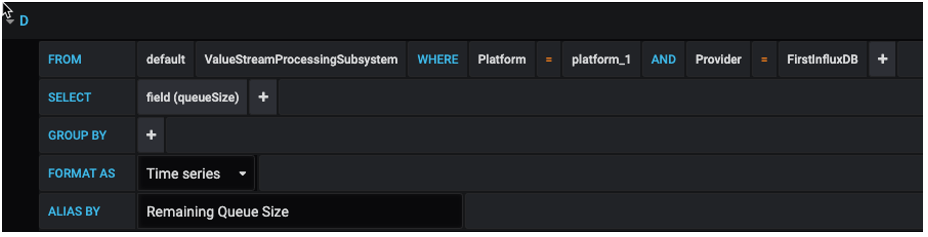
However, it is difficult to read this chart, since it has a different value range on the y-axis:
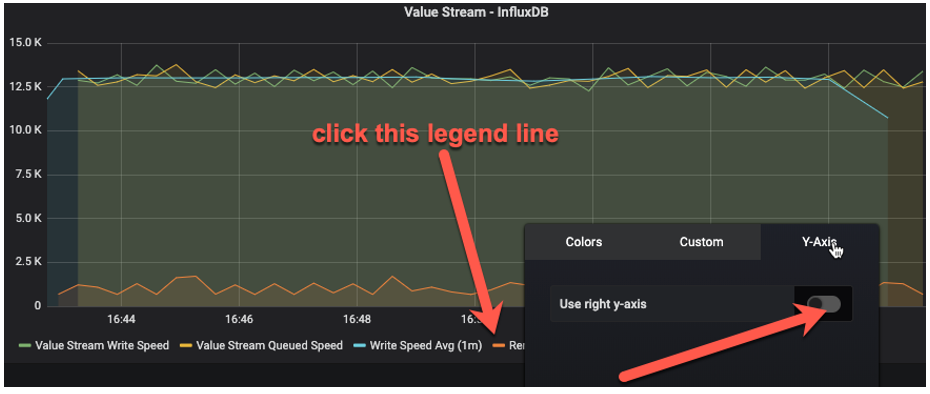
Let's move this query to a second y-axis on the right:
This will make the view much easier to see:
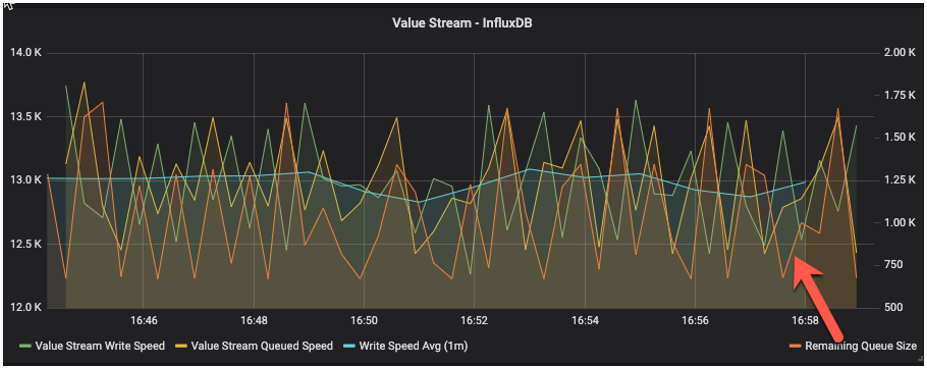
The current queue size or remaining queue size will always move up and down; it is healthy as long as it does not continue to grow to a high level.
What Else Can Be Monitored?
The following metrics would be monitored by most customers:
- Value Stream write and queue speed
- Value Stream queue size
- Stream write and queue speed
- Stream queue size
- Event performed speed (completedTaskCount)
- Event submitted speed (submittedTaskCount)
- Event queue size
- Websocket communication
- Websocket connection
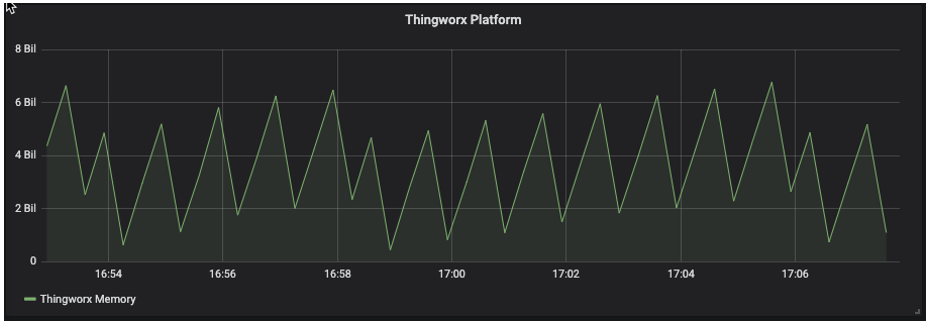
ThingWorx Memory Usage Monitoring
Create a new panel and add a new query:
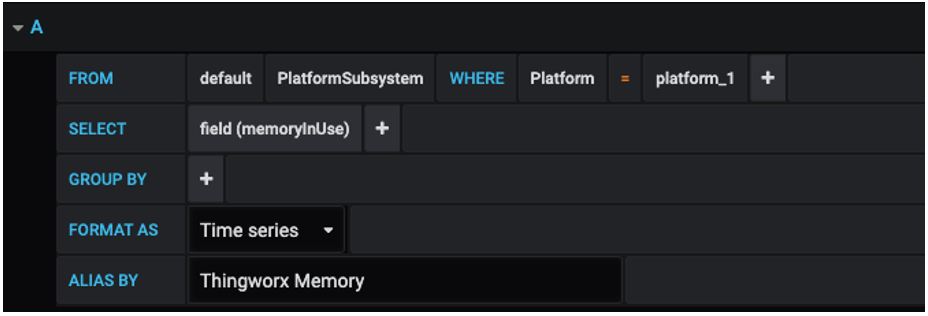
In a running system, memory usage will always move up and down - at times sharply or quickly - when the system is busy. The system is healthy as long as memory doesn't go up continuously or stay at a maximum for a long period of time.
Conclusion
Setting up monitoring is absolutely crucial to managing the performance of an enterprise ThingWorx application. Using Grafana makes tracking and visualizing the performance much easier. Stay tuned to the EDC tag for more monitoring tips to come!