@Spedex wrote:
Hey, I did not understand a 100% percent how you did that?
How did you get the grey thing here ?
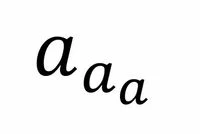
I first typed in a <ctrl -> a in the worksheet, then copied it and pasted it into the Find dialog box (ctrl-f takes you there, or just click in the box at the bottom of the Mathcad screen). Pasting it results in the text (@ID a (@SUB a)) appearing in the Find box. This text is Mathcad's internal code representation of aa.
I then used Windows' built-in application Character Map to find superscript a (a)and subscript a (a). (*), copied them and pasted a before the main a in the Find box and a after the subscripted a to give (@ID aa (@SUB aa)). Finally, I copied the new expression into a Math placeholder in the worksheet, and Mathcad converted it to aaaa.
A bit convoluted but it does the job.
Stuart
(*) I recommend setting Character Map to Cambria Math font first, as this font seems to display the largest number of characters in Character Map. Many fonts will display a character in Mathcad Math or Text regions but not in Character Map ... don't ask me why or why not.
As I said, though, you can't do it for every letter as not all of them have either/both a sub- or superscripted Unicode variant.
Stuart