
13-Aquamarine
January 13, 2021
Solved

where does one find the product code?

  • January 13, 2021
  • 1 reply
  • 9171 views

When one goes to install Mathcad (ver Prime 3.1), the program asks for the product code.  I have looked at all the info I have from PTC (fulfillment letter, hard copy of software, etc) but I do not see it.


Can anyone advise where I would find the product code?


thanks


m8ike
Best answer by Harry_Seth

@Mko 

Since you have brought the license from PTC Sales, than I believe you have a license file to run the software. If that's true than you just need to get the host id updated for the new machine. My suggestion: Open a case with PTC LM and request them to move your license to new host id(Mac Id) -

https://community.ptc.com/t5/PTC-Mathcad-Installation/How-to-obtain-Mathcad-Single-User-and-Student-Licenses/m-p/706384#M16

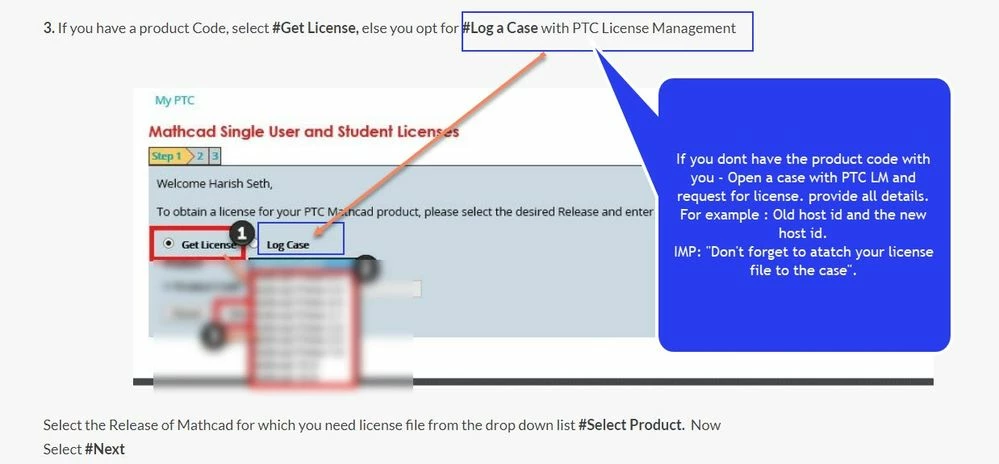
 Refer step 3 in the article and choose the option #Log a Case :

log.jpg


I hope the above details help.


1 reply

15-Moonstone
January 14, 2021
Mko13-AquamarineAuthor
13-Aquamarine
January 14, 2021

Harry,

thanks for the quick response.  However, I bought my copy of Mathcad 3.1 through a PTC salesperson, so this info did not help me.  


I have looked at all the info I received from PTC and I don't see anything in the format described in the link you sent.  Honestly, I would have expected that the product code would be prominently displayed somewhere, given its role in getting the software to operate.  Part of me thinks that I have missed something ...


Any other ideas would be greatly appreciated.


Mike O'Neill


15-Moonstone
January 22, 2021

@Mko 

Since you have brought the license from PTC Sales, than I believe you have a license file to run the software. If that's true than you just need to get the host id updated for the new machine. My suggestion: Open a case with PTC LM and request them to move your license to new host id(Mac Id) -

https://community.ptc.com/t5/PTC-Mathcad-Installation/How-to-obtain-Mathcad-Single-User-and-Student-Licenses/m-p/706384#M16

 Refer step 3 in the article and choose the option #Log a Case :

log.jpg


I hope the above details help.