1-Visitor
August 28, 2015
Solved

Skeleton model from prt model

  • August 28, 2015
  • 5 replies
  • 18051 views

Hi,

sometimes I need to convert a regular "prt model" in a Skeleton type model.

Just not to lose all geometries and links I use this procedure (CREO2 ) :


1 - Open assembly which contains the regular part that should be used as a skeleton part (name "PART2SKEL.PRT") .

2 - In assembly Sel. Model / Create and I define a new skeleton type model ( named "TEMP_SKEL.PRT") using the option 'copy from existing' and choosing "PART2SKEL.PRT" as reference part in order to have all geometries already done.

3 - I save the single part "TEMP_SKEL.PRT" to disk.

4 - I close the assembly without saving and I erase everything from memory.

5 - On the disk I rename the "TEMP_SKEL.PRT" to "PART2SKEL.PRT".

6 - Open again the the assembly. The original part is replaced by the new skeleton art.

7 - In the model tree I can see the original part as skeleton with specific correct icon for skeleton (transparent).

If necessary I can move the part on top of model tree.

It works !

Now the question :

In Windchill (10.1) if I perform a CHECK-IN operation with Auto Associate option , this skeleton model coming from regular part is not considered as WT part.

So, it's right !!

BUT

In the Assembly if I select Tool/BOM I still see the skeleton part even if I excluded that type of model.

In the drawing , in the BOM table, I still see the skeleton part in the list and it's not possible to remove the part with automatic filter excluding "skeleton type" models.

Anyone could help me to understand ?

Many Thanks

Pier

Best answer by VladimirPalffy

Hi,

I think that is the problem because you create your skeleton model as "fake model"

Correct steps:

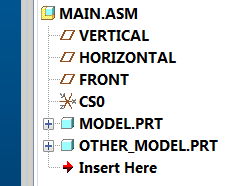
  • Open existing asm

skel01.png

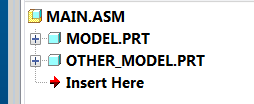
  • Remove all dependencies from Default Datum features

skel02.png

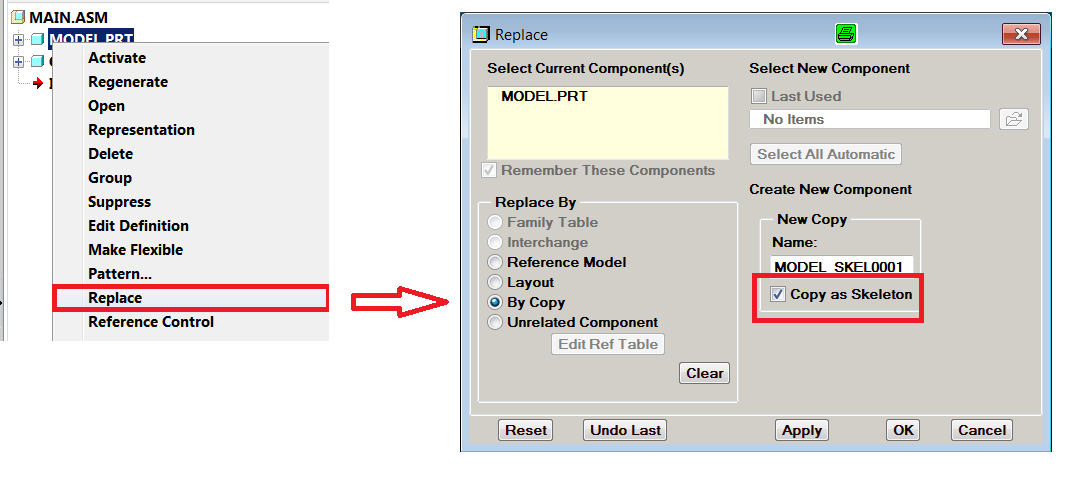
  • Select first model > RMB > Replace >> By Copy > Copy as Skeleton

skel03.png

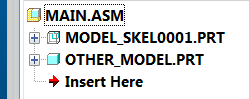
System will change the model to Skeleton model:

skel04.png

Regards,

Vladimir

5 replies

14-Alexandrite
August 31, 2015

Hi,

I think that is the problem because you create your skeleton model as "fake model"

Correct steps:

  • Open existing asm

skel01.png

  • Remove all dependencies from Default Datum features

skel02.png

  • Select first model > RMB > Replace >> By Copy > Copy as Skeleton

skel03.png

System will change the model to Skeleton model:

skel04.png

Regards,

Vladimir

21-Topaz II
August 31, 2015

That's a fantastic find.  I discovered that the datum planes need not be deleted, the component just has to be ahead of them in the model tree.  This requires them to be either default assembled or packaged.

If the component isn't first in the tree, the "Copy as Skeleton" option is not present.

14-Alexandrite
August 31, 2015

Thanks Doug for your additional comments

Regards,

Vladimir

1-Visitor
September 4, 2015

Hi

in order to keep all references from old master model part to new skeleton part I found this procedure works fine :

1 - I open assembly with standard Master Model (master.prt)

2 - I remove references for assembly and I use Default constraint. Then I move this part on top of model tree

3 - I suppress all components of assembly except Master Model

4 - I "Erase not displayed" all components in memory 

5 - I open the original Master model and I rename it ( in session) with new name ( > master_temp)

6 - I manually rename ( directly on disk ) the original master model ( > master_old )

7 - In model tree I select the first component ( now the name is master_temp) and I replace it (by copy , copy as skeleton ) writing the name of new copy model like the original name of master model (master )

8 - I manually rename ( directly on disk ) the master model (master_old) back to the original name (master)

9 - I finally resume all the components of assembly.

That works fine because all logical references based on Copy Geometry features are saved !!

Of course it's important to repeat this procedure with all assemblies .

Bye

Pier

13-Aquamarine
September 20, 2016

Hye all from France.

Thanks all for these very good informations.

I confirm: External Copy Geom keep old regular part references....this is a problem !

To Pierluigi: as Vladimir wrote: "avoid renaming Creo models on the disk"

So I'm not "hot" to use the disk workaround and may create a "fake model"....

I'll try to find a "supported" workaround with PTC support.

Of course, I'll give result....if there is....

Thanks again....

1-Visitor
November 26, 2015

Thanks to all who contributed to this thread!

As it contains a lot of valuable information, I want to mark it as answered to reflect to community that knowledge can be retrieved from it.

Since I can only select one post as Correct Answer, I'll give the credits to Vladimir, who initially suggested this technique.

Gunter

1-Visitor
November 27, 2015

Thanks everybody

for all comments !

Pier

13-Aquamarine
September 20, 2016

Pierluigi,

For information:

- I tried your "disk" workaround (we use Windchill). I think it is KO for External Copy Geom & Inheritance (still referencing the regular part).

- I opened PTC  request C13300093 to be sure there is no over supported workaround

Thanks. Fabrice

1-Visitor
September 26, 2016

Hi Fabrice.

I also used my workaround in Windchill environment without any problem.

I have not inheritance feature. But everything is OK for Ext Copy Geometry !

Bye

Pierluigi

1-Visitor
December 7, 2016

Goodstuff.

We have an issue when using the replace part.

The replace part by copy works but there is no box/opportuity to save as a skeleton.

I looked and could not see any conif. option does anyone know why this option/box does not even show?

We are using creo3 M100.

Thanks

Dan

1-Visitor
December 11, 2019

Same question here. I am using Creo4 M060. Replace by copy works but there is no box/opportunity to save as a skeleton.