


Windchill upgrade to Creo - decal issue (duller/greyish colors?)
Hey folks,
Our company upgraded from Wildfire 5 to Creo 2, since then I've had a nagging issue with the "decal" functionality.
I want to overlay an image (.bmp or .png) onto a surface of a model. The image contains text, graphics, etc. It needs to look aesthetically correct. The way I always do it is by the Decal tool in Appearance Editor (without touching bump/color texture). When I do this in Wildfire it looks how I expect: the colors match the original image.
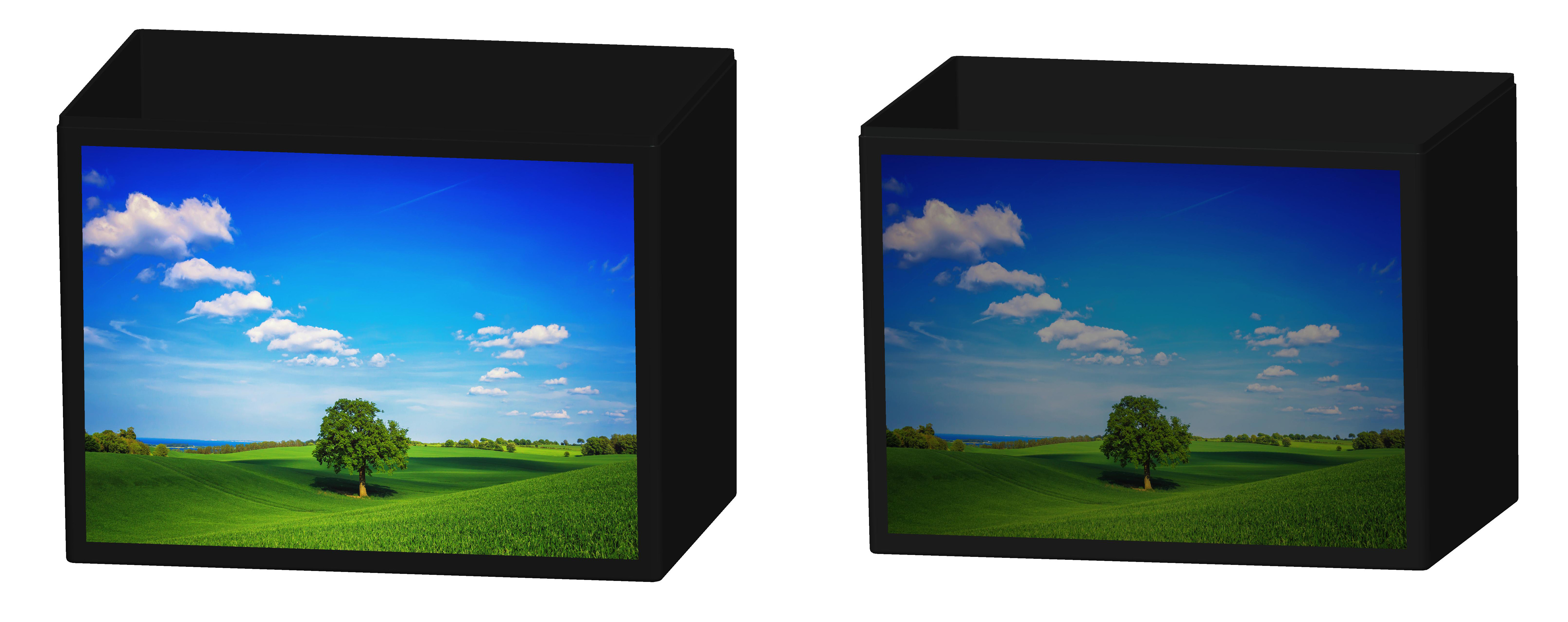
But if I follow the exact same procedure in Creo the results are different: the colors look significantly more dull than the original image. Any white graphics become gray, everything is a shade darker. I've tried this a hundred different ways with different images and different models on different computers to the same result.
I've resolved that it has nothing to do with the "color properties" (as in intensity, ambient, highlight, transparency), because these have no effect on the tint of the image, just the color behind it. And if I make them identical in both programs I still have the same issue. So I assume this is caused by some setting that changed from Wildfire to Creo.
Here's a random example. The image on the left was made on Wildfire... the decal looks just as vivid as the original. The right is with Creo... the decal is duller. I can't figure out why.
Thanks!!
This thread is inactive and closed by the PTC Community Management Team. If you would like to provide a reply and re-open this thread, please notify the moderator and reference the thread. You may also use "Start a topic" button to ask a new question. Please be sure to include what version of the PTC product you are using so another community member knowledgeable about your version may be able to assist.