12-Amethyst
December 30, 2015
Question

Creo 2.0 line weights in drawing dont match PDF

  • December 30, 2015
  • 6 replies
  • 14962 views

hey guys

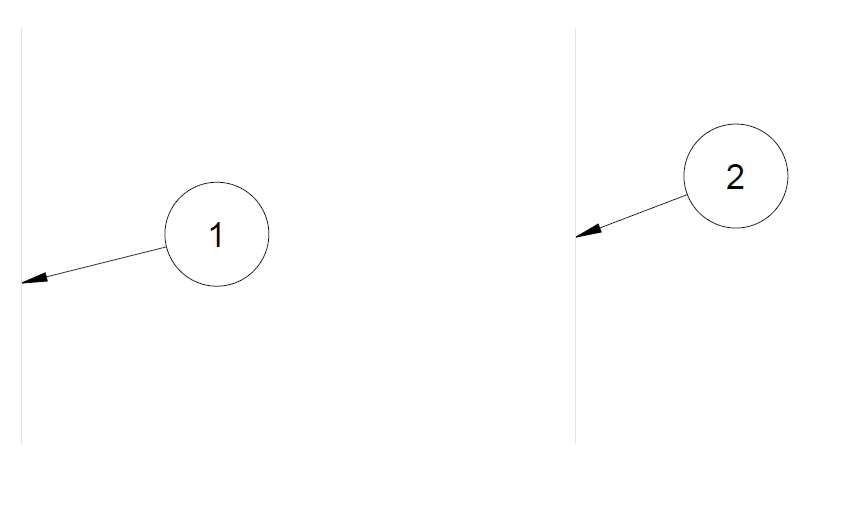
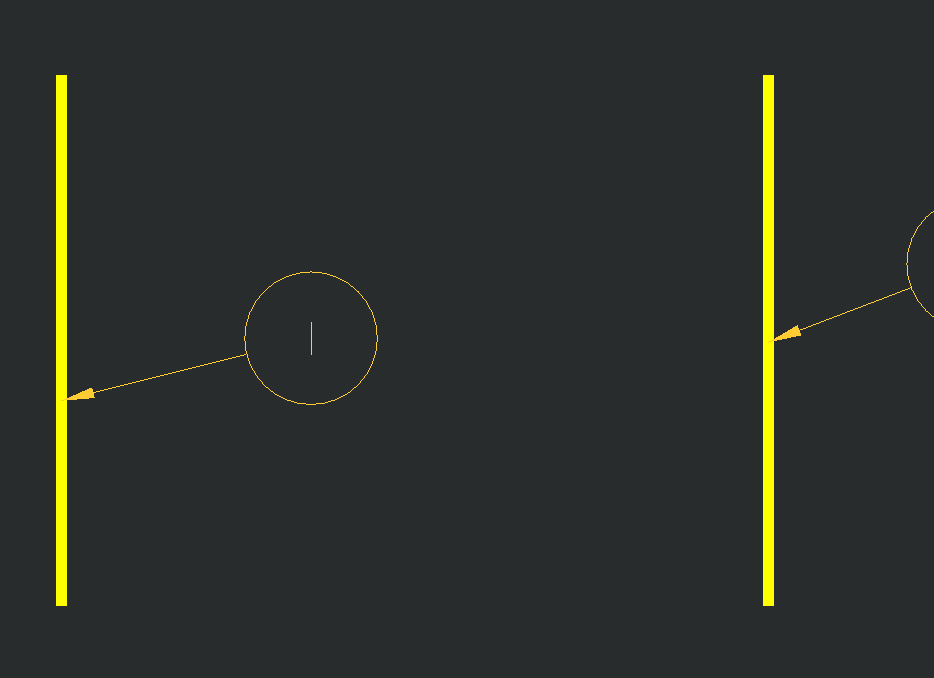
I have a drawing of using a dxf file, I change the line style width to 1.000 from 0.000, the line gets wider in the drawing and its what I want but when I print the dxf its thin just like the rest of the lines.

below is what I want and then what I get after creating a pdf.

any help will be appreciated, and thanks in advance

Carlos
6 replies

24-Ruby III
December 30, 2015

Hi,

Creo applies pen table during PDF export. Please upload some example data to enable to test PDF export. See How to Attach a File to a Discussion Reply

MH

cdiaz-212-AmethystAuthor
12-Amethyst
December 30, 2015

I cant do that. 😞

any settings I can try out?

1-Visitor
December 31, 2015

‌Do a search in the help for pen table. The first result should be on creating a pen table and at the bottom of the entry there should be a link to an example pnt file. The example shows the format for specifying the pen properties. You also need to look at the Assigning Colors to Another Pen which will show the default pen mappings for color_name and shows how to assign the color_name to a different pen if desired. Create the pen table file in your working directory (this is where Creo searches first) and set the pen_table_file option in the configuration editor to the file name you created (*.pnt). For the pen table trial try:


                                               pen 1 color 0.0 0.0 0.7; thickness .125 in; geometry_color

this should plot geometry in blue with a line thickness of .125 in.

cdiaz-212-AmethystAuthor
12-Amethyst
January 4, 2016

this is what my default pen_table looks like

pen 1 thickness 0.010 in

pen 2 thickness 0.006 in

pen 3 thickness 0.006 in

pen 4 thickness 0.030 in

pen 5 thickness 0.010 in; color 0.0 0.0 0.0;

pen 6 thickness 0.010 in

pen 7 thickness 0.003 in

pen 8 thickness 0.030 in

I have also set my configs to the following per Davids awesome search.

use_8_plotter_pens yes

use_software_linefonts no

interface_quality 2

pdf_use_pentable yes

cgm_use_pentable yes

plot_linestyle_scale 1

unfortunately, same issue... 😞

cdiaz-212-AmethystAuthor
12-Amethyst
January 4, 2016

here is the test file

24-Ruby III
January 5, 2016

Hi,

I opened the drawing in CR2 M070 a did some investigation .

1.) during DXF import you did not apply color mapping therefore two vertical lines have yellow user-defined color assigned, because of this fact vertical lines are printed with pen no. 1

  • select the line, press right mouse button and use Line Style command
  • in Modify Line Style dialog box click Color button
  • in Color dialog box you can find the above mentioned setting
  • if you set system color for vertical lines then they will be printed by different pen (eg. Letter color is assigned to pen no. 2 by default)

usercolor.png

2.] applying color mapping during DXF import

you can click Creo Parametric and also change color mapping in Creo Parametric column manually

importdxf.png

3.] if pen definition contains thickness property (eg. pen 1 thickness 0.010 in) then during printing Creo ignores line thickness set in the drawing and uses value set in pen table

so if you want to use line thickness set in the drawing then you have to remove thickness property from pen definition

4.] you are using CR2 M020 ... if the above mentioned information will not solve the problem, then try using CR2 M070

MH

cdiaz-212-AmethystAuthor
12-Amethyst
January 4, 2016

so this is how it defaults

cdiaz-212-AmethystAuthor
12-Amethyst
January 4, 2016

this is how it looks after I hit control 5 in the pdf

10-Marble
September 22, 2021

I have also been battling with this stupid pentable crap for years.  It has never ever worked properly for me either.  I however, just tried your solution of Control+5 in Adobe and bam! My lines look correct.  I don't know if this is something coming from Creo or if it is Adobe related but I wanted to let you know that this has saved me and I am eternally grateful for you posting this solution.  Hopefully someone more familiar with the issue can explain it.  Or perhaps the guy that had a cocky response near the top of the thread can bless us with his infinite wisdom.