

ThingWorx Solutions in Food Industry Part 3
Step 4: Scheduling Automated Processes
There are many processed that are handled by a corporation. With something as important as food, there is a lot of red tape and regulation.
We will further our Fizos application to monitor food temperatures, expiration dates, product state, and other issues that are factors into the condition of the product. To reduce waste and increase the safety of the food being produced, our application will create entities to model our products after and create a high-level rules engine for the usage and handling of these products.
Let's start with implementing the task of factory inspections. To implement this, we'll use a scheduler to kickstart our daily process and start filling in some of the necessary data.
Schedulers are a great way to execute routine processed. The execute using a configuration similar to that of a cron job on the Linux operating system. In the next guide, schedules will be used to start our deliveries and help execute certain functions of our business logic.
Creating Factories
Before we begin, we'll be using Data Tags. These tags will help organize, filter, search, and analyze what is happening throughout our applications.
In the ThingWorx Composer, click the + New in the top left of the screen.
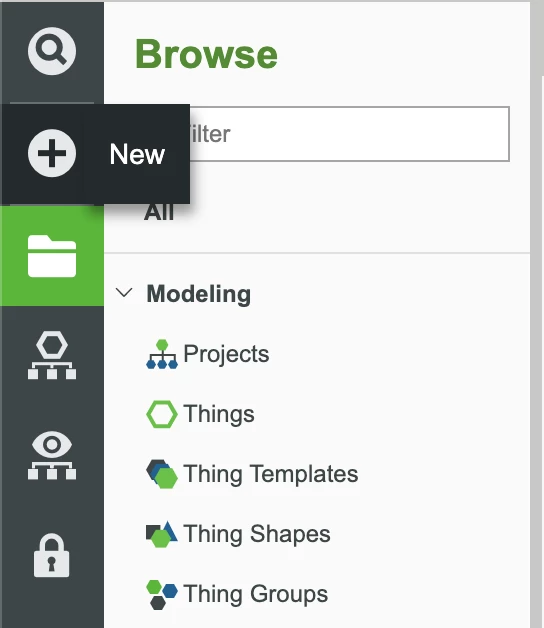
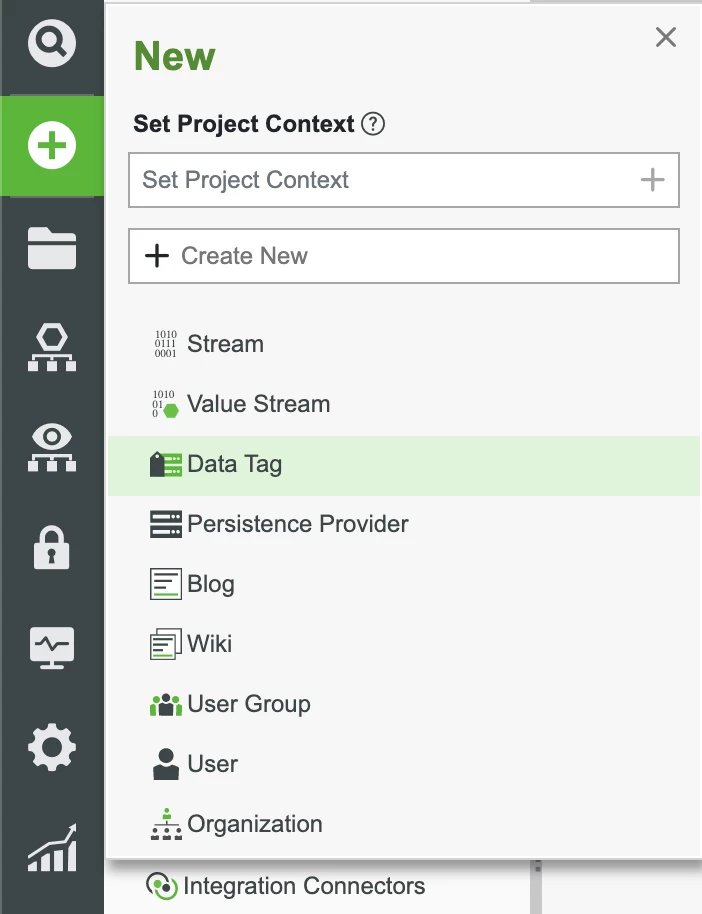
Select Data Tag in the dropdown.
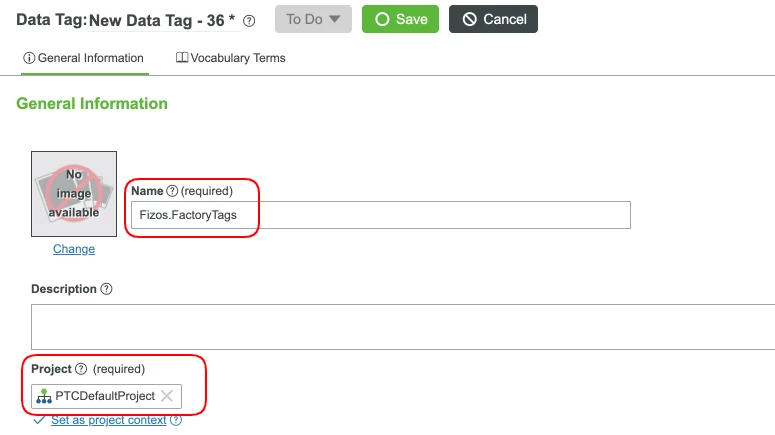
- Set the name as Fizos.FactoryTags.
- Set the Project (ie, PTCDefaultProject).
- Add new terms now or you can add them later. We'll be adding them later. You can utilize tags with almost anything in this scenario. The more data, the better.
Now let's begin creating the factory data.
Open the Fizos.Factories.DataTable Data Table and go to the services tab.
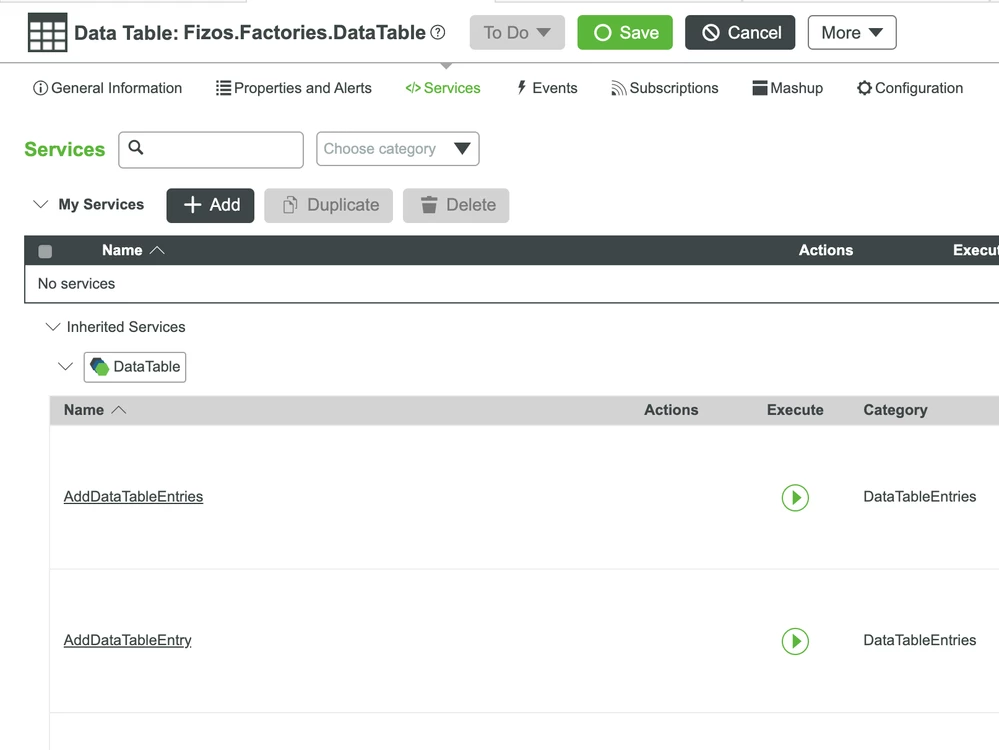
Open the AddDataTableEntries service to be executed. This service will allow us to create some general data to work with. You can create as many as you like for this test. Click the values parameter to start creating entries.
- After clicking + Add, you'll see our Features property. This is where we can find the factory tags we just created, and create as many terms as we like. For simplicity, click New Term create two tags, Sausage and Atlanta. These options will provide us with the purpose of the factory and a location.
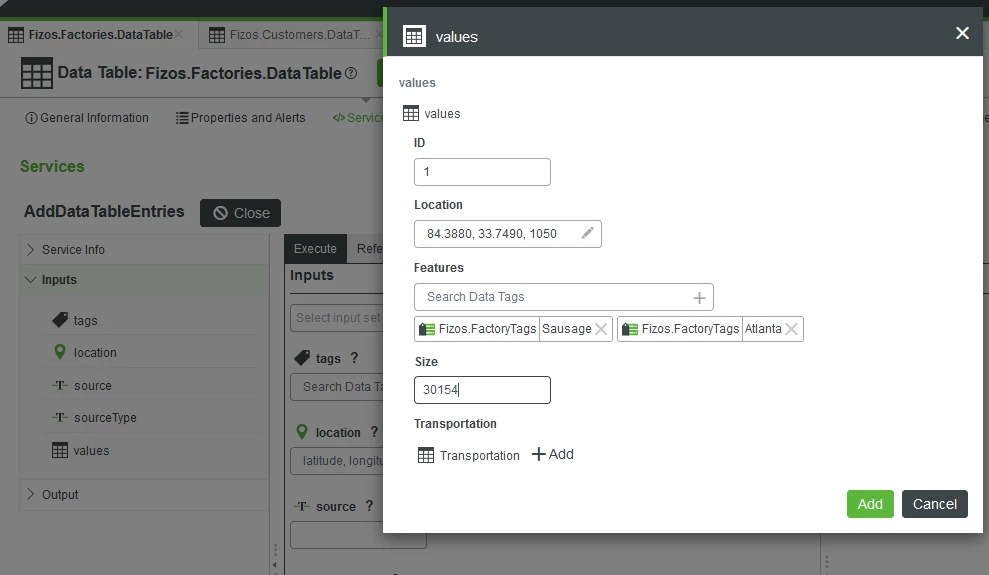
4. Save your entry and create a second entry with any location and tags you like. We aren't adding vehicles as of yet, but we will in the next section.
5. After saving, don't forget to execute the service with the two entries saved. If you did it correctly, the values parameter of the service, should show at least a 2 inside of the parentheses. You can also add data to the other parameters if you like. See below: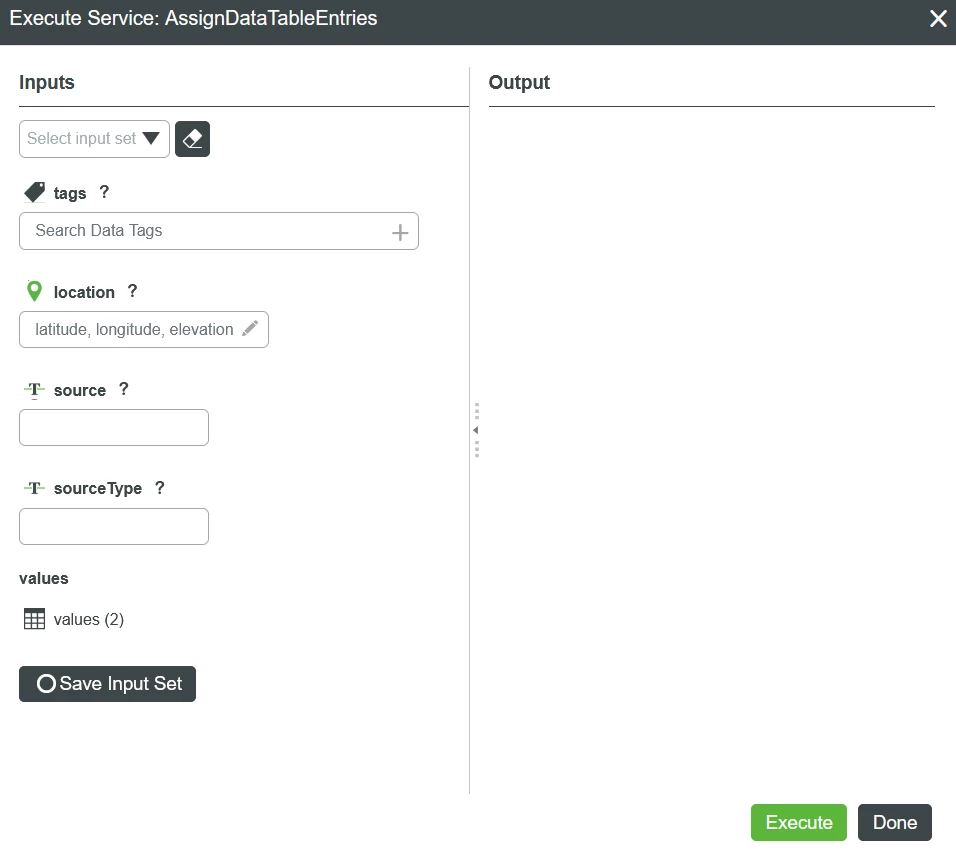
You now have two factories. We need to inspect these factories daily. What does an inspection entail exactly? You can create custom factories based on the type of products manufactured or have a generic system. Nevertheless, we will log and store these reports in a data table. Let's go.
In the ThingWorx Composer, click the + New in the top left of the screen.
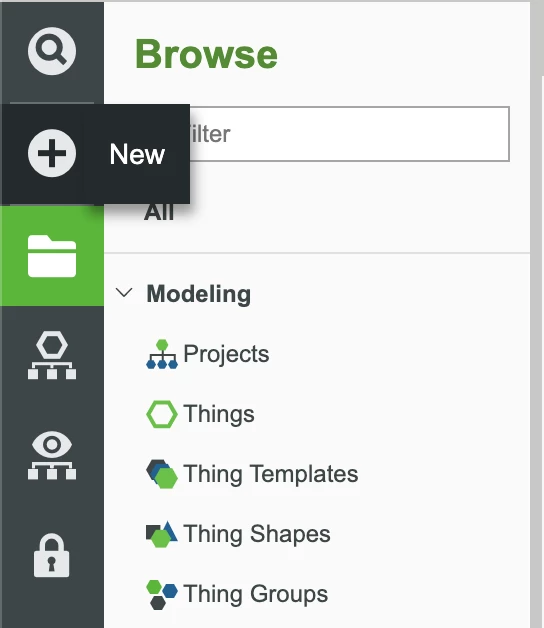
Select Data Shape in the dropdown.
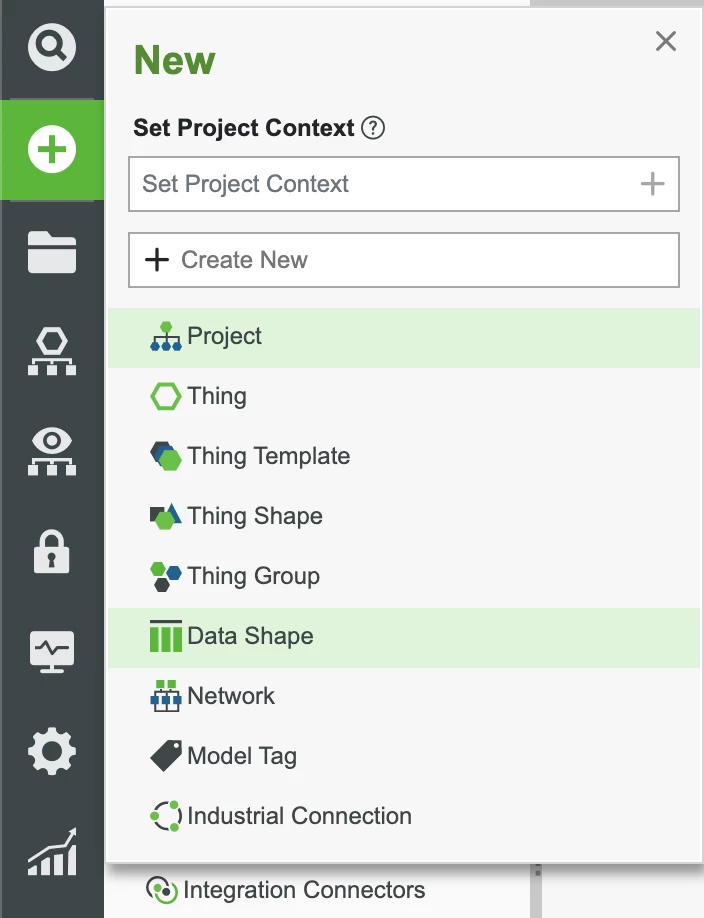
- In the name field, enter Fizos.FactoryInspections.DataShape. All of our factory inspections will be based off this Data Shape.
Set the Project (ie, PTCDefaultProject) and click Save to store all changes now.
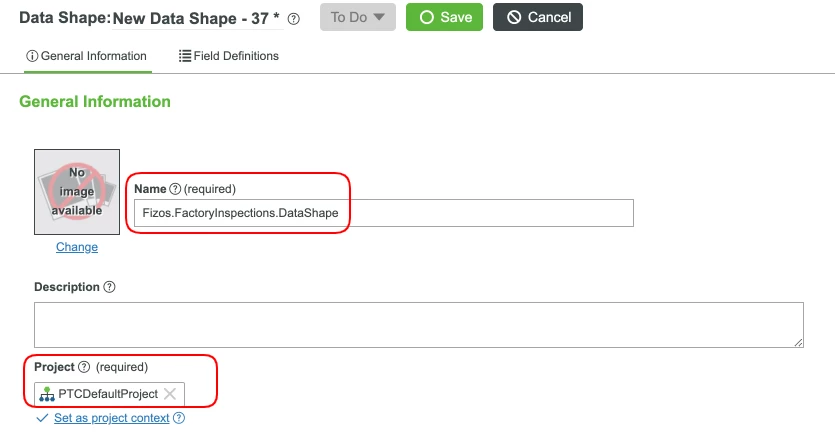
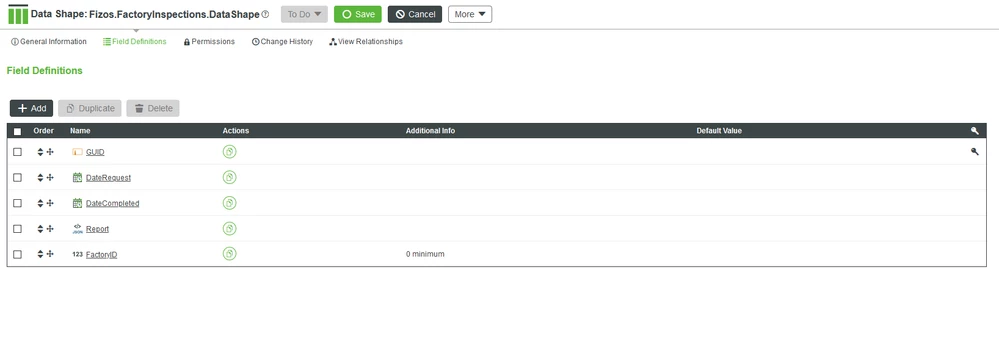
- Add the list of properties below:
| GUID | String | primary key | Report identifier |
| FactoryID | Integer | 0 minimum | Factory identifier |
| DateRequest | DateTime | N/A | Date the inspection was requested |
| DateCompleted | DateTime | N/A | Date the inspection was completed |
| Report | JSON | N/A | This will hold the inspection report data |
The fields for the Fizos.FactoryInspections.DataShape Data Shape are as follows:
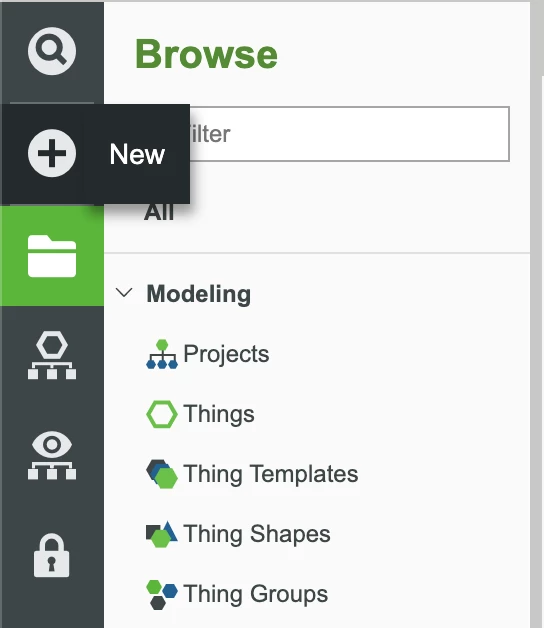
In the ThingWorx Composer, click the + New in the top left of the screen.
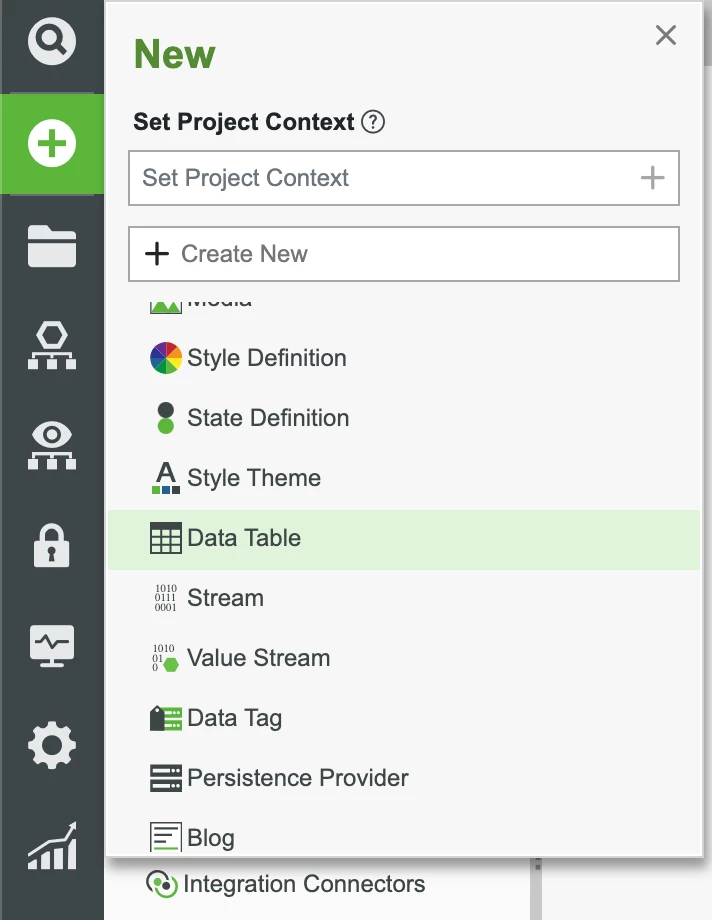
Select Data Table in the dropdown.
In the name field, enter Fizos.FactoryInspections.DataTable. Our Data Table will hold all of our records on factory inspections.
- For the Data Shape field, select Fizos.FactoryInspections.DataShape.
- Set the Project (ie, PTCDefaultProject) and click Save to store all changes now.
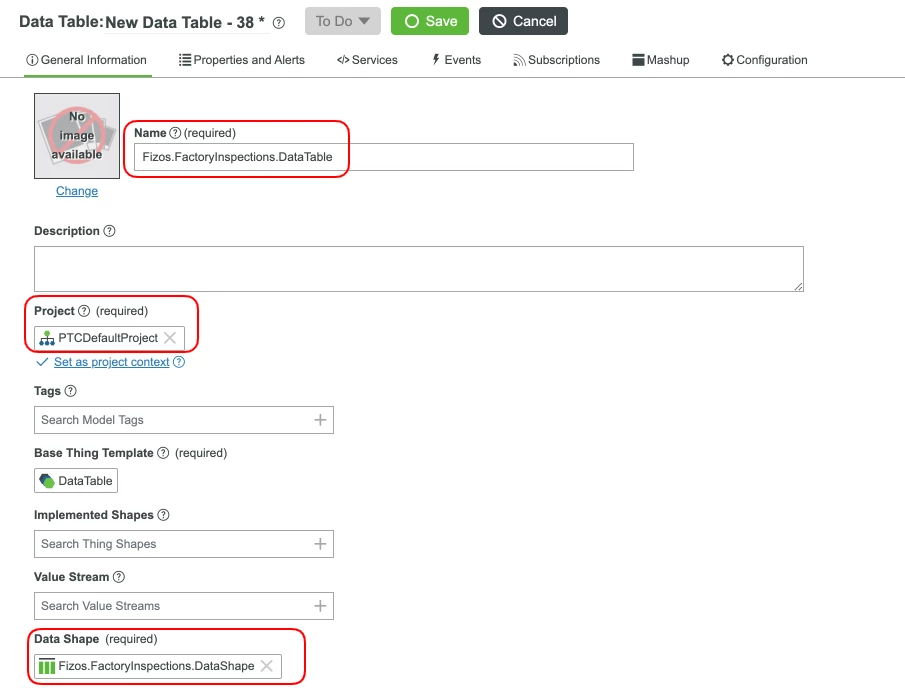
- This entity will be used to house our data and provide assistance with our analytics.
For this scenario, we will create the scheduler that starts a generic process process.
In the ThingWorx Composer, click the + New in the top left of the screen.
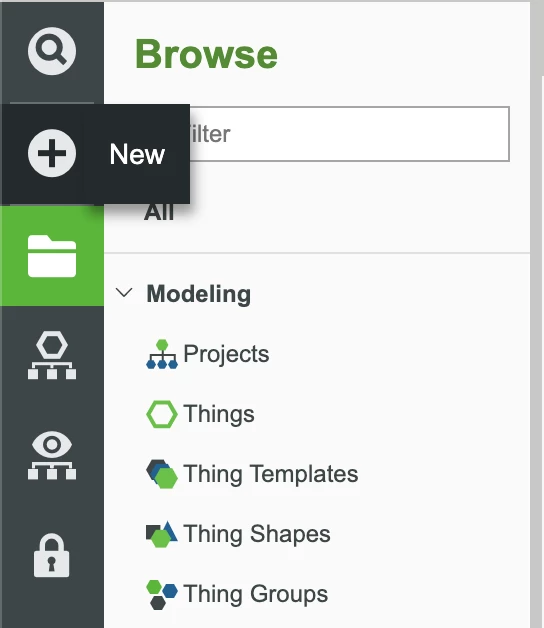
- Select Schedulers in the dropdown.
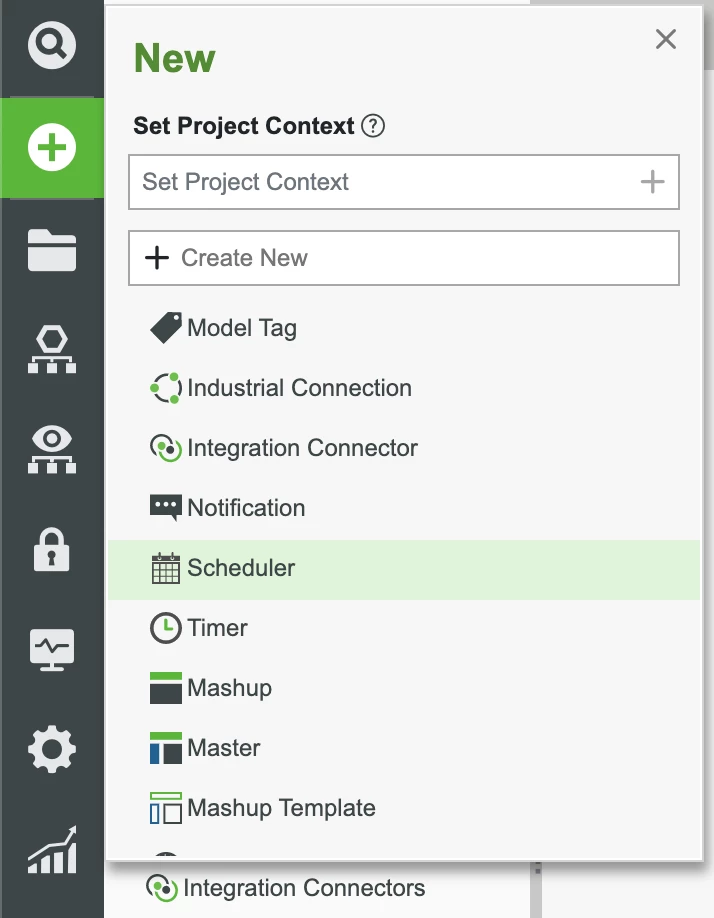
- Select Scheduler in the pop-up.
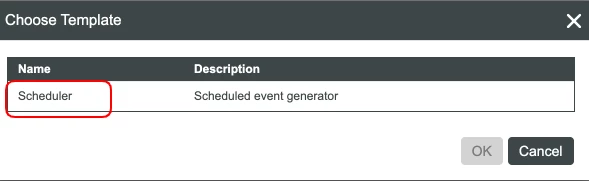
4. Name the new Schedule Fizos.Factory.Schedule.
5. For the Run As User field, select the Fizos.Factory.User that was provided in the download.
6. Set the Project (ie, PTCDefaultProject).
7. Click Save and your entity should match the below configuration.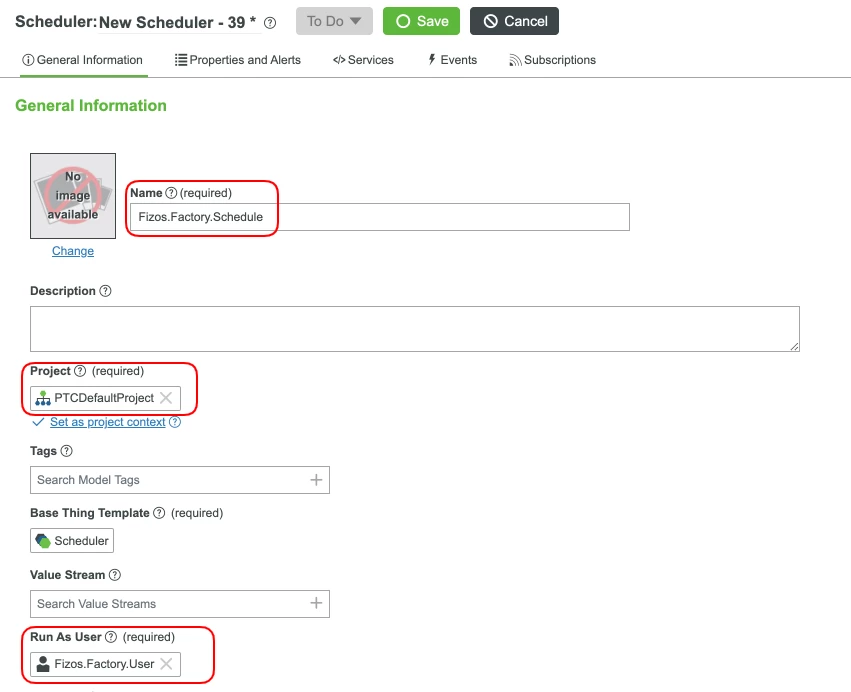
8. For the Schedule field, set it to 0 0 7 * * ?. This will run the process every day at 7 AM. 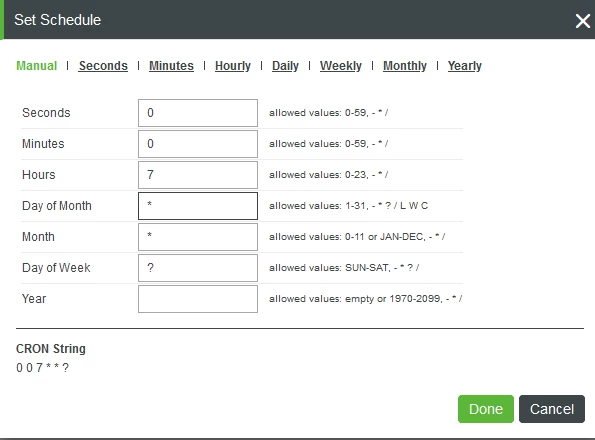
9. Switch to the Subscriptions tab and add a new subscription.
10. Name this new subscription PerformDailyInspections and select ScheduledEvent as the event input.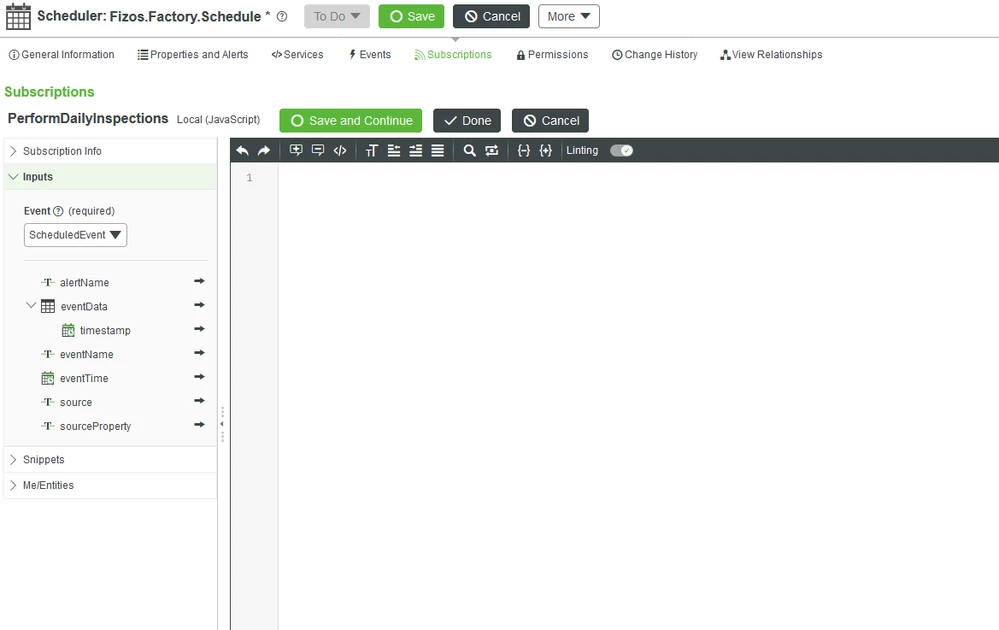
11. Add the following code to the source section:
var factories = Things["Fizos.Factories.DataTable"].GetDataTableEntries({});
var tableLength = factories.rows.length;

for (var x=0; x < tableLength; x++) {
 var row = yourInfotableHere.rows[x];

 Things["Fizos.ProductsBusinessLogic"].InspectFactory({
 FactoryID: row.ID
 });
}
This code will execute the inspection request service. Now let's expand on the Fizos.ProductsBusinessLogic to produce and handle the result of a request.
Open Fizos.ProductsBusinessLogic in Edit mode and go to the Services tab.
- Open the InspectFactory Service and add the below code. This code will create an inspection request in the data table and you can add code to simulate sending out this request to a user's device or have users query the data table for open requests.
var table = Things["Fizos.Factories.DataTable"].GetDataTableEntryByKey({
 key: factoryID
});

var factory = table.rows[0];
var guid = generateGUID();

// Fizos.FactoryInspections.DataShape entry object
var newEntry = new Object();
newEntry.GUID = guid;
newEntry.FactoryID = factoryID;
newEntry.DateRequest = new Date();
newEntry.DateCompleted = undefined;
newEntry.Report = undefined;

var values = Resources["InfoTableFunctions"].CreateInfoTableFromDataShape({
 infoTableName : "InfoTable",
 dataShapeName : "Fizos.FactoryInspections.DataShape"
});

values.AddRow(newEntry);

Things["Fizos.FactoryInspections.DataTable"].AddDataTableEntry({
 sourceType: "Source Code",
 values: values,
 source: "InspectFactory",
});

// Use guid for tracking report request
// Create inspection request in ThingWorx attached to guid. This could be stored in a data table or a property field
// Send out employee to factory
3. Open the ReceiveInspection Service and add the below code. This code can be accessed via a REST request to the system. This code can be modified to include error handling and conditions to support new requests coming in.
var table = Things["Fizos.FactoryInspections.DataTable"].GetDataTableEntryByKey({
 key: guid
});

var data = table.rows[0];

var update = {};
update.GUID = guid;
update.FactoryID = data.FactoryID;
update.DateRequest = data.DateRequest;
update.DateCompleted = new Date();
update.Report = report;

var values = Resources["InfoTableFunctions"].CreateInfoTableFromDataShape({
 infoTableName : "InfoTable",
 dataShapeName : "Fizos.FactoryInspections.DataShape"
});

values.AddRow(update);

Things["Fizos.FactoryInspections.DataTable"].AddOrUpdateDataTableEntry({
 sourceType: "Service Code",
 values: values,
 source: "ReceiveInspection"
});

// Have employee log data using guid
// Track everything inside of logs or data table
You now have a system that will run every day creating requests, storing those requests, and updating those requests with the final reports.