14-Alexandrite
June 10, 2024
Solved

Smart hole chart "Show hole ID" option showing individual hole only

  • June 10, 2024
  • 2 replies
  • 1188 views

Hai all,


Please refer below. Here the Smart hole chart option "Show hole ID" will show the individual hole position when selecting the respective table raw. It will be great if i can select the full set of type holes (Example A1-A4) to see where these holes are positioned. This will be helpful when showing the hole details in section view as i don't want to show same hole type in multiple section views. please let me know in any way it is possible.
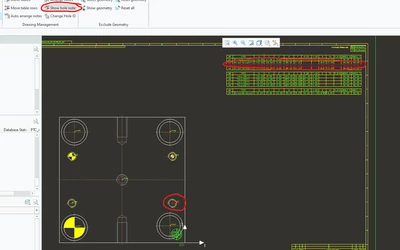
 

Abhinand_1-1717998889168.png


Best regards,

Abhinand


Best answer by OliverGräbner

Hi @Abhinand 


sorry for the late reply.


Using the command 'Show hole ID' let you only show one hole.

But you can reopen the SMARTHolechart dialog at any time.

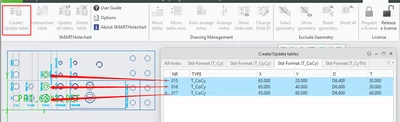
Inside the dialog you can sort by columns in the 'All Tables' view and select your holes.


You can also switch to the “Type” tab and select all types.

The corresponding holes are then highlighted for all selected rows.

show_hole_id_drw.png


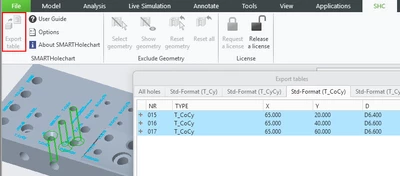
Sometimes it is clearer to work in the 3d model - this is also possible.

show_hole_id_prt.png


Hope this helps.


2 replies

Community Manager
June 12, 2024

Hello @Abhinand


Thank you for your question. 
Your question appears to be well documented, however I'd like to recommend to bring more details and context to your initial inquiry. 

This will increase your chances to receive meaningful help from other Community members. 


And, If you found a solution to your query, we request you to document it in this topic and mark it as "Accepted solution". This will surely help other users who may have a similar questions.

Thanks & Regards,
Community Moderation Team.

17-Peridot
January 13, 2025

Hi @Abhinand 


sorry for the late reply.


Using the command 'Show hole ID' let you only show one hole.

But you can reopen the SMARTHolechart dialog at any time.

Inside the dialog you can sort by columns in the 'All Tables' view and select your holes.


You can also switch to the “Type” tab and select all types.

The corresponding holes are then highlighted for all selected rows.

show_hole_id_drw.png


Sometimes it is clearer to work in the 3d model - this is also possible.

show_hole_id_prt.png


Hope this helps.