23-Emerald III
June 2, 2015
Solved

Merge independent part into a family table

  • June 2, 2015
  • 2 replies
  • 10647 views

One of our designers had a problem modifying a Family Table that he created so instead of asking for help, went and created 3 independent part files with the sme number scheme.

Now I want to merge them into the family as instances.

Is this possible to do with Windchill 10.0 m040? I know I could do it with Intralink 3.3.

Is there a PTC document that explains the process or has someone got a cheat sheet for the steps involved.

Thanks.
Best answer by BrianToussaint

Ben,

I took this from my directions to take a single object and rename it to make a generic and add instances.  Since you have all the objects already there, you will need just these.  Make sure that you only put your current generic and instances in the workspace to begin and not the one you want to add.


  1. Open the part in CREO.
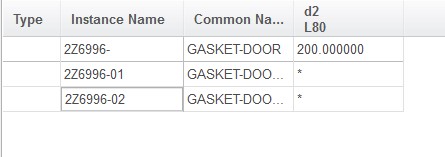
  2. Create a family table.  Add instances for the original number and each number created in Step 4-5 above.

    2.jpg

  3. Return to the workspace in CREO.
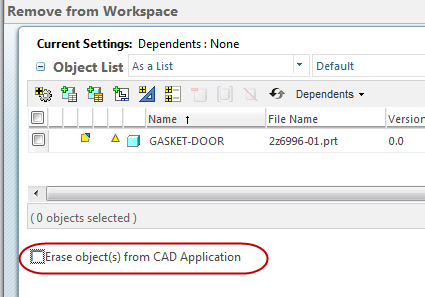
  4. Remove the CAD part from the workspace.  In the “Remove from Workspace” dialog box, uncheck the box for “Erase object(s) from CAD Application”

    4.png

  5. Go back to the model in CREO.  Verify the family table and save.
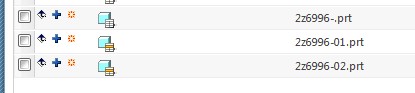
  6. Go back to the workspace.  Everything should show up as new and the original part is now an instance.

    6.jpg

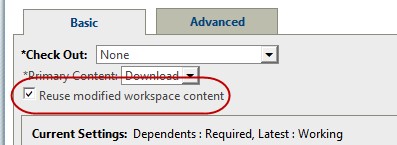
  7. Add all the parts into the workspace.  Verify that “Reuse modified workspace content” is selected.

    7.jpg

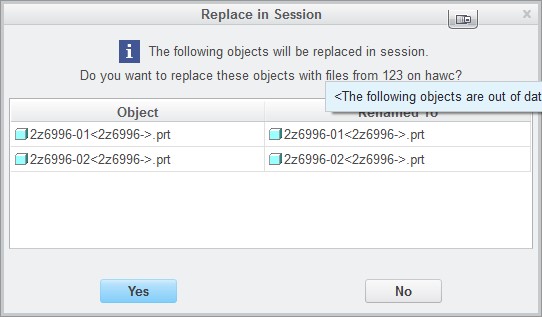
  8. Select Yes to Replace in Session the renaming of the objects.

    8.jpg

  9. Notice that the part has the icon for “Modifications are not eligible for upload”. Select the parts and the drawing and do a Check Out.  It is now available for Check In.


2 replies

19-Tanzanite
June 2, 2015

Ben,

I took this from my directions to take a single object and rename it to make a generic and add instances.  Since you have all the objects already there, you will need just these.  Make sure that you only put your current generic and instances in the workspace to begin and not the one you want to add.


  1. Open the part in CREO.
  2. Create a family table.  Add instances for the original number and each number created in Step 4-5 above.

    2.jpg

  3. Return to the workspace in CREO.
  4. Remove the CAD part from the workspace.  In the “Remove from Workspace” dialog box, uncheck the box for “Erase object(s) from CAD Application”

    4.png

  5. Go back to the model in CREO.  Verify the family table and save.
  6. Go back to the workspace.  Everything should show up as new and the original part is now an instance.

    6.jpg

  7. Add all the parts into the workspace.  Verify that “Reuse modified workspace content” is selected.

    7.jpg

  8. Select Yes to Replace in Session the renaming of the objects.

    8.jpg

  9. Notice that the part has the icon for “Modifications are not eligible for upload”. Select the parts and the drawing and do a Check Out.  It is now available for Check In.


1-Visitor
July 17, 2019

Dear Brian,

My company is using a lot fo family table models in our product, we often met could NOT checking in issue in Windchill after forgetting revise whole fmaily table before. Several time I had worked one week on one assembly and found the kind issue when I started to check in. the windchill lock sides, on commonspace, they said in working assembly have more instance so you can not revise to from released to in work, in workspace side, they said you can not check in for in commspace the family table NOT in work stage.

I have checked whole PTC help cneter, your article is only easly way for me to following and do NOT need to rework. even my case a littler differece, the main strategy same," two times cheat system".

thank you agagin.


Best reards, HHJ

1-Visitor
August 8, 2019

Hi, You mention users forget to revise FT at times or download to WS. This can be solved by setting preferences to always pull in the content required. You should experiment with these settings to get familiar. I have had same issue recently that user revised Cad part but not WTPart.


You want to look at preferences for revise and add to ws collectors. Also worth training to familiarize users with the process you may want them to revise generic and some instances but exclude others that remain unchanged. This is often an issue as some users just crash everything into ws and revise all.

BenLoosli23-Emerald IIIAuthor
23-Emerald III
August 20, 2024

This is my write up on taking a standalone part into an existing family table based on Brian's reply to my original post.


Adding a standalone part to a Family Table

  1. Name the standalone part to the new FT instance name
  2. Open the generic FT in Creo
  3. Create the new instance with same name as in step 1
    1. Set all to continue
  4. Remove the generic and instances from the workspace
    1. Uncheck the Erase object from CAD application
  5. Verify the FT and save it
    1. All items should show as new
  6. Add the standalone part to the workspace
    1. Check reuse modified workspace content
  7. Select Yes to Replace in Session for renamed object
  8. Check out the generic and instances
  9. Check in the generic and instances