
15-Moonstone
March 26, 2021
Solved

Unable to open/see Creo files in Solidworks using Windchill Workgroup Manager?

  • March 26, 2021
  • 1 reply
  • 7988 views

Has anyone run into the issue of not being able to open or see Creo files using Solidworks Windchill Workgroup Manager Workspace or is this functionality not available with Windchill managing Solidworks files?

I'm currently not able to see the Creo files that are in a workspace by browsing to the workspace or if I open them within the Windchill Workgroup Manager for Solidworks.
Just want to be able to open the files de-feature them and generate a step file with out saving the original Creo file.
Any ideas how to configure Windchill/Workgroup manager to do this?


Note: There are currently Creo files in the workspace and the image shows that only the Solidworks files are accessible.  I have changed the filter setting to show all files in the workspace in the dialog box below.
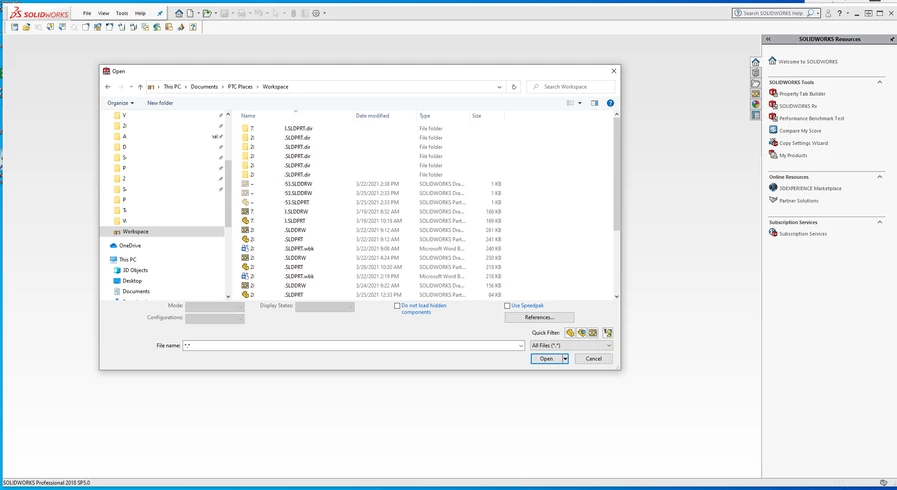
danders238_0-1616789321272.png


Best answer by TomU

Creo allows directly opening and using Solidworks CAD files in Creo via the 'unite' technology.  Essentially under the hood Creo is doing an import like if would with a neutral file.  It creates a new (hidden) Creo model and then associates this new Creo model with the Solidworks CAD so it looks like you actually have the Solidworks CAD in your assembly.


This same approach is not taken with the Workgroup Manager.  Using Creo files in Solidworks from the workspace is not allowed.  It is still possible to directly open Creo files from disk in Solidworks but I doubt it will play well with the workspace, especially if those Creo objects already exist in Windchill.  Even if you can check them in, they will be treated as Solidworks files, not Creo files.

1 reply

16-Pearl
March 26, 2021

Hello,


This is expected behavior. Your WGM workspace shows Creo files but you cannot open it in Solidworks.


If you want to open them , please convert to platform independent format like .stp/.step.

This applies for reverse way as well. You need to convert Solidworks file to step , in order to open it in Creo.


The above logic not quite works for drawings. It will work perfectly for assemblies and parts. 


Hope this helps.


Regards

Ajit

15-Moonstone
March 26, 2021

Hi Ajit,

Your response I believe to be incorrect, as I currently opened Solidworks files in Creo and currently use them in Creo assemblies from a Windchill workspace with out the need to convert to a neutral format that I have saved to Windchill Common Space using Solidworks/Windchill workgroup Manager.
I was told by someone that it was possible to open Creo files and edit them using Solidworks and Windchill Workgroup manager, but just not able to check them out to save them.

Still looking for the setting in Windchill Workgroup Manager to allow Solidworks to access to read/see the Creo files.

I know I can export them to a local working directory and edit them using Solidworks but this creates another step that I need to remove from the workflow.

You are correct that only the software the files are originally authored in can check them back into windchill, but that's not the question here.  I still should be able to open/read the Creo in Solidworks from the workspace.

Anyone else have any thoughts?

23-Emerald IV
June 22, 2021

A test of my Windchill 12.0 system shows the following behavior:


A STEP file saved from Creo to a workspace can be reopened (imported) in Creo.

A STEP file saved from Creo to a workspace cannot be opened in Solidworks.

A STEP file saved from Solidworks to a workspace cannot be reopened in Solidworks.

A STEP file saved from Solidworks to a workspace can be opened (imported) in Creo.

Any file stored as a Document is not accessible to Creo or Solidworks (from a workspace) since documents cannot be added to workspaces.


As mentioned earlier, Windchill knows which CAD system originally created the file and apparently uses this to restrict access by other CAD systems (workgroup managers).


TomU_0-1624385459481.png

TomU_1-1624385485140.png


TomU_2-1624385513720.png

TomU_3-1624385536191.png


Of course, all of these limitations can be worked around by downloading the file first and then opening it directly from disk (which begs the question, why did PTC bother creating these limitations in the first place?)