Here are the instructions for Windchill 11.0 M030. The terminology is slightly different for earlier versions.
Create Reusable (Global) Attribute
1.) Browse to 'Site, Utilities'.
2.) Select 'Type and Attribute Manager'.
3.) Select 'Manage Reusable Attributes' (previously called global attributes)
4.) Select the folder (attribute organizer) to create the new attribute in. If you don't like the ones listed, feel free to make a new one. Ours is called "CADAttributes".
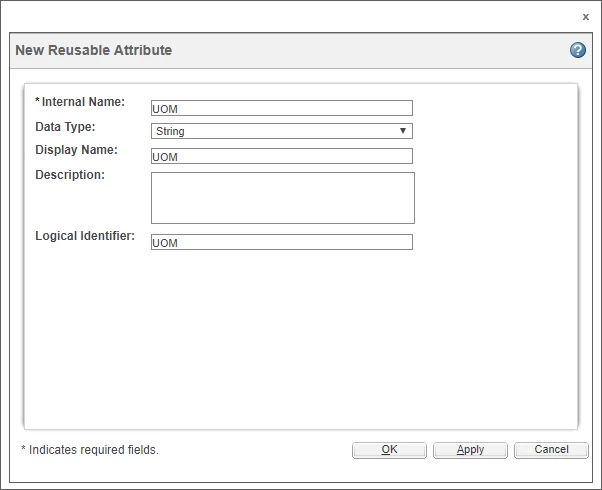
5.) From the actions menu choose 'New Reusable Attribute'.
6.) Give the attribute an internal name. For CAD attributes use just the attribute name and keep it upper case.
7.) Select the data type (string in your case).
8.) Give it a display name and logical identifier. Again, I just make these the same as the internal name.
9.) Click 'OK' to finish.
Assign Attribute To CAD Document Type
10.) Select 'Manage Types'.
11.) Click on 'CAD Document' (underneath EPM Document).
12.) Choose 'Edit' from the Actions menu at the top.
13.) From the attributes tab select the orange asterisk (create new attribute).
14.) Enter an internal name for the attribute. Use the same name as the previously created reusable (global) attribute and keep it uppercase.
15.) Make sure 'Type' is set to 'Global' and then choose 'Next'.
16.) Select the attribute created earlier and then choose 'Next'.
17.) The 'Set Properties' page can be used to customize how this attribute maps to other systems. You shouldn't need to make any changes so just click 'Finish'.
18.) Choose 'Done' at the bottom of the page.
When you view an object's details page you should now see your new parameter listed at the bottom of the 'Object Specific' section along with any other custom attributes.
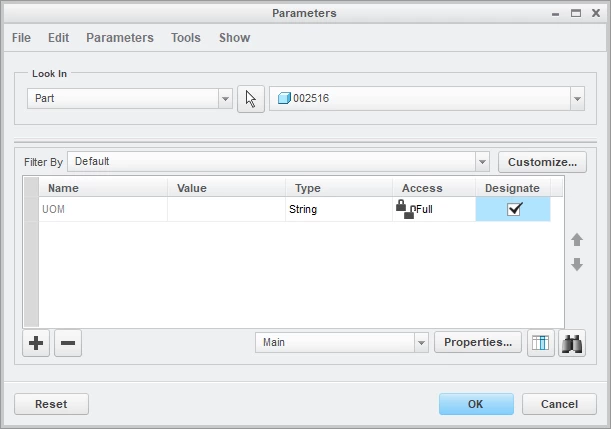
To add this parameter to Creo, go to 'Tools', 'Parameters'. Create a new parameter with the same name and type as the Windchill attribute. Check the box to 'designate' it, then click 'OK'. (Only designated parameters will share data between Windchill and Creo.)