

1-Visitor
June 23, 2021
Solved

Modification Uploaded (blue plus sign) - how to clear it

  • June 23, 2021
  • 4 replies
  • 4541 views

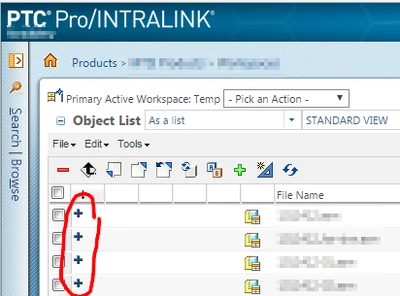
This symbol, seen in your workspace columns, means that changes to a file have been uploaded to the server. How do you reverse this besides removing the modified items from the workspace?
KevinBradberry_0-1624480385163.png


4 replies

16-Pearl
June 23, 2021

Hello,


Removing and re-adding those items is the only option I know. You may create a brand new workspace discarding these changes.


Regards

Ajit

21-Topaz I
June 23, 2021

If you want to keep them then you need to also check them in.


If you don't want to keep the changes the you can use the Update button.


Uploading doesn't mean they were checked in.

16-Pearl
June 23, 2021

Use the green plus button to replace them with the original downloaded from commonspace 

1-Visitor
June 24, 2021

I didn't wanted to muddy the waters by stating what I have tried or what I know will work, which is a method I don't like. I've received three answer up til now and will respond to each:


  1. Remove them from workspace. Re-add to workspace
    1. It works, but I hope there is quicker method.
  2. Use green plus button to re-add to workspace and have the "reuse modified workspace content" unchecked
    1. I thought this had worked for me in the past, but currently it is not working. And I still feel like its supposed to work. I'm worried there is a technical issue local to me.
  3. Update workspace
    1. I've never seen Update solve the blue plus signs (modifications uploaded).

Are there more ideas? Thanks.

TomU23-Emerald IVAnswer
23-Emerald IV
June 24, 2021
23-Emerald IV
June 24, 2021

Due to workspace background operations, you may need to manually refresh the workspace shortly after performing an update...