
14-Alexandrite
March 20, 2023
Question

Quantity difference with envelope parts

  • March 20, 2023
  • 2 replies
  • 805 views

Hello


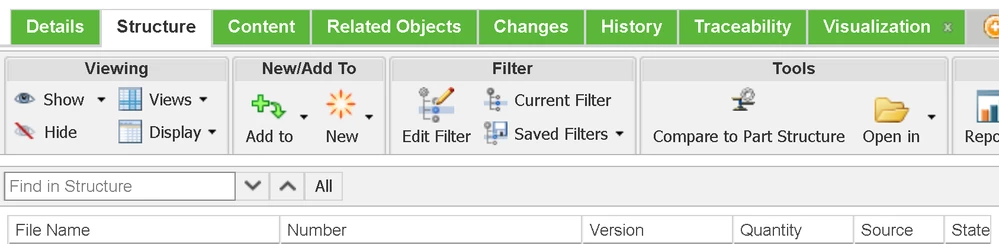
In the assembly info >> Structure tab it is possible to show the quantity.

When using SW it is possible to exclude from BOM. And here is something weird.
2023-03-20 10_51_13-Windchill_12.1.1.0 - VMware Workstation.png

The Structure Tab shows the amount of each part available in the Model.

The Uses mentioned for each instance. if instance is excluded than it shows an additional note. This give (at least some users )confusion.

2023-03-20 10_51_34-Windchill_12.1.1.0 - VMware Workstation.png

So here my questions

  1.  Is there a reason that both names are the same but the behavior differ? 
  2. What can i do to set the quantitiy so that it shows the amount of that is also on the BOM(and ignore the excluded)?


Thanks

2 replies

HelesicPetr
22-Sapphire II
22-Sapphire II
March 20, 2023

Hi @jw_CS 

I have experience with similar situation with assembly family tables,

Have you check your/user's view of table?

usually user creates own new view but forgets to set the filter with suppressed parts


HelesicPetr_0-1679312499865.png


check the view if the filter is missing or not.


PetrH

jw_CS14-AlexandriteAuthor
14-Alexandrite
March 21, 2023

Sorry for replaying on my initial question, i can't edit it anymore


I have spoken with the user that has the problem... the problem is a bit more complex.

The user have a few SW assemblies, that are different configurations. in that structure there are some parts / assemblies that are excluded (with or without  set as envelope part). dependent on the configuration.

Now there are 3 options:

  • All parts are shown [Part shown in the list with right quantity]
  • All excluded [the part don't show in the list <-- Quantity == 0 so works as expected]
  • As example: 1 part is shown and 4 are excluded [Part shown in the list with quantity == 5, expected quantity == 1]

How does this work, what do i have to do so that quantity follows the quantity that is also on the drawing.