10-Marble
March 19, 2018
Solved

Display of Information windows Créo 2.0 ?

  • March 19, 2018
  • 1 reply
  • 2436 views

Hello,


I would like to know if it is possible to modify the display of information windows in Creo 2.0?


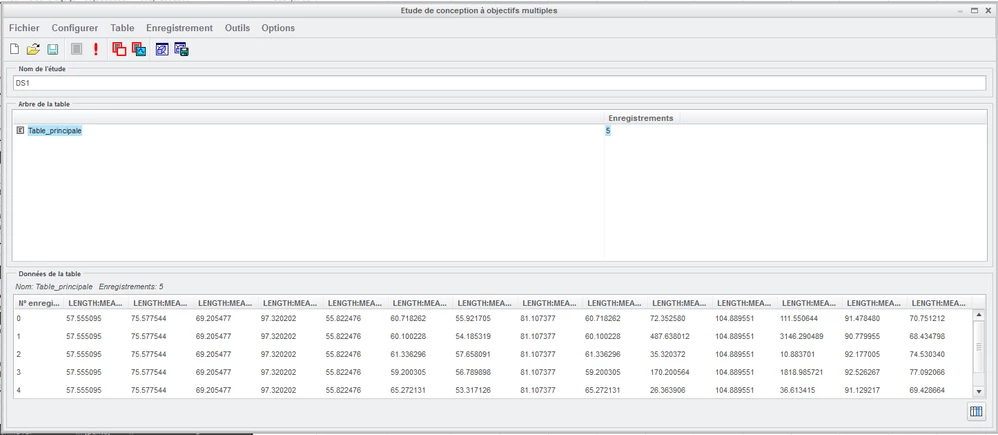
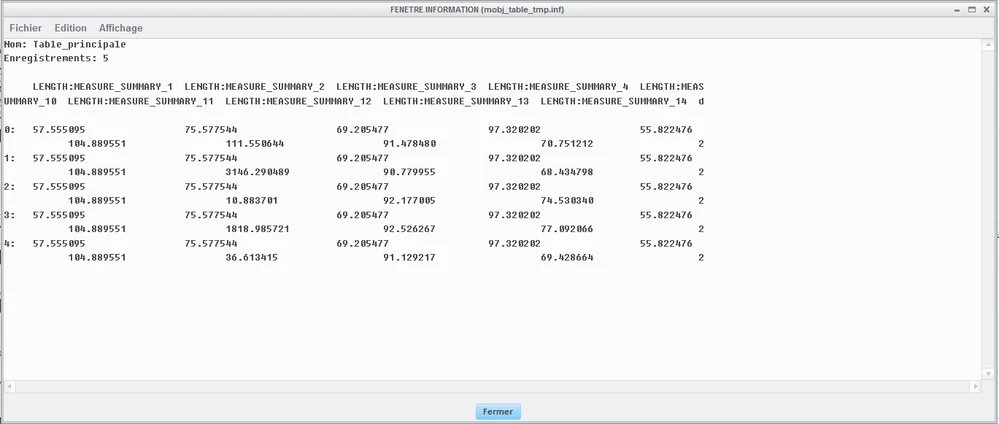
For example, for feasibility studies with many parameters, the results are displayed on several lines (So are difficult to exploit) :

Capture_table.PNG


Capture_inf.PNG


Thank you

Best Regards


Ludovic

Best answer by dschenken

You just need to create one set of entries in the spreadsheet and copy/paste to get the rest.


Suppose it is 3 columns wide, 2 lines of data. Assume the first line of data is on line 5, continued on line 6


Sheet one is where the data is.


The next sheet is:

A1 = sh1:A5, B1 = sh1:B5, C1 = sh1:c5, D1 = sh1:A6, E1 = sh1:B6, F1 = sh1:C6


Copy this line and line 2 on sheet 2 and then select the next hundred rows and then paste. This covers over 50 lines of data.


Now all the data will be on single lines. Copy and paste Values to sheet 3 and eliminate the blank lines and you can do whatever you want.


If you have different data, then paste the new values to sheet 1; repeat copy/paste Values from sheet 2 to 3.


If the second time takes more than 30 seconds, you need to practice more.


It is perfectly reasonable to make a template with more columns than required. They will show up as blank columns on sheet 2 and can be ignored when pasted on sheet 3 or just cut and deleted.


1 reply

1-Visitor
March 19, 2018

These are saved on disk and can be read into a spreadsheet for reformatting them.


There is no option that I know of to change the format from within Creo.

lulu950110-MarbleAuthor
10-Marble
March 19, 2018

Yes but for a table with many lines, it is long to reformat !

dschenken1-VisitorAnswer
1-Visitor
March 19, 2018

You just need to create one set of entries in the spreadsheet and copy/paste to get the rest.


Suppose it is 3 columns wide, 2 lines of data. Assume the first line of data is on line 5, continued on line 6


Sheet one is where the data is.


The next sheet is:

A1 = sh1:A5, B1 = sh1:B5, C1 = sh1:c5, D1 = sh1:A6, E1 = sh1:B6, F1 = sh1:C6


Copy this line and line 2 on sheet 2 and then select the next hundred rows and then paste. This covers over 50 lines of data.


Now all the data will be on single lines. Copy and paste Values to sheet 3 and eliminate the blank lines and you can do whatever you want.


If you have different data, then paste the new values to sheet 1; repeat copy/paste Values from sheet 2 to 3.


If the second time takes more than 30 seconds, you need to practice more.


It is perfectly reasonable to make a template with more columns than required. They will show up as blank columns on sheet 2 and can be ignored when pasted on sheet 3 or just cut and deleted.