14-Alexandrite
March 17, 2015
Solved

Divide segments

  • March 17, 2015
  • 2 replies
  • 4960 views

I sketched a closed geometry in Creo, like the skeleton of a part that will be extrude it in different proportions.

I did the Skeleton, it's important to me to keep this Skeleton, because I will use it as a part of a relation in later features.

The problem is, that I can't divide the skeleton (in that way I could work it in different ways). What happens is that Creo automatically close the section.

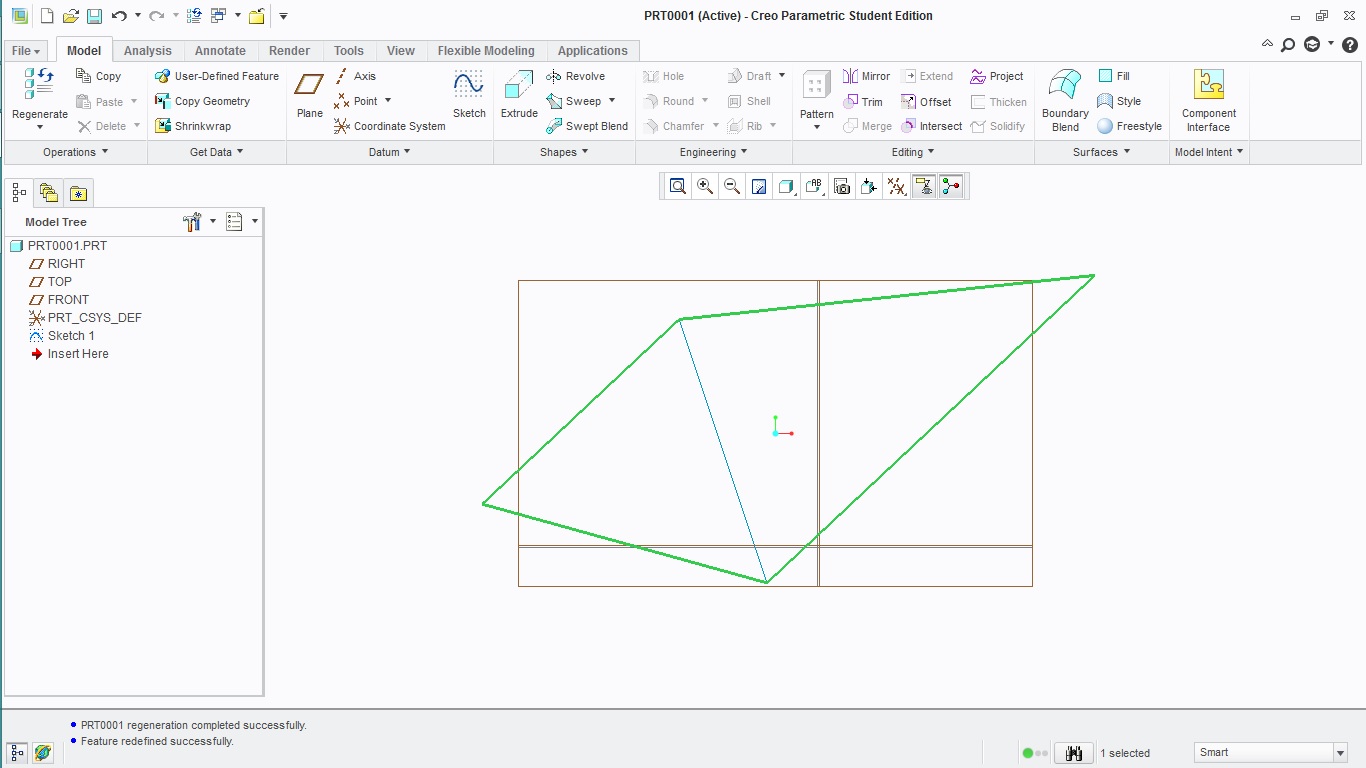
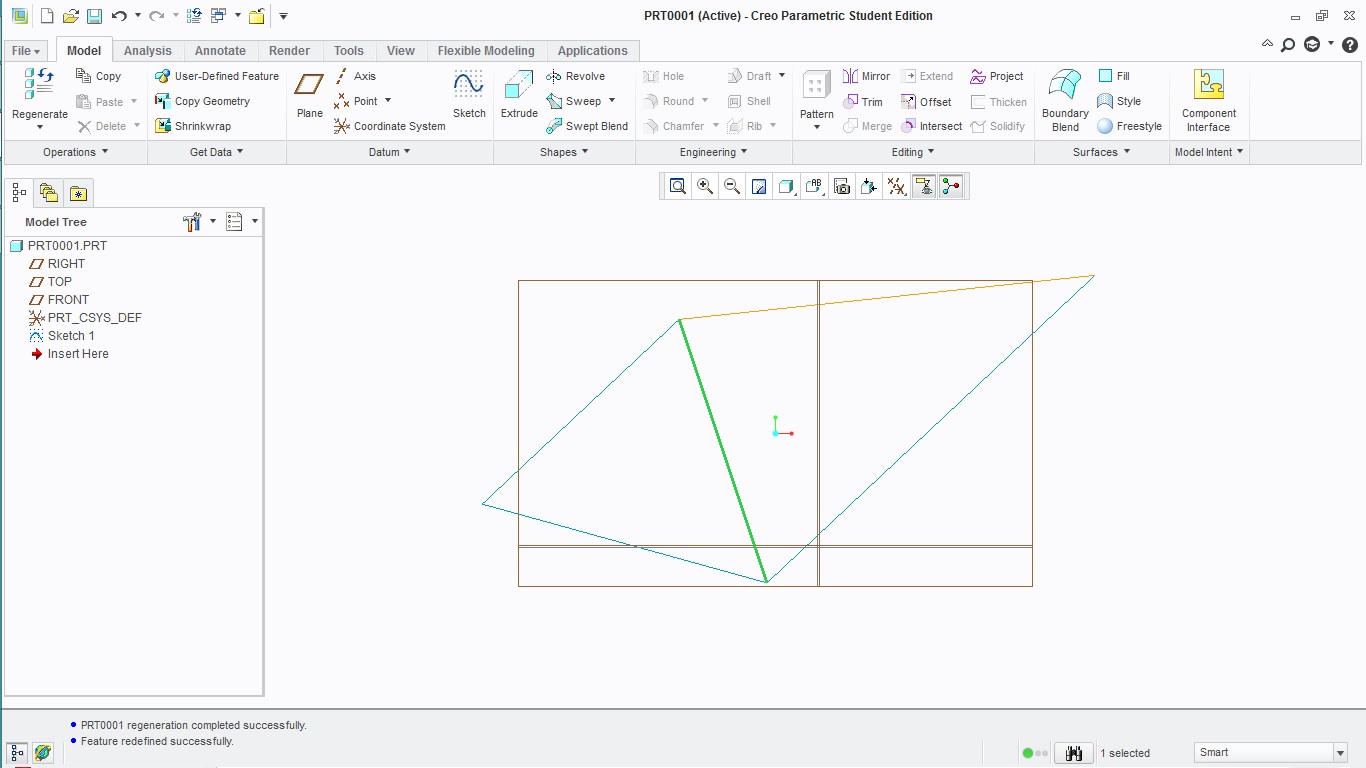
In the figures you can see an undesired parallelogram, I would like to divide this into 4 lines, just like the line in the middle of the parallelogram. Untitled.jpgUntitled1.jpgUntitled2.jpg
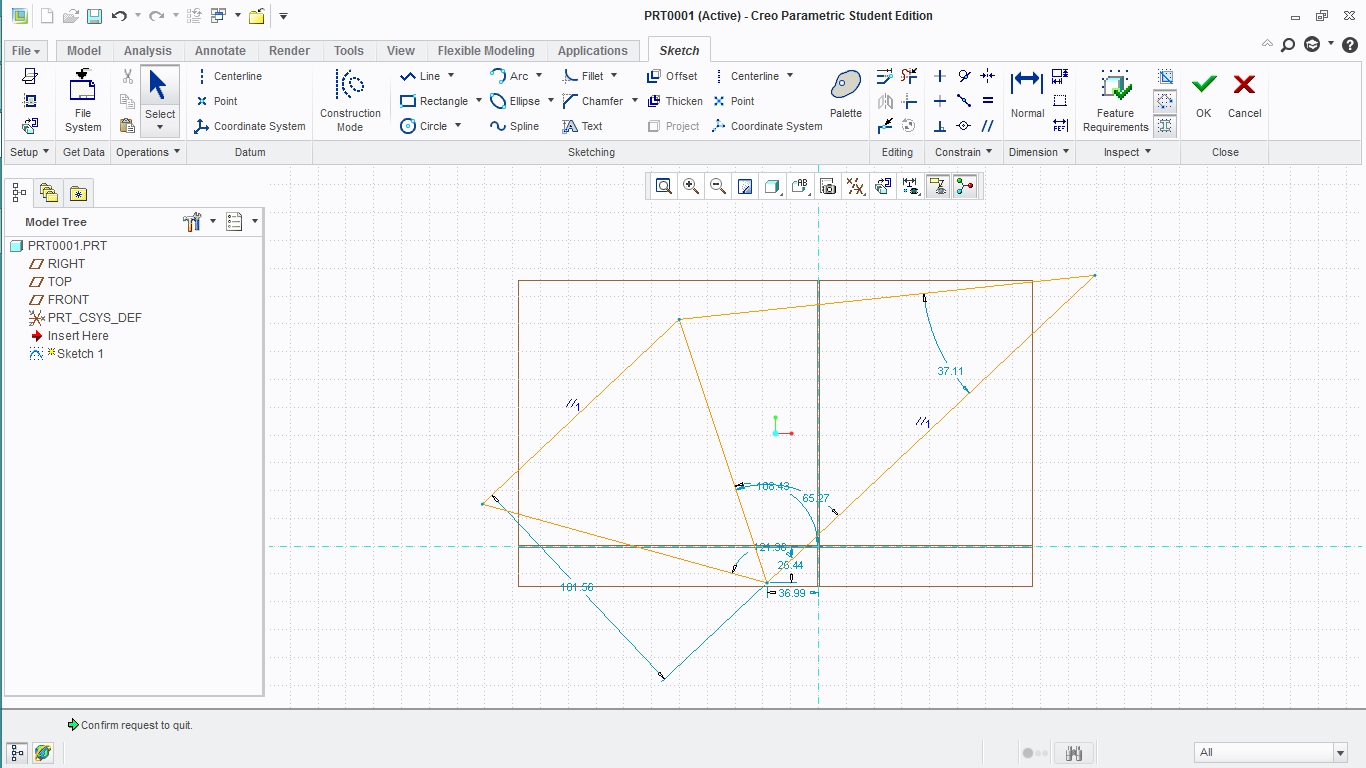
Note: I already tried the divided feature, and it didn't work.


This thread is inactive and closed by the PTC Community Management Team. If you would like to provide a reply and re-open this thread, please notify the moderator and reference the thread. You may also use "Start a topic" button to ask a new question. Please be sure to include what version of the PTC product you are using so another community member knowledgeable about your version may be able to assist.
Best answer by MartinHanak

Ruben,

  • set Geometry filter
  • place mouse cursor on the first segment of tangent chain you want to select - part of the Sketch prehighlights
  • click right mouse button - first segment prehighlights
  • click left mouse button - first segment is selected
  • press SHIFT key on keyboard and select the last segment of tangent chain you want to select

Note:

You can also split your single sketch into several sketches.

Martin Hanak

2 replies

1-Visitor
March 17, 2015

Try Curve instead of Smart in the selection filter.

24-Ruby III
March 17, 2015

Ruben,

if you want to select individual lines of your sketch then use the following steps.

  • set Smart filter
  • place mouse cursor on the line you want to select
  • select the Sketch by clicking left mouse button - the whole Sketch is selected
  • slightly move the mouse - part of the Sketch prehighlights
  • click right mouse button - single line prehighlights
  • click left mouse button - single line is selected

OR

  • set Geometry filter
  • place mouse cursor on the line you want to select - part of the Sketch prehighlights
  • click right mouse button - single line prehighlights
  • click left mouse button - single line is selected

Martin Hanak

14-Alexandrite
March 17, 2015

Martin,

I did it, and works OK just for straight lines.

The real geometry has curves with straight lines, I can select curve, yes, and I can select the straight line, also. The problem is that the selection its automatically divide it in the tangent point (between the straight line and the curve), then, the sweep feature fails because the selection was incorrect.

Modifying the sketch, the results was different, but not the desire one, so there is something that I'm not modifying correctly. And the divide option in sketch for the selection of segments with smart filter is useless.

24-Ruby III
March 17, 2015

Ruben,

  • set Geometry filter
  • place mouse cursor on the first segment of tangent chain you want to select - part of the Sketch prehighlights
  • click right mouse button - first segment prehighlights
  • click left mouse button - first segment is selected
  • press SHIFT key on keyboard and select the last segment of tangent chain you want to select

Note:

You can also split your single sketch into several sketches.

Martin Hanak