4-Participant
May 17, 2017
Solved

how can i name a face

  • May 17, 2017
  • 5 replies
  • 4348 views

How can i name a face or a set of faces?

Best answer by TomU

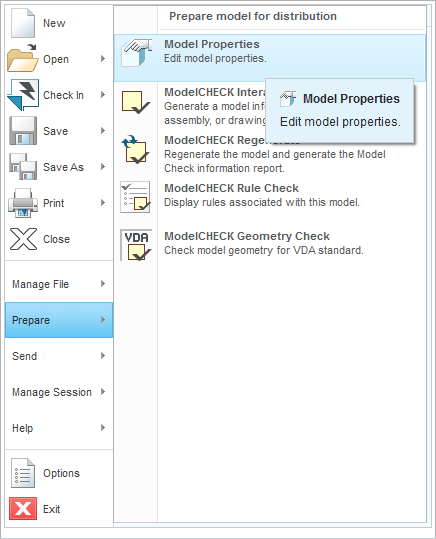
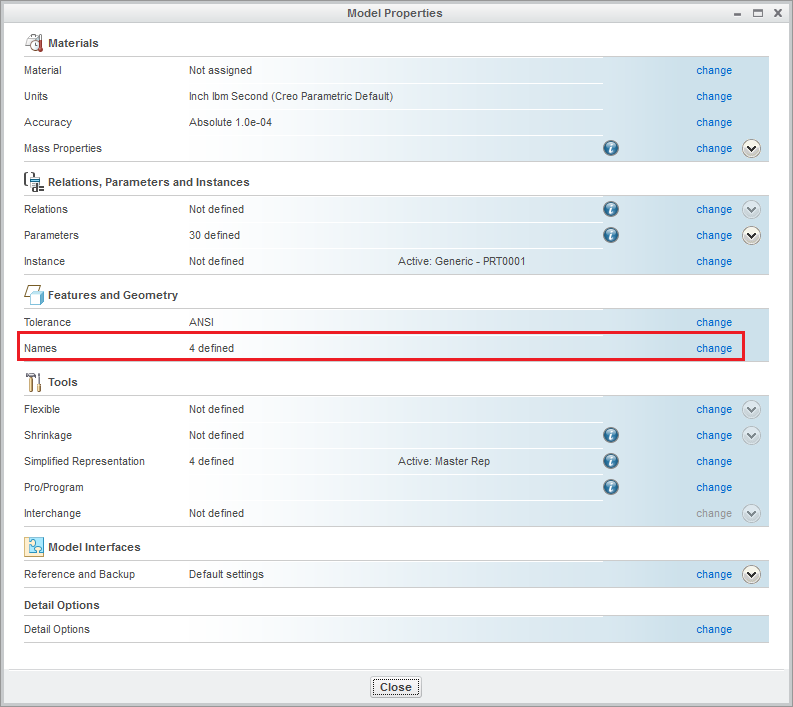
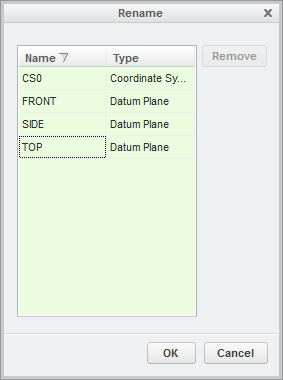
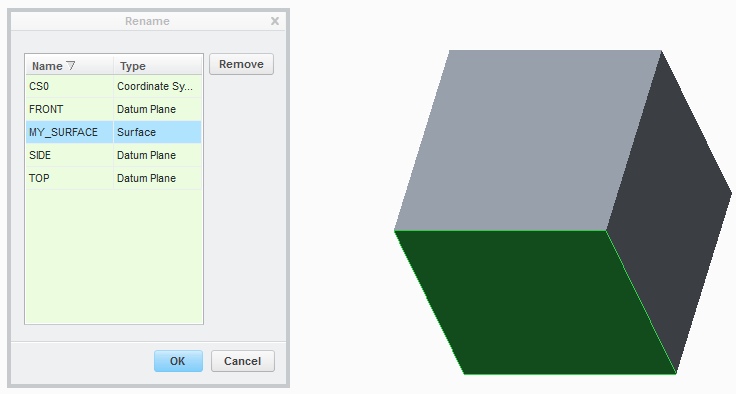
The way I've always seen this done is from model properties.  File --> Prepare --> Model Properties --> Names (Change).  Just pick a face (surface) and name it.

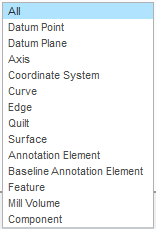
This works for any of these types:

5 replies

Mahesh_Sharma
22-Sapphire I
May 17, 2017

Uwe,

Could you please explain this in detail?

ufrigge4-ParticipantAuthor
4-Participant
May 18, 2017

Hello,

i want select one or more Faces and then givem them a name. Named faces can very easy found by the search tool.

14-Alexandrite
May 18, 2017

Uwe,

I've found personally that the easiest way to name a surface is to use the "Parameters" window.

With your model open, go to Tools -> Parameters. In the window that appears, change the dropdown to select "Surface"

name_surf_1.png

You can then enter the desired name - here I use "SIDE_OF_BOX" as the name.

name_surf_2.png

Once that is complete, your surface will have the assigned name.

You can check this using the "Find" tool (CTRL+F) - and searching for "Surfaces" - "By Name". You should see your new name in the list of results.

name_surf_3.png

There may be a much faster way to do it... but that's just what I've always done

Hope this helps!

Thanks,

James Sullivan

CadActive Technologies

President & Founder

ufrigge4-ParticipantAuthor
4-Participant
May 18, 2017

Hello James,

thanks for your detailed answer.

TomU23-Emerald IVAnswer
23-Emerald IV
May 19, 2017

The way I've always seen this done is from model properties.  File --> Prepare --> Model Properties --> Names (Change).  Just pick a face (surface) and name it.

This works for any of these types: