1-Visitor
May 22, 2017
Solved

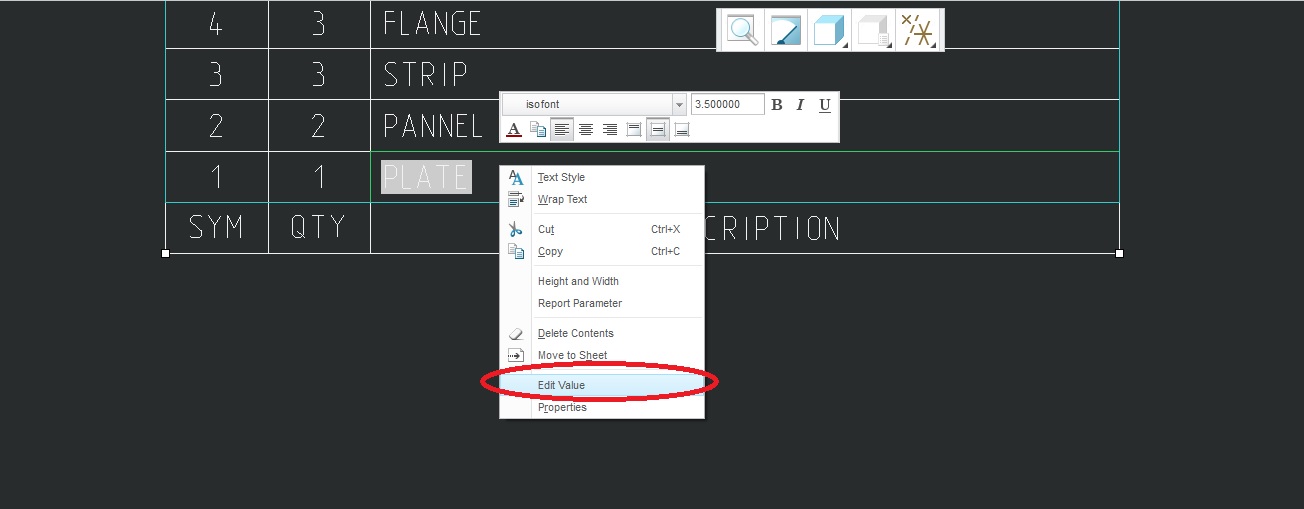
How to add "Edit value(Shortcut Menu)" option in customized ribbon in Creo 3.0

  • May 22, 2017
  • 2 replies
  • 3432 views

I am frequently using 'Edit value' Option. To do this I have to use right click plenty of time.

Please suggest alternative way to save time and also not to use options by right click.

Thanks in advance.

Best answer by psobejko

I use a mapkey:

Add these lines to your config.pro

mapkey ev @MAPKEY_LABELEdit value of a note or a dimension (ev);\

~ Command `ProCmdDwgEditValue`;

Then you simply type in two letters "ev", and select a note or a table cell, or vice-versa.

If you don't want to mess around with mapkeys and want to use the ribbon, then adding the "Value" command (mentioned elsewhere in this thread) will work (I did not know that one!), but I suggest that using the ribbon is actually slower than right-clicking.

But there is a fast way of using the ribbon: add the "Value" command to the quick access toolbar.  Then the first 9 commands on this toolbar are accessible by hotkeys ALT+1, ALT+2, etc...

2 replies

18-Opal
May 22, 2017

Hi Sumit,

Please add the Value option, to the ribbon.  This will allow you to edit the value.

Thanks,

Amit

customize_ribbon.jpg

psobejko1-VisitorAnswer
1-Visitor
May 22, 2017

I use a mapkey:

Add these lines to your config.pro

mapkey ev @MAPKEY_LABELEdit value of a note or a dimension (ev);\

~ Command `ProCmdDwgEditValue`;

Then you simply type in two letters "ev", and select a note or a table cell, or vice-versa.

If you don't want to mess around with mapkeys and want to use the ribbon, then adding the "Value" command (mentioned elsewhere in this thread) will work (I did not know that one!), but I suggest that using the ribbon is actually slower than right-clicking.

But there is a fast way of using the ribbon: add the "Value" command to the quick access toolbar.  Then the first 9 commands on this toolbar are accessible by hotkeys ALT+1, ALT+2, etc...