

1-Visitor
April 2, 2016
Solved

How to color a single surface permanently in Creo 3.

  • April 2, 2016
  • 2 replies
  • 2630 views

I am new to PTC product. I need to color different surfaces by different color. These surfaces may or may not be on a single part. Please help me out. In Catia, it is very simple to do that.
Best answer by mpoling

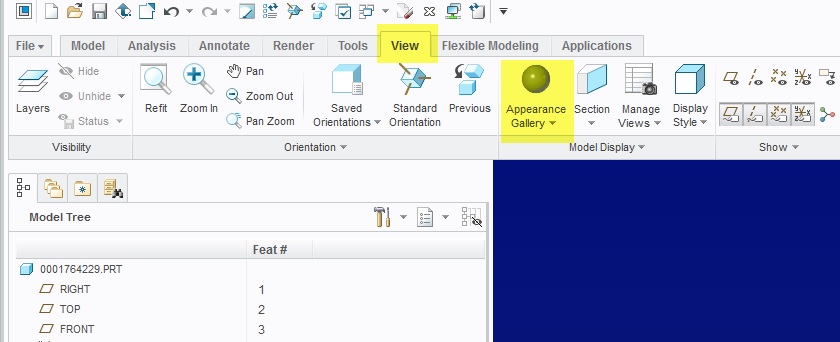
Select the View Tab then click the pull down beside Appearance Gallery

color 1.jpg

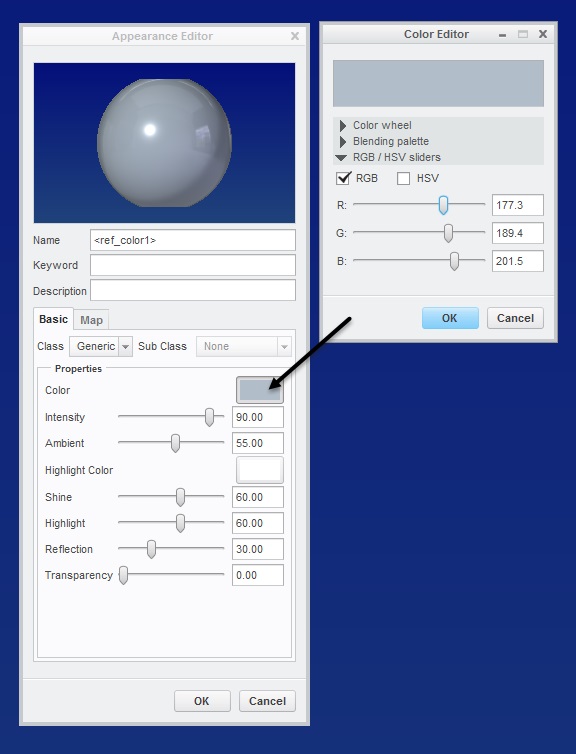
Then select a color or click More Appearances to create a color

color 2.jpg

Click OK and OK again

Then click the surface or surfaces (holding Control Key) and click OK again to finish

2 replies

mpoling1-VisitorAnswer
1-Visitor
April 2, 2016

Select the View Tab then click the pull down beside Appearance Gallery

color 1.jpg

Then select a color or click More Appearances to create a color

color 2.jpg

Click OK and OK again

Then click the surface or surfaces (holding Control Key) and click OK again to finish

syang-51-VisitorAuthor
1-Visitor
April 2, 2016

Thank you.