


How to create a dual port variable connector in Creo Schematics
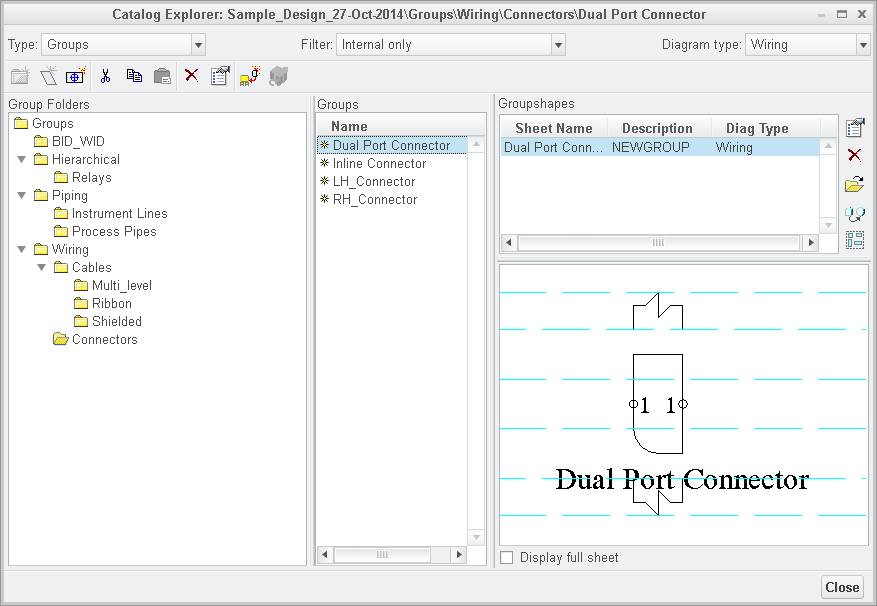
Hi, I've searched far and wide for any clue as to how to create a dual port variable connector in Creo Schematics. I can create a single port variable connector with which I can establish the number of ports for an instanced part. But, I'm unable to duplicate a port so that it has the same serial number of "1" to match the other port when I try to create a dual port variable connector, e.g. to represent a dural-row barrier stip. There is an example object artifact under groups in the sample catalog that's provided with Creo Schematics 2.0, called "Dual Port Connector," which behaves just the way that I need (the instance creating the specified number of dual rows. However, the opposing ports are identicle, both numbered via autogen with the "1." I'm unable to do this when I try to create my own dual-rowed variable connector. Does anyone have any ideas on how this might be accomplished?
This thread is inactive and closed by the PTC Community Management Team. If you would like to provide a reply and re-open this thread, please notify the moderator and reference the thread. You may also use "Start a topic" button to ask a new question. Please be sure to include what version of the PTC product you are using so another community member knowledgeable about your version may be able to assist.