

1-Visitor
September 23, 2015
Solved

How to eliminate the message

  • September 23, 2015
  • 1 reply
  • 3352 views

Hi, I am facing an issue here.

When I created a drawing (use the template from my company), a message always occured.
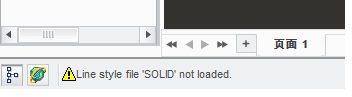
13.jpg

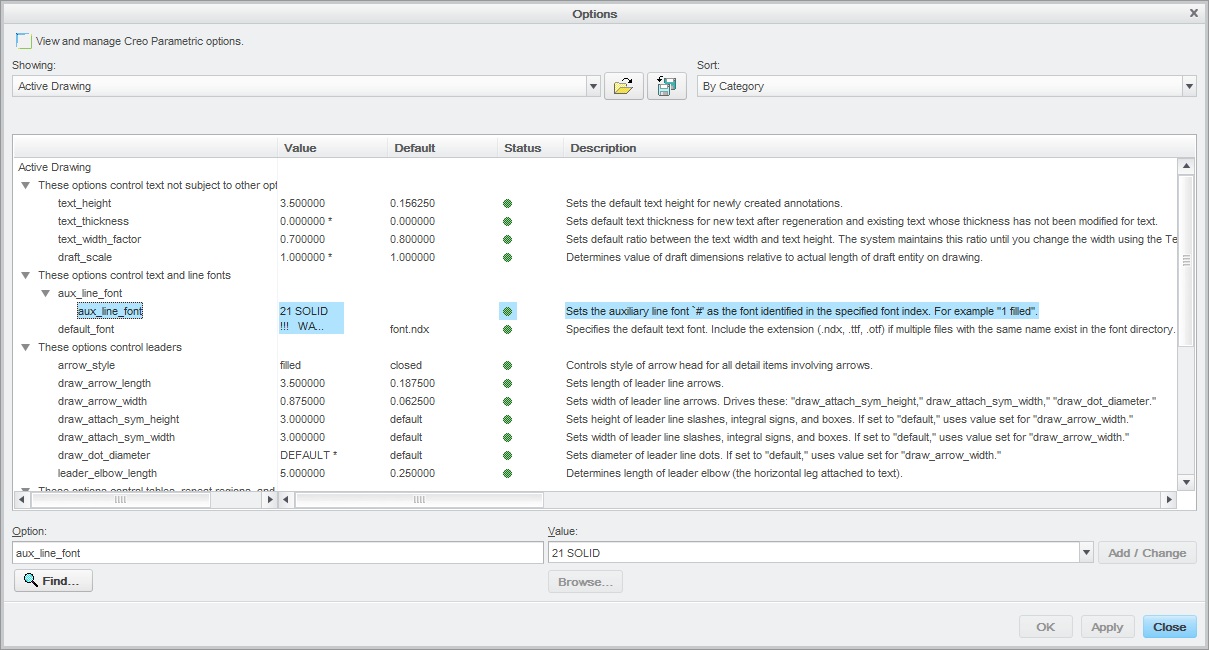
Formart properties(Drawing properties) of the template such as the below:
11.jpg

I just think there are some relations between the message and the options .

And if so, Can I delete the "aux_line_font"  from the tree options?

                                                                          Many thanks !


This thread is inactive and closed by the PTC Community Management Team. If you would like to provide a reply and re-open this thread, please notify the moderator and reference the thread. You may also use "Start a topic" button to ask a new question. Please be sure to include what version of the PTC product you are using so another community member knowledgeable about your version may be able to assist.
Best answer by MartinHanak

Hi,

to remove aux_line_font 21 SOLID option you have to change aux_line_font 21 SOLID to aux_line_font 21 SOLIDFONT

MH

1 reply

Mahesh_Sharma
22-Sapphire I
September 23, 2015

Hi,

There is an article CS20718 regrading the same.

This may help you.

hdu1-VisitorAuthor
1-Visitor
September 24, 2015

Thank you for your reply !

However, my Basic PTC.com Account have not sufficient privileges to access to the area of eSupport.

14.jpg

Could you deliver the article CS20718 converting pdf  by e-mail ?

thank you very much !!!

Mahesh_Sharma
22-Sapphire I
September 24, 2015

Here is the resolution [art of document.

  • The format references line styles that are not available
  • Remove the references
    • Select File > Drawing Options and change aux_line_font 26 DXFFONT_#  to aux_line_font 26 SOLIDFONT for each font
    • If aux_line_font is listed more than once repeat the same procedure for each entry
    • Two additional aux_line_font options appear to be added but they will go away after updating the drawing
    • Select Add/Change > Apply > Close
    • Select View > Update > All Sheets