

1-Visitor
July 5, 2012
Question

Replacing Logo on border in Drawing Format

  • July 5, 2012
  • 8 replies
  • 6262 views

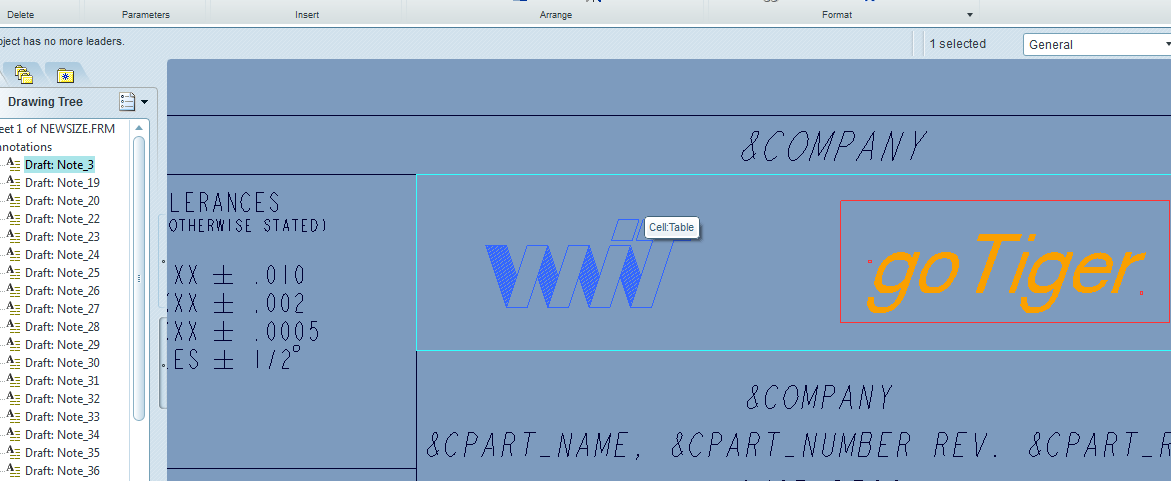
Hello, I am trying to replace a company logo in a format (.frm) drawing file. The logo is in the border.

I can not seem to be able to click on it in anyway or right click on it with anyway to edit or delete it.

It seems to be in the background of a cell. Maybe it's not a image but drawn there I don't know.

1 How can I remove it? In the image below it's the blue logo I want to delete. Note the goTiger is just a note and I can edit it fine.

2 How do I add my own image logo (.bmp, .tif, .gif) to the border on the sheet?
replace_logo_drawing_format.png


This thread is inactive and closed by the PTC Community Management Team. If you would like to provide a reply and re-open this thread, please notify the moderator and reference the thread. You may also use "Start a topic" button to ask a new question. Please be sure to include what version of the PTC product you are using so another community member knowledgeable about your version may be able to assist.

8 replies

1-Visitor
July 5, 2012

This will be a risk opinion, but do you have the sketch menu selected in ribbon before u try to select it?

When u are creating or changing a format, in the Layout menu on the right side of ribbon there is a object button, in there u can insert a paintbrush image so if u add your logo into a paintbrush file u can add it to your format.

13-Aquamarine
July 5, 2012

Hi Andrey...

If the logo is truly part of the format, you'll need to open the format file itself to remove it. This will have a file extension of ".frm"

Once you have the format open, if you still cannot touch the logo, try setting the smart filter to something other than "General". For example, when you're in the Annotate tab, select the smart filter drop down (along the right hand side just above the graphics window). Change it from General to Symbol. See if that heps you select the logo. If it's been created or imported and turned into a symbol, this will work.

You can also try switching to the Table tab. If, in fact, the logo is inside a table cell, try changing the smart filter from General to Table Object. This may allow you to select the previously unselectable logo. Also, you can always try to right-click and hold the right mouse button. Choose Select from List. Sometimes this will show you an object that just doesn't seem to cooperate when picking it manually. Other selection techniques like a lasso or dragging a box around the logo might also help... but I'm not sure how this works with the new tabs in drawing mode. You may need to be in a specific tab before the lasso/bounding box actually collects the logo.

Hugo's post above mentioned using the Object button (on the Layout tab) to add in a logo image. While this does work, I find that most things added using the Object function are a bit flaky. Most of the time if I'm doing a logo for a company, I'll import the artwork as a DXF and then create a symbol from it. This creates a much more stable piece of artwork to use on your format.

Thanks!

-Brian

1-Visitor
July 6, 2012

I only talk the object way because the extensions he ask, my opinion is to convert to a dxf like you say at least was what i did.

13-Aquamarine
July 6, 2012

Hi Hugo...

Yes, I agree... for the formats he mentioned, Object was the only option.

Take care...

-Brian