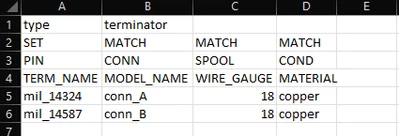
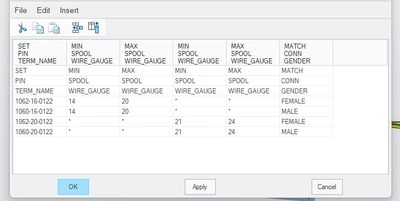
I figured out most of the issues I have been having. The only way I have been able to import a terminator table into Creo Cabling is to create it within the Terminator Table drop down under Logical Data. Then I clicked File<Export Table to export the terminator table as a tbb. file. For later assemblies I can then go back and import that tbb. file (File<Import Table).
Next, to import the data from the terminator table into the Creo Cabling Electrical Parameters open the Electrical parameters dialogue box and select View< Columns. The Model Tree Columns box opens and you can now switch the pin parameters "TERM_NAME" and "TERM_AUTO_ASSIGN" to the displayed box on the right side shown in the figure below.
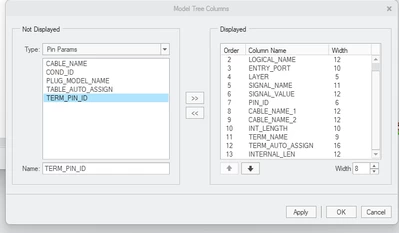
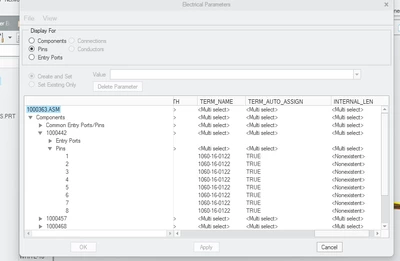
Now TERM_NAME and TERM_AUTO_ASSIGN will show up in Electrical Parameters under the Pin section. Next change the TERM_AUTO_ASSIGN parameter to "TRUE". This will allow terminal names from the terminator table to automatically import in the the electrical parameters dialogue box.
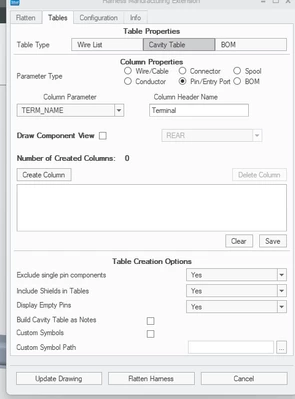
The final step is to show terminal names in the cavity tables within the Creo Harness Manufacturing Extension. Under Table Properties select Cavity Table and then Pin/Entry Port. Set the Column Parameter to TERM_NAME and add a Column Header Name. Then click Create Column.
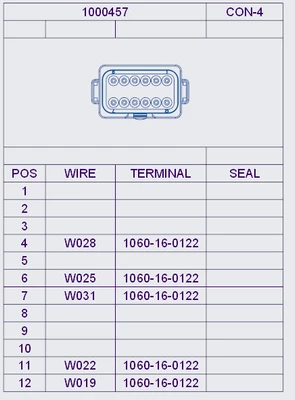
Once the harness is flattened, terminal names should show up in the cavity tables for each component in the manufacturing drawing. The figure below shows the cavity table of a connector. Terminal names are shown in the positions where a wire is connected.